Page 3 of 5
TSB: GEN 069 Optima (QF) June 2014
UVO eServices (AVN 4.0 ) – TECHNOLOGY HIGHLIGHTS
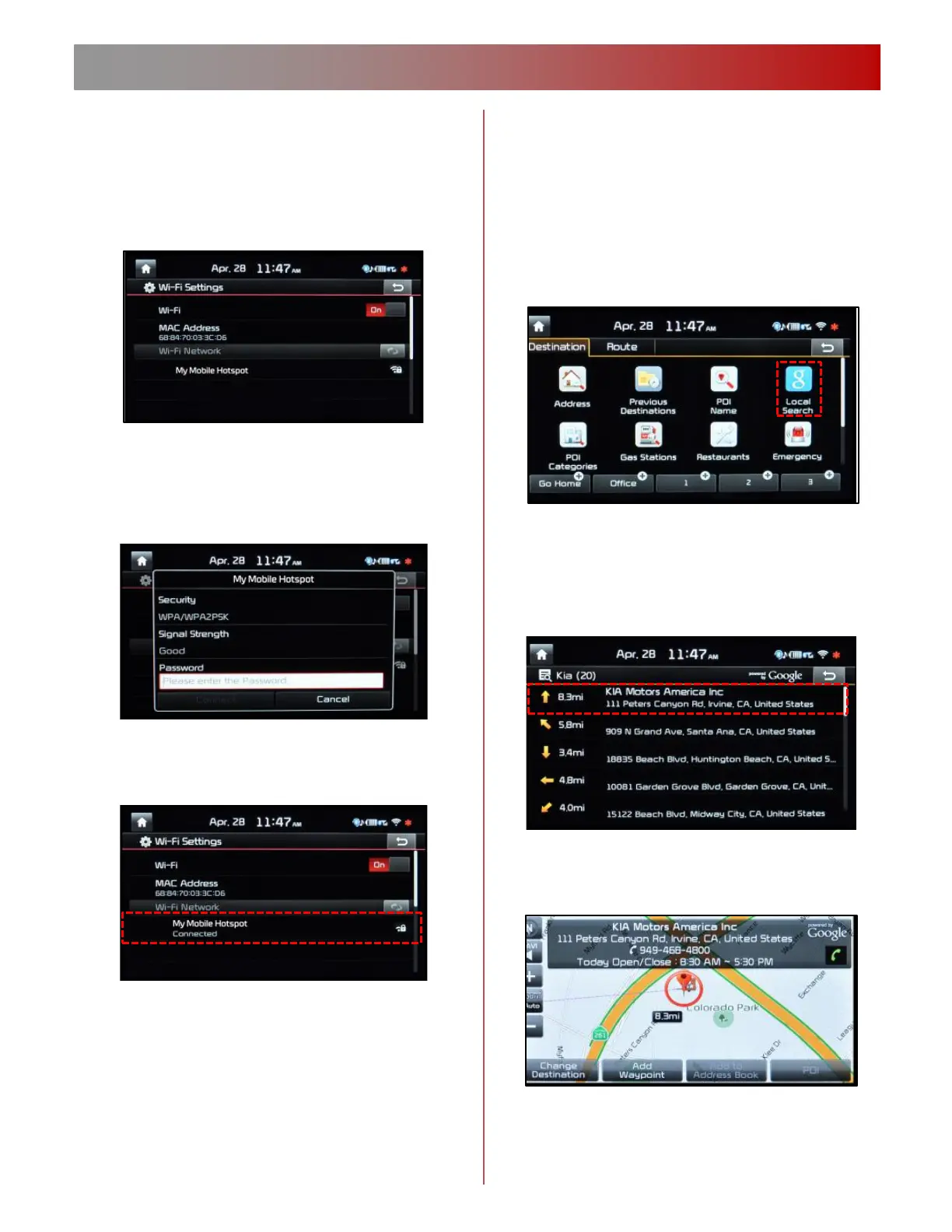
1. Press the SETUP button on the audio
control unit.
2. Select WiFi icon from the touchscreen.
3. A list of available networks will be
displayed on the screen. If a password is
required, enter the password and press
the Connect button.
4. After a few moments, the screen will
indicate that you are connected.
5. You are now able to access Local Search
powered by Google
TM
and the Download
Apps Center.
Local Search Powered by Google
TM
There are two ways to access Google local
Search. Note: A Wifi connection is
required.
Press the NAVI button
Select Local Search on the touchscreen
Enter your search term in the
touchscreen buttonpad. Example: “Kia
Motors America”. A list of relevant
locations will appear. Select your
preferred location.
Your destination will appear, along with
the relevant destination information (e.g.
phone number, business hours).
Set the location as a new navigation
Destination by pressing “Set as
Destination”.
Connecting to a WiFi Network (Cont’d)
1. Using the Navigation Destination Menu



 To Next Page