EasyManua.ls Logo

Kidde SA-USB - User Manual

Kidde SA-USB
3 pages
Print Icon
To Next Page IconTo Next Page
Loading...
© 2021 Carrier 1 / 3 P/N 3102654-EN • REV 001 • ISS 12JAN21
SA-USB Interface Card
Installation Sheet
Description
The SA-USB Interface Card provides a USB connection to a supported
printer or a connection to a PC. The card can be used for connecting a
printer to the control panel to print system events. The card can also
be used for PC communications, including the configuration utility (CU)
and Firmware update utility (FUU).
The default printer baud rate is 9600.
SA-USB connectors and LEDs
Refer to Figure 1 and Table 1 for a description of the SA-USB
components.
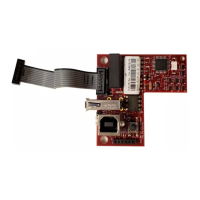
Figure 1: SA-USB LEDs and connectors
Table 1: SA-USB connectors and LEDs
Item
Label
(1)
J
4
USB 2.0, Type B device port: Used as a temporary
connection to a PC.
(2)
JP1
Programming jumper: Shown in the not installed
position. When installed over both pins, the jumper is
used during programming the SA-USB to update
firmware. This can only be accomplished with
assistance from Technical Support.
(
3)
J
3
USB 2.0, Type A host port: U
printers.
(
4)
J1
Used to connect the SA-USB to the panel electronics
board.
(
5)
DS2
TXD LED: Used to indicate all communications to the
panel for both the printer and all PC applications.
(
6)
DS1
RXD LED: Used to indicate all communications from
the panel for both the printer and all PC applications.
(
7)
DS4
TRBL LED: Used to indicate when it detects any
printer trouble, such as off-line, out of paper, or the
printer disconnected.
Note: The panel will only displa
LED operation
Table 2: LED operation
LED
Operation
DS1
On steady. Flashes when the SA-USB is receiving data from
the printer or PC applications.
DS2
On steady. Flashes when the SA-USB is transmitting data to
the printer or PC applications.
DS4
On steady when a trouble exists between the SA-
USB and the
attached printer.
Installation
Install and wire this device in accordance with applicable national and
local codes, ordinances, and regulations.
Caution: Equipment damage hazard. This product is sensitive to
electrostatic discharge (ESD). To avoid damage, follow accepted ESD
handling procedures.
Note: The SA-USB is installed in the same location as the SA-232,
therefore the SA-232 card must be removed prior to installing the
SA-USB card.
To install the SA-USB:
1. Power down the panel and disconnect the batteries.
2. If installed, remove the SA-232 card from the panel. Refer to SA-
232 RS-232 Interface Card Installation Sheet, P/N 3101095 for
details.
3. Locate the SA-USB card location on the plastic assembly behind
the main circuit board and connector J3 on the main circuit board
(at the top-left of the main board).
4. Attach the SA-USB to the plastic assembly using two #6 plastite
screws as shown in Figure 2.
5. Connect one end of the ribbon cable (P/N 7140187) to connector
J1 on the SA-USB card and the other end to connector J3 on the
main circuit board as shown in Figure 2.
6. Connect the applicable USB cable to the SA-USB. See “Wiring.”
firealarmresources.com
Question and Answer IconNeed help?

Do you have a question about the Kidde SA-USB and is the answer not in the manual?

Summary

SA-USB Connectors and LEDs

Description

Provides an overview of the SA-USB Interface Card's functionality and PC communication.

Installation

SA-USB Installation Steps

Details the step-by-step process for installing the SA-USB card into the panel.

Computer Wiring

Instructions for connecting the SA-USB card to a computer via USB.

Driver Installation

Guidance on how to install the necessary drivers for the SA-USB card.

Wiring

Printer Wiring

Instructions and notes for connecting the SA-USB card to a printer.

Specifications

Regulatory Information

FCC Compliance

States compliance with FCC rules, including conditions for operation.

Environmental Class

Specifies the environmental conditions for the device's operation.

Contact Information

Provides information on where to find additional support and contact details.

Overview

The SA-USB Interface Card is a versatile device designed to provide USB connectivity for supported printers or a PC, enabling various functionalities within a fire alarm system. It facilitates the printing of system events from a control panel and supports PC communications for configuration and firmware updates.

Function Description:

The primary function of the SA-USB Interface Card is to bridge the control panel with external USB devices. When connected to a supported printer, it allows the control panel to print system events, providing a physical record of critical activities. This is particularly useful for auditing and record-keeping purposes in fire alarm systems.

Additionally, the card enables communication with a PC, which is crucial for system management. Through this connection, users can access the configuration utility (CU) to adjust system settings and the Firmware Update Utility (FUU) to update the device's firmware. This ensures that the system remains up-to-date with the latest features and security patches.

The card features several connectors and LEDs to indicate its status and facilitate connections. Key connectors include:

  • J4 (USB 2.0, Type B device port): Used for temporary connection to a PC, primarily for configuration and firmware updates.
  • JP1 (Programming jumper): This jumper is typically shown in the not-installed position. When installed over both pins, it enables programming the SA-USB for firmware updates, a process that requires assistance from Technical Support.
  • J3 (USB 2.0, Type A host port): Used to connect supported printers.
  • J1: Connects the SA-USB to the panel electronics board.

The LEDs provide visual feedback on the card's operational status:

  • DS1 (RXD LED): Indicates communications from the panel for both printer and PC applications. It flashes when the SA-USB is receiving data.
  • DS2 (TXD LED): Indicates communications to the panel for both printer and PC applications. It flashes when the SA-USB is transmitting data.
  • DS4 (TRBL LED): Illuminates when a printer trouble is detected, such as an off-line status, out of paper, or a disconnected printer. This trouble indication is displayed on the panel only if the mode is set to supervised.

The default printer baud rate is 9600, ensuring reliable communication with connected printers.

Important Technical Specifications:

  • Operating Voltage: 24 VDC
  • Current Consumption:
    • Standby: 14 mA
    • Alarm (max): 20 mA
  • Universal Serial Bus (USB) Ports:
    • 1 USB Type A - host port J3 (printer connection)
    • 1 USB Type B - device port J4 (CU connection)
    • USB port connections are hot pluggable.
  • Supported Printers: PT-1S, MIR-PRT/S
  • Printer Communication Speed: 9600 baud
  • Operating Environment:
    • Temperature: 32 to 120°F (0 to 49°C)
    • Relative Humidity: 0 to 93% noncondensing
  • FCC Compliance: This device complies with part 15 of the FCC Rules, ensuring it does not cause harmful interference and accepts any interference received.
  • Environmental Class: UL: Indoor dry

Usage Features:

The SA-USB Interface Card is designed for straightforward installation and use.

  • Installation: The card is installed in the same location as the SA-232 card, meaning the SA-232 must be removed first. It attaches to the plastic assembly behind the main circuit board using two #6 plastite screws. A ribbon cable connects the SA-USB card to the main circuit board.
  • Printer Wiring: To connect a printer, a USB 2.0 A to B cable (purchased separately) is used. One end connects to the printer's USB port, and the other to the SA-USB card's J3 connector. The printer must be enabled and configured through programming for proper operation. It is crucial not to install the JP1 jumper if a printer is connected, as this will prevent the printer from functioning.
  • Computer Wiring: For PC connection, a USB 2.0 A to B cable connects the computer's USB port to the SA-USB card's J4 connector. A ferrite clamp is included to be installed over the USB cable to reduce electromagnetic interference.
  • Driver Installation: The required driver for the SA-USB typically installs automatically on most operating systems. If not, specific drivers can be downloaded from the My-Eddie website (for iO and VS systems) or the FX series website (for FX systems). Manual installation involves using Device Manager to update the driver by browsing to the SA-USB driver folder. Once installed, the device will appear as "Ports, USB-SERIAL CH340," and the COM port will be available in the CU and FUU.
  • Supervised Mode: The panel will only display printer trouble if the mode is set to supervised.
  • Cable Length: For supervised USB printers, they must be located in the same room as the equipment. For unsupervised USB printers, they must be within 20 ft. (6.1 m) of the equipment, with wiring enclosed in conduit or equivalent protection against mechanical injury.

Maintenance Features:

  • Firmware Updates: The SA-USB card supports firmware updates via the Firmware Update Utility (FUU) when connected to a PC. This ensures the device can be kept current with the latest software improvements and bug fixes. The programming jumper (JP1) is used specifically for firmware updates, requiring technical support assistance.
  • ESD Protection: The device is sensitive to electrostatic discharge (ESD). Users are advised to follow accepted ESD handling procedures during installation and maintenance to prevent damage.
  • Troubleshooting: The DS4 (TRBL LED) provides an immediate visual indicator for printer-related issues, simplifying initial troubleshooting steps. The RXD (DS1) and TXD (DS2) LEDs help diagnose communication problems by showing data flow.
  • Regulatory Compliance: The device is designed to comply with FCC rules, which helps ensure its reliable operation and minimizes interference with other electronic devices.
  • Installation and Wiring: All installation and wiring must be performed in accordance with applicable national and local codes, ordinances, and regulations, ensuring safe and compliant operation.

Kidde SA-USB Specifications

General IconGeneral
BrandKidde
ModelSA-USB
CategoryRecording Equipment
LanguageEnglish

Related product manuals