Print Screen, Scroll Lock &Pause Break
These keys perform standard keyboard functions which will depend on your Operating System and the application.
Multimedia Keys
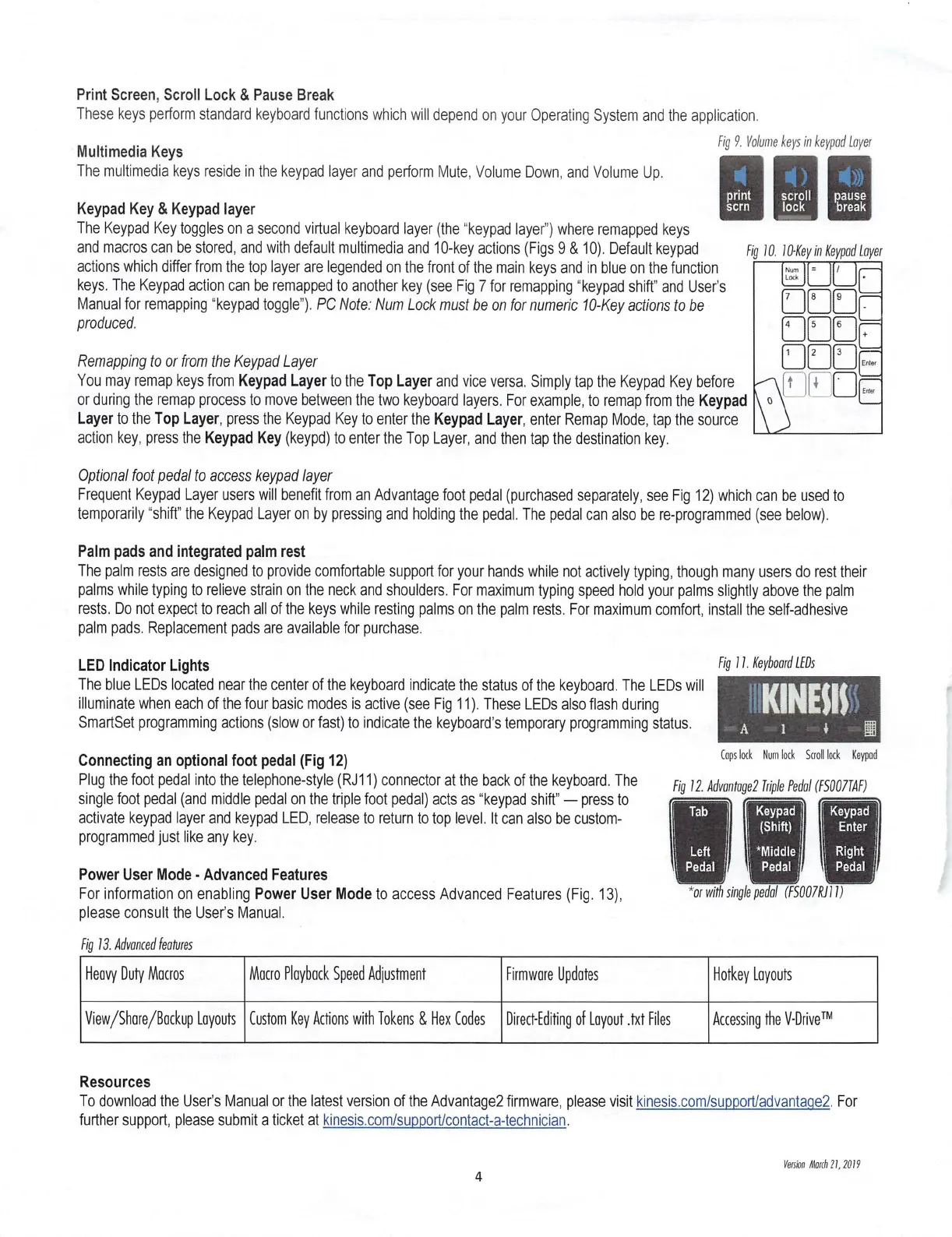
The multimedia keys reside in the keypad layer and perform Mute, Volume Down, and Volume Up.
fig 9. Volume keys in keypad Layer
print ■scroll ■ pause
■ l o c k ■ treak
Keypad Key &Keypad layer |
The Keypad Key toggles on asecond virtual keyboard layer (the “keypad layer”) where remapped keys
and macros can be stored, and with default multimedia and 10-key actions (Figs 9&10). Default keypad
actions which differ from the top layer are legended on the front of the main keys and in blue on the function
keys. The Keypad action can be remapped to another key (see Fig 7for remapping “keypad shift” and User's
Manual for remapping “keypad toggle"). PC Note: Num Lock must be on for numeric 10-Key actions to be
produced.
scrn
fig 10. 10-Key in Keypad Layer
INum
Lock
8 9
5 6
3
2
Remapping to or from the Keypad Layer
You may remap keys from Keypad Layer to the Top Layer and vice versa. Simply tap the Keypad Key before
or during the remap process to move between the two keyboard layers. For example, to remap from the Keypad
Layer to the Top Layer, press the Keypad Key to enter the Keypad Layer, enter Remap Mode, tap the source
action key, press the Keypad Key (keypd) to enter the Top Layer, and then tap the destination key.
Enter
i ■
Enter
Optional foot pedal to access keypad layer
Frequent Keypad Layer users will benefit from an Advantage foot pedal (purchased separately, see Fig 12) which can be used to
temporarily “shift” the Keypad Layer on by pressing and holding the pedal. The pedal can also be re-programmed (see below).
Palm pads and integrated palm rest
The palm rests are designed to provide comfortable support for your hands while not actively typing, though many users do rest their
palms while typing to relieve strain on the neck and shoulders. For maximum typing speed hold your palms slightly above the palm
rests. Do not expect to reach all of the keys while resting palms on the palm rests. For maximum comfort, install the self-adhesive
palm pads. Replacement pads are available for purchase.
Fig a. Keyboard LEDs
LED Indicator Lights
The blue LEDs located near the center of the keyboard indicate the status of the keyboard. The LEDs will
illuminate when each of the four basic modes is active (see Fig 11). These LEDs also flash during
SmartSet programming actions (slow or fast) to indicate the keyboard’s temporary programming status.
mm
If
A 1
Cops lock Num lock Scroll lock Keypad
Connecting an optional foot pedal (Fig 12)
Plug the foot pedal into the telephone-style (RJ11) connector at the back of the keyboard. The
single foot pedal (and middle pedal on the triple foot pedal) acts as “keypad shift" —press to
activate keypad layer and keypad LED, release to return to top level. It can also be custom-
programmed just like any key.
Fig 12. Advantoge2 Triple Pedal (FS007TAF)
Keypad
(Shift)
Keypad i
Enter j
Tab
Left 'Middle
Right
Pedal
Pedal
Pedal
P o w e r U s e r M o d e - A d v a n ce d F e a t ur e s
For information on enabling Power User Mode to access Advanced Features (Fig. 13)
please consult the User’s Manual.
Fig 13. Advanced features
*or with single pedal (FS007RJ11)
Macro Playback Speed Adjustment Firmware UpdatesHeavy Duty Macros Hotkey Layouts
View/Share/Backup Layouts Custom Key Actions with Tokens &Hex Codes Direct-Editing of Layout .txt Files Accessing the V-Drive
TM
Resources
To download the User’s Manual or the latest version of the Advantage2 firmware, please visit kinesis.com/support/advantaqe2. For
further support, please submit aticket at kinesis.com/support/contact-a-technician.
Veism Match21,2019
4


 To Previous Page
 Loading...