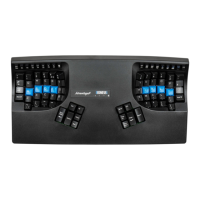
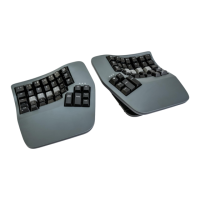
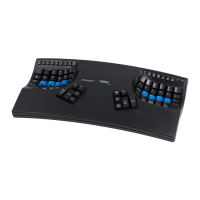
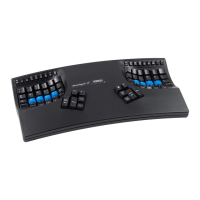
SmartSet Programming Engine
Many users will want to move (“remap”) one or more key actions. Others may want to store macros (pre-recorded key
sequences) triggered by asingle alphanumeric key alone or in combination with amodifier key. There are also anumber of
unique features (e.g. “Status Report”) and settings (e.g. key clicks, toggle tones) that can be adjusted. The SmartSet
Programming Engine gives you three different ways to customize keyboard settings and layouts: Onboard Programming (see
below), the SmartSet App (check Kinesis website for User’s Manual and availability), and for power users. Direct Programming
(see Advantage2 keyboard User’s Manual).
SmartSet Onboard Programming Tools
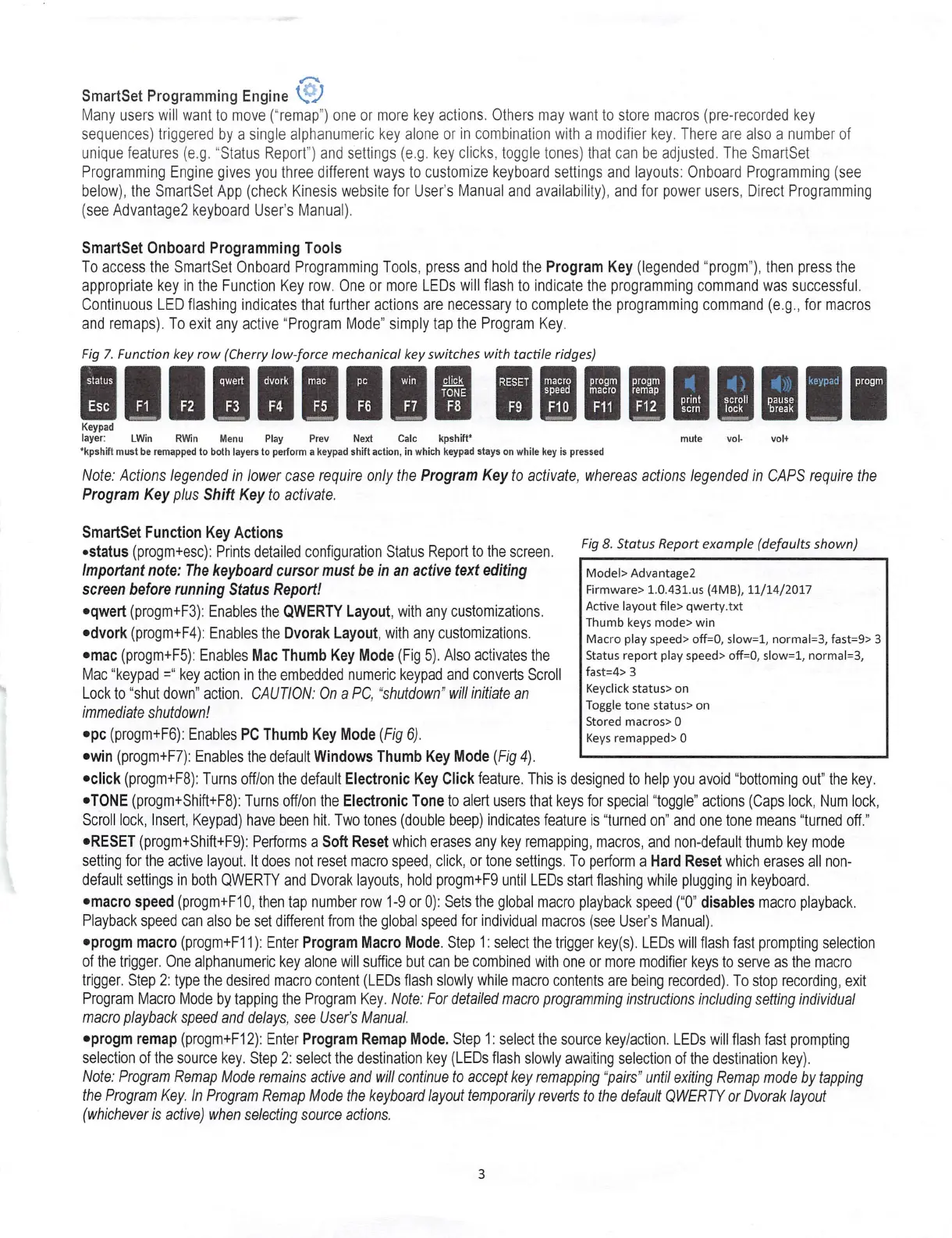
To access the SmartSet Onboard Programming Tools, press and hold the Program Key (legended “progm”), then press the
appropriate key in the Function Key row. One or more LEDs will flash to indicate the programming command was successful.
Continuous LED flashing indicates that further actions are necessary to complete the programming command (e.g., for macros
and remaps). To exit any active “Program Mode” simply tap the Program Key.
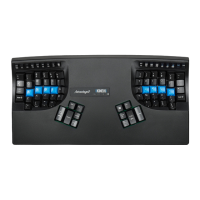
Fig 7. Function key row (Cherry low-force mechanical key switches with tactile ridges)
click
i)
status
qwert Idvork
keypad Iprogm
RESET
mac
pc
wm macro
speed
progm ■progm
macro ■remap
F1 IF2 IF3 IF4 IF5 IF6 IF7 I^F^
print
scrn
scroll Ipause
lo c k I b r e a k
Esc
F9 IF10 IF11 IF12
Keypad
layer: L W i n R W i n M e n u P l a y P r e v N e x t C a l c k p s h i f t *
*kpshift must be remapped to both layers to perform akeypad shift action, in which keypad stays on while key is pressed
Note: Actions legended in lower case require only the Program Key to activate, whereas actions legended in CAPS require the
Program Key plus Shift Key to activate.
v o l - v o l +mute
SmartSet Function Key Actions
●status (progm+esc): Prints detailed configuration Status Report to the screen.
Important note: The keyboard cursor must be in an active text editing
screen before running Status Report!
●qwert (progm+F3): Enables the QWERTY Layout, with any customizations.
●dvork (progm+F4): Enables the Dvorak Layout, with any customizations.
●mac (progm+F5): Enables Mac Thumb Key Mode (Fig 5). Also activates the
Mac “keypad =“ key action in the embedded numeric keypad and converts Scroll
Lock to “shut down” action. CAUTION: On aPC, “shutdown” will initiate an
immediate shutdown!
●pc (progm+F6): Enables PC Thumb Key Mode (Fig 6).
●win (progm+F7): Enables the default Windows Thumb Key Mode (Fig 4).
●click (progm+F8); Turns off/on the default Electronic Key Click feature. This is designed to help you avoid “bottoming out” the key.
●TONE (progm+Shift+F8): Turns off/on the Electronic Tone to alert users that keys for special “toggle” actions (Caps lock, Num lock.
Scroll lock, Insert, Keypad) have been hit. Two tones (double beep) indicates feature is “turned on” and one tone means “turned off.”
●RESET (progm+Shift+F9): Performs aSoft Reset which erases any key remapping, macros, and non-default thumb key mode
setting for the active layout. It does not reset macro speed, click, or tone settings. To perform aHard Reset which erases all non¬
default settings in both QWERTY and Dvorak layouts, hold progm+F9 until LEDs start flashing while plugging in keyboard,
●macro speed (progm-rFlO, then tap number row 1-9 or 0): Sets the global macro playback speed (“0” disables macro playback.
Playback speed can also be set different from the global speed for individual macros (see User’s Manual),
●progm macro (progm+F11): Enter Program Macro Mode. Step 1: select the trigger key(s). LEDs will flash fast prompting selection
of the trigger. One alphanumeric key alone will suffice but can be combined with one or more modifier keys to serve as the macro
trigger. Step 2: type the desired macro content (LEDs flash slowly while macro contents are being recorded). To stop recording, exit
Program Macro Mode by tapping the Program Key. Note: For detailed macro programming instructions including setting individual
macro playback speed and delays, see User’s Manual.
●progm remap (progm+F12): Enter Program Remap Mode. Step 1: select the source key/action. LEDs will flash fast prompting
selection of the source key. Step 2: select the destination key (LEDs flash slowly awaiting selection of the destination key).
Note: Program Remap Mode remains active and will continue to accept key remapping “pairs" until exiting Remap mode by tapping
the Program Key. In Program Remap Mode the keyboard layout temporarily reverts to the default QWERTY or Dvorak layout
(whichever is active) when selecting source actions.
Fig 8. Status Report example (defaults shown)
Model> AdvantageZ
Firmware> 1.0.431.us (4MB), 11/14/2017
Active layout file> qwerty.txt
Thumb keys mode> win
Macro play speed> off=0, slow=l, normal=3, fast=9> 3
Status report play speed> off=0, slow=l, normal=3,
fast=4> 3
Keyclick status> on
Toggle tone status> on
Stored m a c r o s > 0
Keys remapped> 0
3


 To Next Page
 Loading...