Document No. 480WD+MLW.ß01 Kingston MobileLite Wireless (ßeta) Page 7 of 12
Usage
Once you’re connected to the MobileLite Wireless network, you can begin accessing its content from your iPad,
iPhone, or iPod touch device by following these steps:
1. Open the MobileLite Wireless App on your iPad, iPhone, or iPod touch device.
2. Tap the Wi-Drive+ icon in the MobileLite Wireless App.
3. Tap the Device Name link, i.e. MobileLite Wireless (192.168.200.254). This will list the contents of your
MobileLite Wireless.
4. Browse and select the media you wish to access. Only supported file types can be opened. See below.
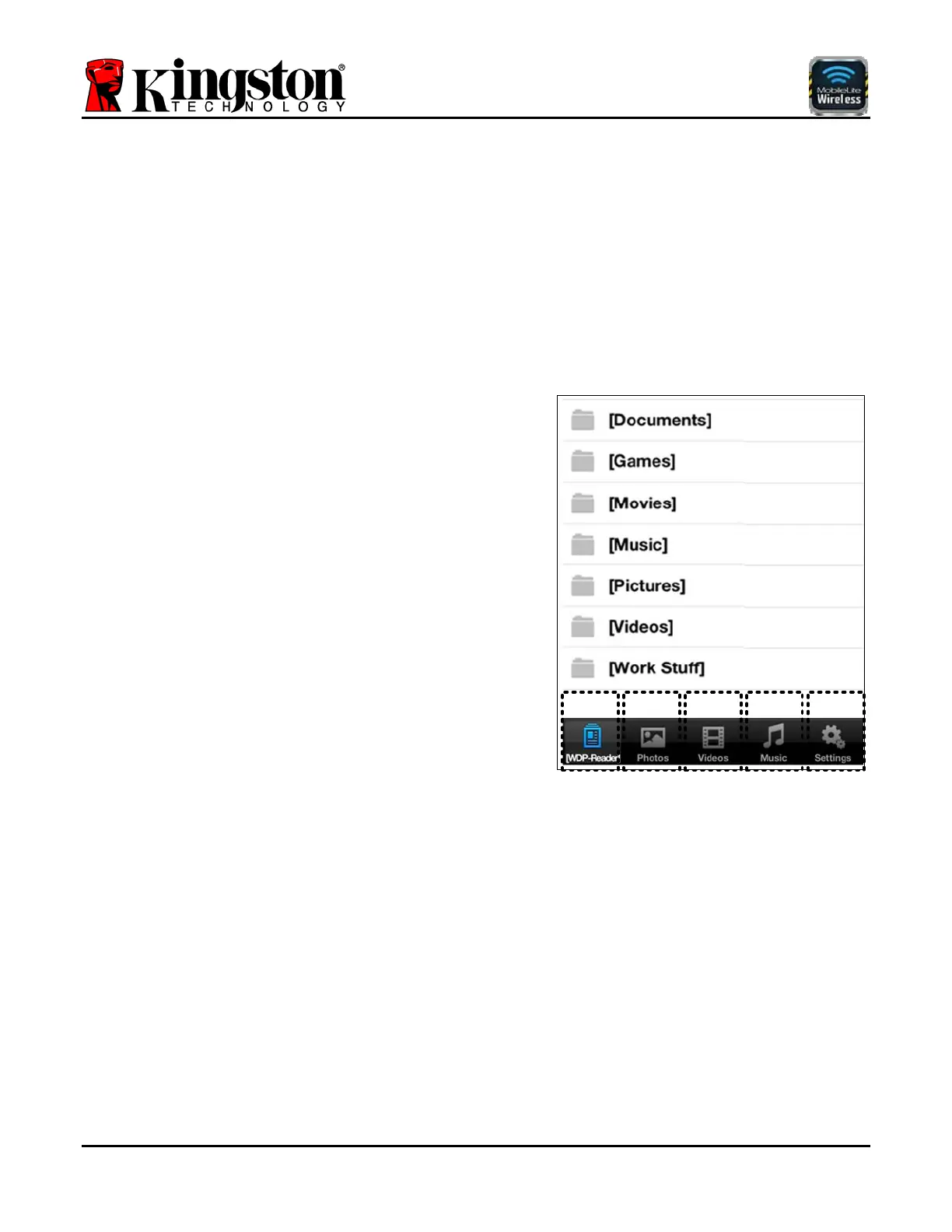
A. The home button displays all stored content on the
MobileLite Wireless regardless of type or extension. If
you created folders during the content upload process,
you will see them listed first. Individual files are listed
after the folders.
B. Buttons B, C, & D are all filter buttons and display only
the content associated with each represented type.
The picture button represents photo/image file types.
MobileLite Wireless will search through all files and
folders on the device and list the supported image file
types.
C. The filmstrip button represents video file types.
MobileLite Wireless will search through all files and
folders on the device and display the supported video
file types.
D. The musical note button represents music or audio
files. MobileLite Wireless will use this filter to search
through all files and folders for supported music file
types and display them.
E. The 'Gears' button allows you to access the
configuration menu and network settings for the
MobileLite Wireless device.
ABCDE
Figure 4.1 – MobileLite Wireless Contents
Once you’ve located the file you want to stream, simply tap the file name in the list and you’re ready to go. For a
list of all file types currently supported by MobileLite Wireless, see page 3.



 To Next Page