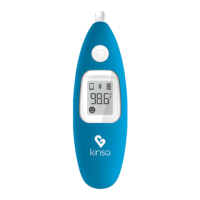
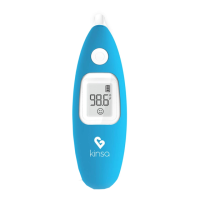
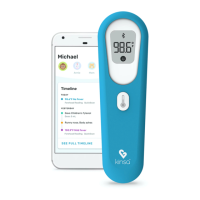
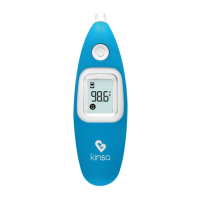
5. If the Kinsa turned off, press the power button to turn it on. If the Ear is on but the
Bluetooth icon has disappeared, hold down the white Bluetooth button until the Bluetooth
icon appears again.
6. Tap “PAIR DEVICE”. Note that for some Android devices, the pairing request dialog
may appear in the Notification bar at the top of the screen.
Unless the PIN message below appeared, that’s it! Now you’re ready to take a temperature
reading with your Kinsa Ear.
PIN Message: Some Android users may report seeing an “Incorrect pin or pass key” message
preventing further set up. Certain android phones have a security feature named "Smart Lock”
which prompts a PIN or pass key in order to complete set up of Bluetooth devices. The prompt
can present itself in various ways, depending on phone type. Sometimes the prompt is in the
Notifications bar at the top of the screen, it’s an audible alert, or it’s a dialog box on the screen.
Each user should research how Smart Lock works on their individual device, including finding
out what your PIN or pass key is for your device, for it may vary across device types.
Pairing issues can sometimes be related to receiving a pair prompt by Smart Lock, while not
being aware such a prompt was received. It may be possible to adjust the Smart Lock settings to
either not require a PIN for Kinsa, or disable it entirely. There are a number of tutorials and
support articles about how to manage Smart Lock, so you can choose your favorite.


 To Next Page