Chapter 1 Before Use 1-9
1. 5 Appearance
1. 5. 1 Front view
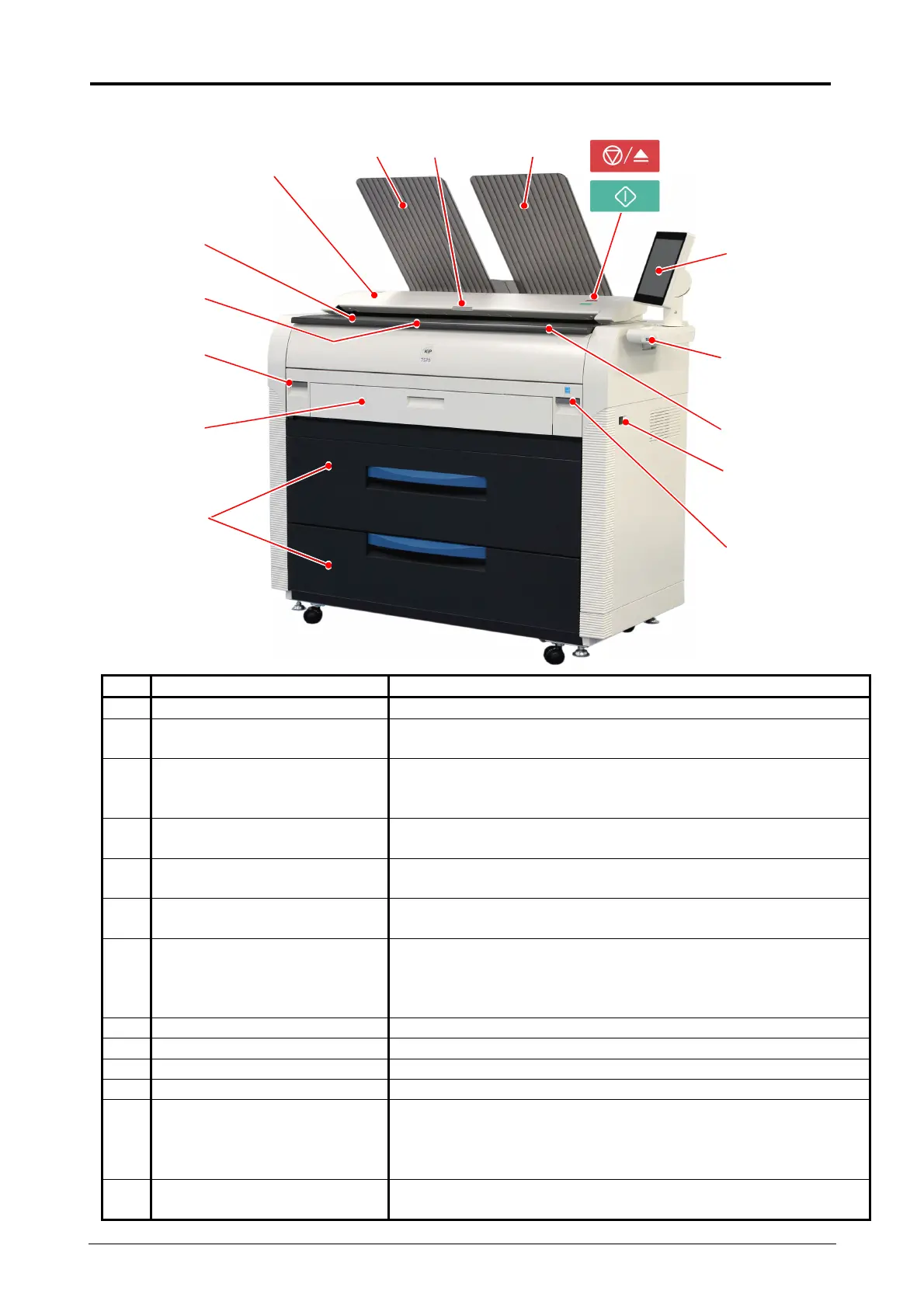
No. Name Function
1 Main Switch You can turn ON/OFF the KIP 7570.
2 Original Guides Feed the original under the Scanner Unit along the Original
Guides.
3 User Interface This is a Touch Screen, and many kinds of user operation
are available.
PLEASE DO NOT push the LCD area too strong.
4 Scan Abort Button While scanning: emergency stop
At Standby position: eject
5 Start Button Starts scanning if the controlling software requires user
intervention.
6 Scanner Unit
(MFP Model Only)
Read the original with this unit when you make scan or copy.
7 Toner Hatch
(Original Table)
Open the Toner Hatch when you replace the Toner
Cartridge.
Also put the original here and then feed it into the Scanner
Unit when you make scan or copy.
8 Engine Unit Open Lever Pull up these levers when you open the Engine Unit.
9 Bypass Feeder Feed a cut sheet paper from the Bypass Feeder.
10 Roll Deck Roll media can be loaded here.
11 Print Tray These trays catch ejected prints.
12 LED Indicator Indicates the status of Scanner Unit.
green: Ready red: Error
green to-and-fro: Scanning red flashing:Scanner Unit Open,
Jam
13 USB Port (USB 2.0) Your USB flash memory storage can be installed here.
5VDC max.
1
4
6
10
3
8
2
8
11
9
11
12
7
5
13
2


 To Next Page