FOR SERIAL CONNECTION
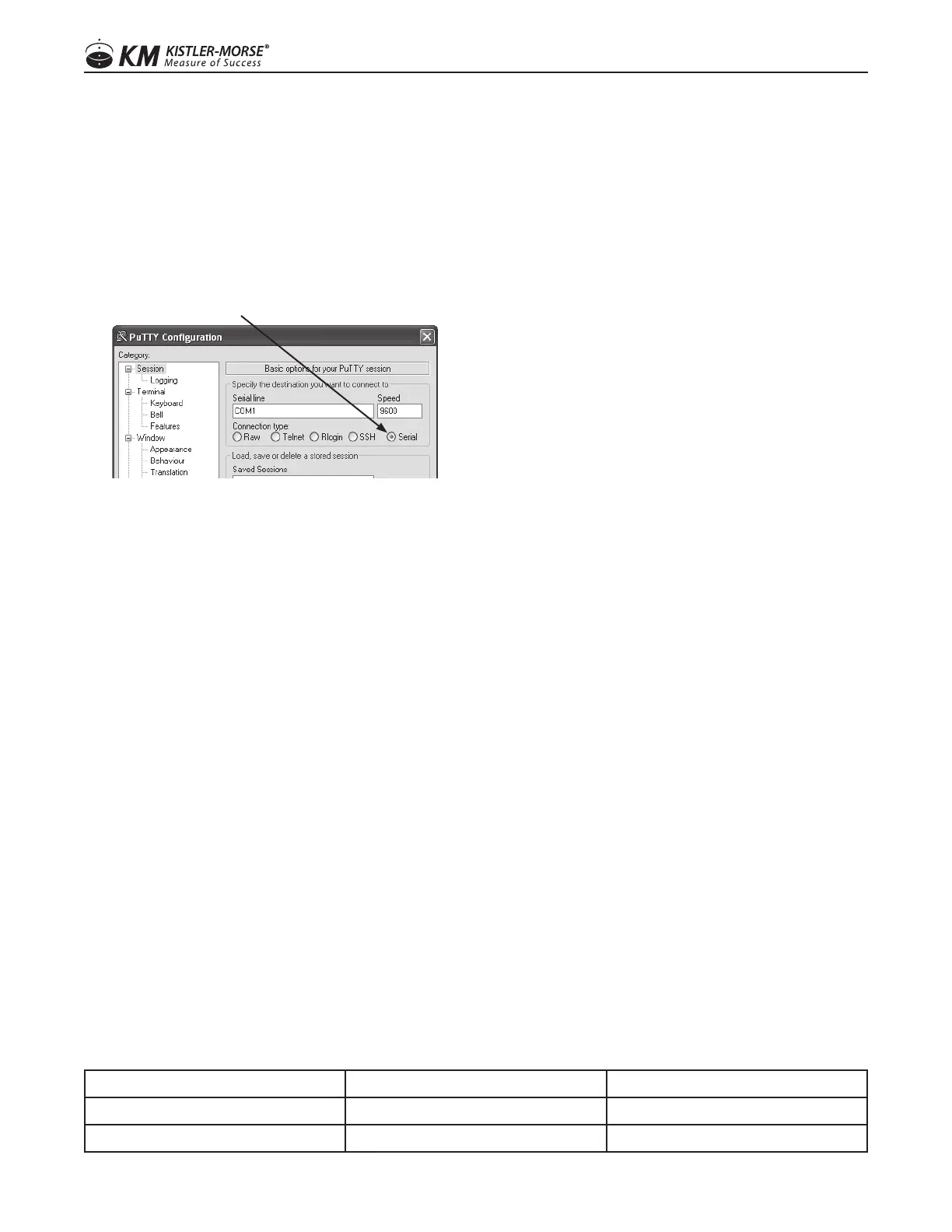
Requires a DB9 cable (Null modem only – female both ends) and PuTTY.exe for the connection. PuTTY.exe can
be download from the Bindicator website (www.bindicator.com).
1. Plug DB9 cable into ORB service port and your computer COM port.
2. OpenPuttyConguration
3. TypeCOM1intoSerialLineeld.
4. Select the Serial button for Connection Type
5. Click open
6. A blank screen may appear, until ENTER is pressed.
7. Enter USER NAME = kmc, press ENTER
8. Enter PASSWORD = kmc, press ENTER
9. Press1andENTERtocongurethenetwork
10. Press 1 to change the IP address, press ENTER
11. Enter new IP address - provided by your IT group, press ENTER
12. Press 2 to change the Subnet/Netmask, press ENTER
13. Enter new Subnet/Netmask - provided by your IT group, press ENTER
14. Press 3 to change the Gateway, press ENTER
15. Enter new Gateway - provided by your IT group, press ENTER
16. Press ‘S’ to save the settings, press ENTER.
17. Close Putty program.
18. Connect to the ORB to your network.
19. Log in to the ORB using a web browser.
CREATE A RECORD TABLE
NOTE: Each device on a serial network must have a unique serial address. Each product can be set differently,
refer to the Installation & Operation manual for individual products). The table below can be used to capture the
required data for each device, add rows as needed.
SILO DESCRIPTION PRODUCT NAME (MODEL) SERIAL ADDRESS (DECIMAL)
Sample: North silo Yo-Yo 000
1212
97-1167-01 Rev. J
www.kistlermorse.com



 To Next Page