6 7
Note: the camera will only operate when connected to power using
the USB cable included.
Note: in some vehicles, if you already have the car running when you
plug the camera in then it may not start. You will need to turn o the
ignition of your car and turn it back on again to start the camera.
• To stop/start the video recording whilst you are driving, press the
Record start/stop/OK button (8)
• When the camera is recording in the ‘Loop function’ and the micro
SD card is full, the camera will overwrite previous recordings
• You can press and hold the Power on/o button (4) to switch the
unit o manually whilst the car power is on
[...continued] Setting up the camera
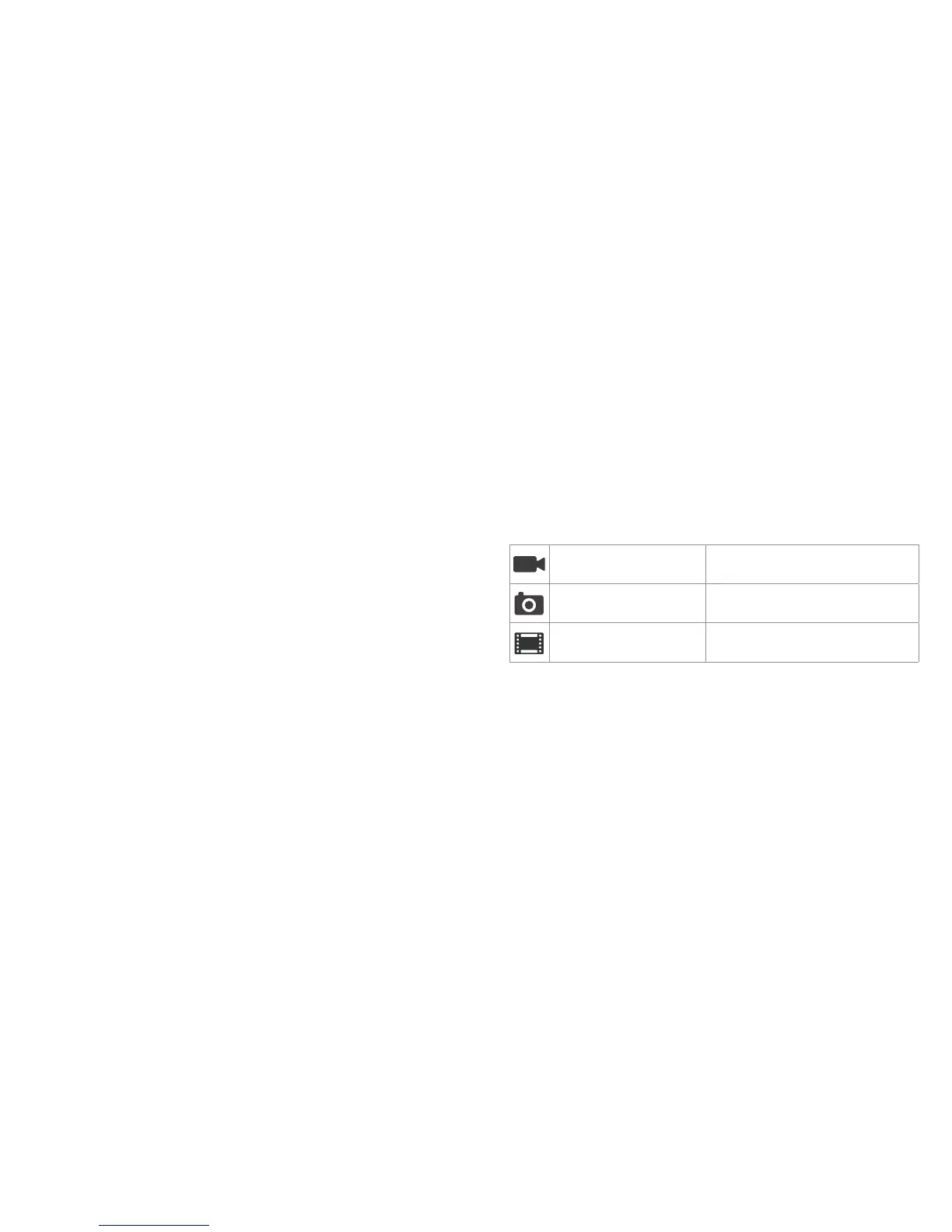
Changing the mode of the camera
There are three modes of the camera: video recording, still photo
capture, and playback le viewer. To change mode, press and hold
the Menu button (6) to cycle through the modes. The icon in the top
left hand corner of the LCD screen (2) will change to show the
chosen mode:
Video Mode For recording video clips
Photo Mode For taking still photos
Video Playback Viewing recorded videos
[continued...]


 To Next Page