EasyManua.ls Logo

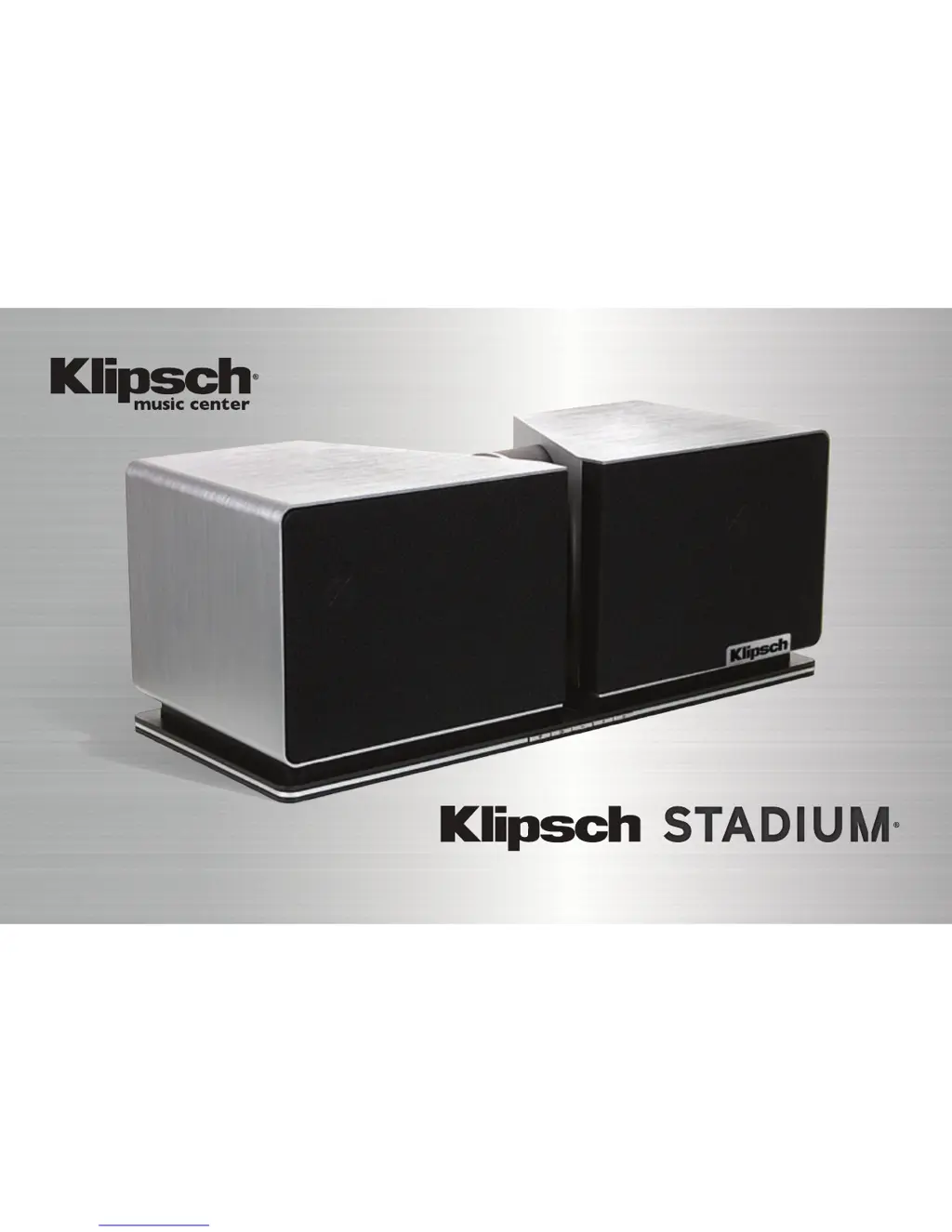
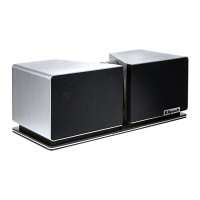
Klipsch STADIUM - User Manual

Klipsch STADIUM
51 pages
Print Icon
To Next Page IconTo Next Page
Loading...
OWNER’S MANUAL

Other manuals for Klipsch STADIUM

Questions and Answers

  • J
    jesse12Jul 26, 2025
    How to fix Klipsch Stereo System Stadium when it will not power on?
    • J
      Jesse GilmoreJul 26, 2025
      If your Klipsch Stereo System Stadium won't power on, ensure the AC cord is securely plugged into both the wall and the back of the unit. Also, verify that the outlet the Stadium is plugged into has power.
  • T
    Todd DickersonJul 31, 2025
    What to do if Klipsch Stereo System Stadium won't reconnect to the network?
    • O
      oarroyoJul 31, 2025
      If your Klipsch Stereo System Stadium has been set up but won't reconnect to your network, try the following: * Restart iTunes or your Music App. * Restart your wireless network by unplugging your wireless router for at least 30 seconds, then plugging it back in. * Ensure that the volume on the Stadium is not muted.
  • C
    Carrie BoltonAug 6, 2025
    What to do if Klipsch Stereo System Stadium Wireless Connect page will not load?
    • M
      Meredith OsbornAug 6, 2025
      If the Stadium Wireless Connect page (192.168.1.12) will not load for your Klipsch Stereo System Stadium, disable any additional firewall protection enabled through your anti-virus software before starting the Stadium setup. After completing the setup, re-enable the firewall protection.
  • C
    conradbrittanyAug 10, 2025
    Why won't music play from USB on my Klipsch Stereo System?
    • W
      wilsonwillieAug 10, 2025
      If music won’t play when using the USB input on your Klipsch Stereo System Stadium, ensure the USB input is selected by pressing the source button until the green LED flashes once.
  • Z
    Zachary ThomasAug 15, 2025
    What to do if my iOS Device locks up with Klipsch Stereo System?
    • R
      roseryanAug 15, 2025
      If your iOS device locks up when using Klipsch Stereo System Stadium, hold down the power button on your iOS device until 'Slide to Power Off' appears on the screen. Slide the bar to power the device down. Once powered off, wait 30 seconds, then hold the power button down until the Apple logo appears.
  • A
    ashlee54Aug 20, 2025
    What to do if Non-Apple smart device locks up with Klipsch Stereo System?
    • R
      Robert SimpsonAug 20, 2025
      If your non-Apple smart device locks up while using Klipsch Stereo System Stadium, power down the device and leave it off for 30 seconds, then turn the device back on.

Summary

Package Contents

Included Components

Lists all items included in the product packaging, such as the main unit, remote, cables, and accessories.

Bluetooth Setup

AirPlay Network Setup with Wi-Fi Sharing

Wired Connections

Factory Reset Procedure

Details the steps required to reset the Klipsch Stadium device to its original factory settings.

Input Selection

Switching Between Wireless and Wired Inputs

Explains how to toggle between different input types like Network, Bluetooth, USB, Optical, and Line.

AirPlay; DLNA Network Setup

Direct Connect via Wi-Fi

Remote Control

Remote Control Functions

Details the functions of each button on the included remote control for operating the device.

LED Indicators

LED Status Indicators

Describes the meaning of various LED light patterns on the device for status updates and error notifications.

Troubleshooting Common Issues

Power and Network Connectivity Problems

Covers troubleshooting steps for issues like the device not powering on or reconnecting to your wireless network.

Device Freezing and Playback Issues

Addresses problems with iOS or non-Apple smart devices freezing, and general music playback failures.

Wireless Connection and USB Playback Issues

Details troubleshooting for problems accessing the wireless connect page and ensuring music plays correctly via the USB input.

Wireless Connectivity Tips

Klipsch STADIUM Specifications

General IconGeneral
Product colorBlack, Silver
Recommended usageUniversal
Multi-Room Streaming (MRS) supportNo
TweeterYes
Speaker type-
Woofer diameter133 mm
Tweeter diameter25 mm
Number of drivers6
Speaker placementTabletop/bookshelf
Audio output channels1.0 channels
Mid-range driver diameter89 mm
Number of tweeter drivers2
Woofer diameter (imperial)5.25 \
Tweeter diameter (imperial)1 \
Mid-range driver diameter (imperial)3.5 \
Sensitivity112 dB
RMS rated power- W
Crossover frequency2000 Hz
Peak Music Power Output (PMPO)400 W
Audio RCA inputs1
USB connector typeUSB Type-A
Connectivity technologyWired & Wireless
Power source typeAC
Weight and Dimensions IconWeight and Dimensions
Depth210 mm
Width533 mm
Weight12900 g

Related product manuals