8
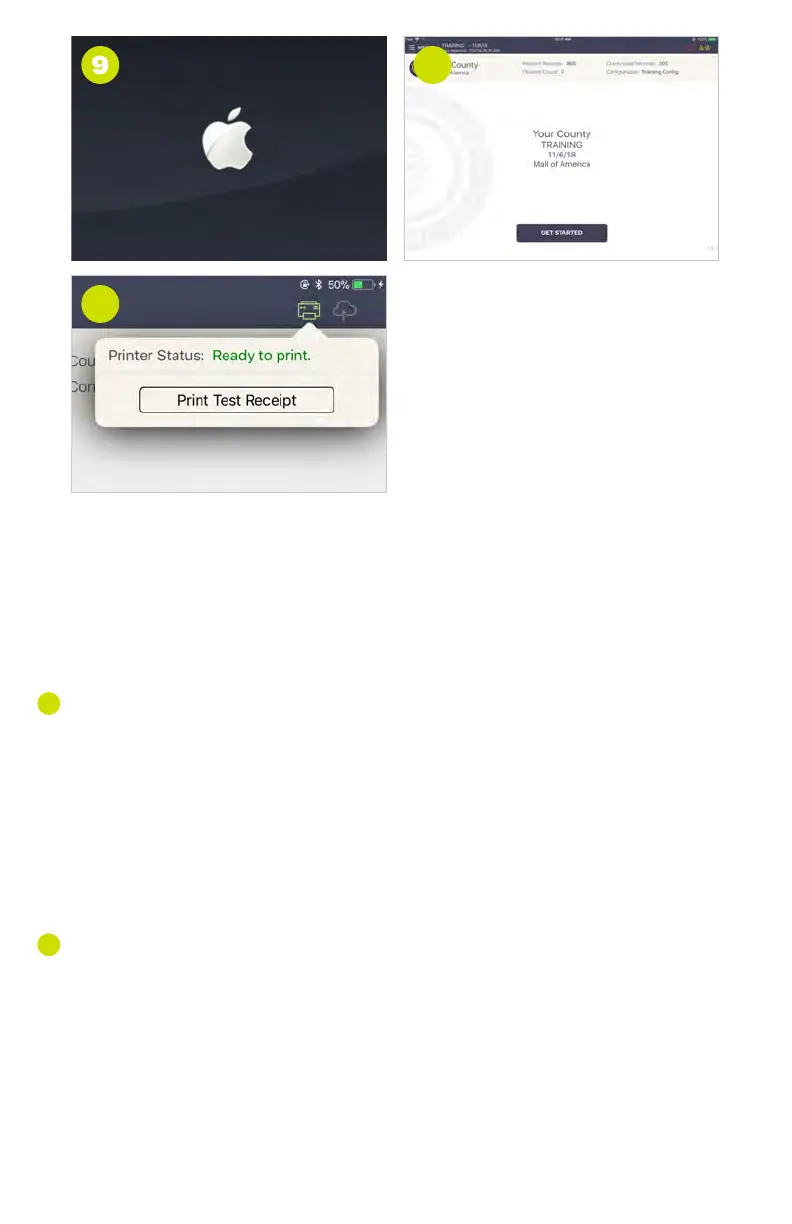
➒ POWER ON POLL PAD
Press the power button on the top left edge of the unit until you see
the Apple icon, then release. The iPad will power on, and the Poll Pad
application with launch automatically. NOTE: Poll Pad will power on
automatically if connected to AC power.
) HOME SCREEN CHECKLIST
• Name of Jurisdiction
• Election Name and Date
• Polling Place Location is Correct
(Most Important)
• Check-in Count = 0
• Battery Life is Close to Full (90% or greater)
) CONNECT & TEST PRINT
A green printer icon on the Poll Pad means you are connected to the
printer. Press the green printer icon and select ‘Print Test Receipt’ and a
sample receipt will print. You are now ready to sign in and process voters.
10
10
11
11
9
PRINTER ICONS & COLORS
Poll Pad is paired with the printer. A receipt will print out for
checked-in voters and those who are in the wrong precinct.
Poll Pad is not paired with the printer. Select the printer icon,
followed by Pair and Connect.
Poll Pad recognizes the printer and is currently in the process
of pairing with the device.
MULTI-PEER ICONS & COLORS
The number inside of the blue circle indicates the number of
precinct units the Poll Pad is connected to.
2
Poll Pad is currently connected and synchronizing with the
other precinct Poll Pads.
Poll Pad recognizes the presence of other precinct Poll Pads
but is not connected or synchronizing with these units.
The Poll Pad is currently disconnected and not synchronizing
with the other precinct Poll Pads. Contact your Election
Authority.
CLOUD SYNC ICONS & COLORS
Poll Pad is currently connected and synchronizing with the
central election database.
Poll Pad is in the process of connecting to the central election
database.
Poll Pad is currently disconnected and not synchronizing with
the central election database. Contact your Election Authority.
POLL PAD
ICONS



 To Next Page