SHEET COVER INSERTION:
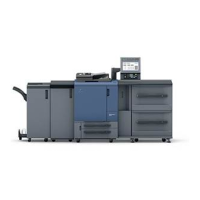
This feature is utilized when a cover and/or insert is placed into a stack of originals via
the copy machine.
1. From the default copy screen, press the application key.
2. Press sheet/cover insertion.
3. The first column to the left is for a front and/or back cover (optional). Blank will
produce a blank front and/or back cover, whereas copy will have a printed image
on the front and/or back cover.
4. The next column is for a blank or copy (insert with a printed image) insert
(optional). Using the hard key pad, enter the page number(s) where the insert(s)
should be put.
5. The bubbles at the bottom of the screen are used to select which tray the front
cover and/or back cover and/or insert should be pulled from. Press these buttons
until the desired paper trays are selected.
6. Ok the selections at this screen, then ok the selections again at the application
screen in order to go back to the main copy screen.
7. Replenish paper in the selected paper trays (ex: colored paper in the bypass tray
for the covers/inserts).
8. Press start.





 To Next Page