EasyManua.ls Logo

Kortho GraphicJet X Series - User Manual

Kortho GraphicJet X Series
236 pages
Print Icon
To Next Page IconTo Next Page
Loading...
MANUAL
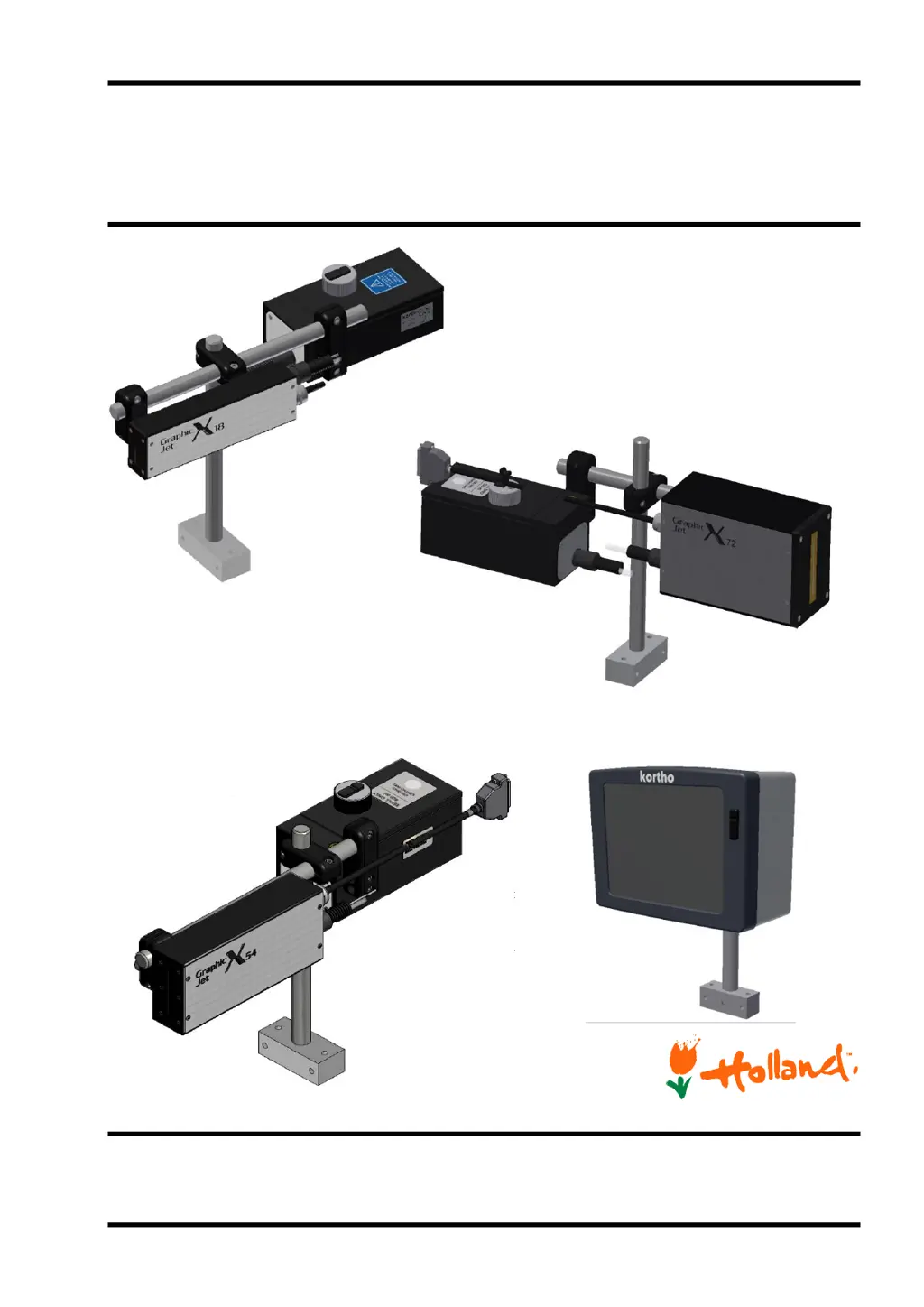
GraphicJet X-series
Edition: H550 AE Rev.: 007
English
kortho

Table of Contents

Questions and Answers

  • A
    Alyssa MillerAug 20, 2025
    Why is my Kortho Printer not printing on request?
    • T
      Tim MurphyAug 20, 2025
      The Kortho printer might not be printing because the system is in pause mode (the red indicator is lit, and a warning is displayed on the screen). Another reason could be that the number of prints has reached the value set in print count, indicated by the green status LED flashing on the coding unit and the status screen showing the print count. Also, the print request sensor or cable could be defective or not sensing the product/mark. Finally, the system might be in error mode, indicated by the orange LED on the screen and an active general alarm output.
  • A
    Aaron FarmerAug 22, 2025
    What to do if Kortho GraphicJet X control unit does not power up?
    • D
      Dr. Wesley ThomasAug 22, 2025
      If the Kortho Printer control unit does not power up, check the following: ensure the mains voltage is present, the power cable is properly connected to the control unit and is not damaged, and the ON-OFF switch is in the I position. Also, check the fuses in the power entry module (X01) and on the power supply board, making sure the LEDs beside the fuses on the power supply board are lit. Verify that the internal mains wiring and the 48VDC and processor board wiring are connected properly. Ensure the backlight cable of the user interface panel and the user interface panel-flat cable are properly connected and undamaged. If there is a burning smell, contact your local dealer. Remember to disconnect the power cable (X1) from the mains power supply first.
  • M
    Martha LopezAug 25, 2025
    How to fix white lines in print direction on Kortho Printer?
    • A
      abooneAug 25, 2025
      If you're seeing white lines in the print direction on your Kortho Printer, it could be due to one or more blocked or partially blocked nozzles. To resolve this, try the following: * Clean the front plate of the printhead by squirting some cleaner onto it (avoid rubbing, as this could cause damage or push dirt into the nozzles). * Prime the coding unit to remove air from the system. * Ensure the ink tube clamps are properly placed. * Purge the system to check the printhead. If needed, replace the head filter and check the print again. If the problem persists, consider replacing the printhead.
  • D
    Dean SmithAug 26, 2025
    Why is my Kortho GraphicJet X Printer showing an error or warning message?
    • M
      Megan SaundersAug 26, 2025
      If your Kortho Printer is displaying an error or warning message and the LED is orange, view the error/warning list for more information. This can be found under Diagnostics - Printer – Errors.
  • C
    Candace JohnsonAug 29, 2025
    Why is the lower part of the print missing on my Kortho GraphicJet X Printer?
    • A
      Amanda FlemingAug 29, 2025
      If the lower part of the print is missing on your Kortho Printer and ink is dripping off the bottom of the coding unit housing, check whether the ink reservoir is at the right level and is levelled. Also, check whether the front plate is free of debris. Clean the front plate of the printhead by squirting some cleaner to the front plate (do not rub against the front plate. this might damage the front plate and/or dirt might be pushed into the nozzles which will cause a permanent blockage of these nozzles). Check whether the ink level in the ink system is not too high, if so, remove some ink from the ink system.
  • B
    bankssierraAug 31, 2025
    Why is the upper part of the print missing on my Kortho GraphicJet X Printer?
    • L
      lobrienAug 31, 2025
      If the upper part of the print is missing on your Kortho Printer, check whether the ink level in the ink system is not too low, if so, refill the ink system. Also, check whether the ink reservoir is at the right level.
  • H
    hhoSep 2, 2025
    What to do if Kortho GraphicJet X control unit does not boot up?
    • C
      Christopher DaltonSep 2, 2025
      If the Kortho Printer control unit does not boot up, disconnect the power cable (X1) from mains power supply first! Then, check if the data cable of the Touch screen is properly connected, check the power supply of the CPU board, and check the fuses in the power entry module (X01). The LEDs beside the fuses on the power supply board should be lit. Check the fuses on the power supply board. When a LED beside the fuse on the power supply board is not lit, the fuse is blown. Check whether a "burning smell" is present in control unit. If so, contact your local dealer.
  • M
    Michael DyerSep 5, 2025
    What to do if Kortho GraphicJet X user interface is only showing a blank screen?
    • L
      Lisa BrownSep 5, 2025
      If the user interface of your Kortho Printer is only showing a blank screen, reset the control unit by switching it off and then on again after 10 seconds.
  • W
    Walter SmithSep 7, 2025
    What to do if Kortho GraphicJet X ink has been refilled but the setting is still showing low?
    • R
      Robert JonesSep 7, 2025
      If you've refilled the ink in your Kortho Printer, but the setting still indicates low ink and the status LED is orange, it could be due to low ink output being active. In this case, check whether the ink level sensor is working properly.
  • M
    Maurice BurnettSep 9, 2025
    What to do if Kortho Printer label cannot be downloaded to the system?
    • S
      Savannah LandrySep 9, 2025
      If a label cannot be downloaded to the Kortho Printer system, it might be due to a corrupt label file on the USB thumbdrive. Ensure that the flash device is removed properly from the PC/laptop when transferring information. Re-create the PRN file and try again, or create the complete label again and try to download it again. If the problem persists, contact technical support.

Kortho GraphicJet X Series Specifications

General IconGeneral
BrandKortho
ModelGraphicJet X Series
CategoryPrinter
LanguageEnglish

Related product manuals