Need help?
Do you have a question about the KROM KODE and is the answer not in the manual?
Details core functions like EQ on/off, 3D on/off, and reset options.
Explains how to create and save personalized sound profiles using the equalizer.
Guides on uploading and activating previously saved custom sound profiles.
The KODE 7.1 Gaming Headset is a comprehensive audio solution designed for an immersive gaming experience. This software manual outlines the features and functionalities of the headset, focusing on its software interface for customization and optimal performance.
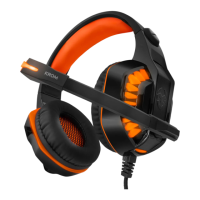
The KODE 7.1 Gaming Headset is a 7.1 surround sound gaming headset that provides high-quality audio and communication capabilities. It is designed to deliver an immersive sound experience, allowing users to pinpoint in-game audio cues with precision. The headset connects via a gold-plated USB, ensuring a stable and high-fidelity connection. Its primary function is to provide clear audio output and input for gaming, communication, and multimedia consumption. The accompanying software allows for extensive customization of sound profiles, environmental effects, and microphone settings, tailoring the audio experience to individual preferences and specific gaming scenarios.
The KODE 7.1 Gaming Headset offers a range of usage features, primarily managed through its dedicated software manual.
To begin using the KODE headset with its full range of features, users must first install the accompanying software. This involves plugging the KROM KODE USB connector into a USB port on a PC. The software can be downloaded from www.kromgaming.com. Users need to navigate to the product sheet, find the "Downloads" section, and click on "DRIVERS" to access the software. Once downloaded, the "setup.exe" file should be double-clicked to initiate the installation. The installation process guides the user through selecting a save folder and then runs automatically. Upon completion, users click "Finish," and the PC may restart if prompted by the software. The software requires Windows XP, Vista, 7, 8, or 10, a free USB 2.0/3.0 port, and 50MB of free hard disk space.
The graphic equalizer is a core feature for customizing the headset's sound output.
The headset software includes environmental effects to simulate different acoustic spaces, enhancing custom sound profiles.
The KODE headset's microphone also offers customizable settings through the software.
The virtual 7.1 soundscene feature allows for precise customization of the surround sound experience.
The manual does not explicitly detail maintenance features for the physical headset, but it does provide information regarding software and warranty.
While not explicitly stated as a "maintenance feature," the ability to download software from www.kromgaming.com implies that users can access updated versions of the software, which may include bug fixes, performance improvements, or new features. Keeping the software updated is a form of digital maintenance to ensure optimal performance and compatibility.
The warranty information provided is crucial for maintenance and support.
This comprehensive warranty information guides users on how to seek support and what to expect in terms of coverage for potential issues, serving as a key aspect of product maintenance and longevity.
 General
| Cable length | 1.8 m |
|---|---|
| Headset type | Binaural |
| Product type | Headset |
| Product color | Black |
| Wearing style | Head-band |
| Recommended usage | Gaming |
| Manual | Yes |
| Audio output channels | 7.1 channels |
| Connectivity technology | Wired |
| Connector contacts plating | Gold |
| Impedance | 32 Ω |
| Driver unit | 50 mm |
| Ear coupling | Supraaural |
| Headphone frequency | 20 - 20000 Hz |
| Headphone sensitivity | 105 dB |
| Microphone type | Boom |
| Microphone frequency | 50 - 10000 Hz |
| Microphone sensitivity | -54 dB |
| Microphone direction type | Omnidirectional |
| Microphone input impedance | 2200 Ω |
| Windows operating systems supported | Windows 10 Education, Windows 10 Education x64, Windows 10 Enterprise, Windows 10 Enterprise x64, Windows 10 Home, Windows 10 Home x64, Windows 10 Pro, Windows 10 Pro x64, Windows 7 Enterprise, Windows 7 Home Basic, Windows 7 Home Basic x64, Windows 7 Home Premium x64, Windows 7 Professional, Windows 7 Professional x64, Windows 7 Starter, Windows 7 Starter x64, Windows 7 Ultimate, Windows 7 Ultimate x64, Windows 8, Windows 8 Enterprise, Windows 8 Enterprise x64, Windows 8 Pro, Windows 8 Pro x64, Windows 8 x64, Windows Vista Business, Windows Vista Business x64, Windows Vista Enterprise, Windows Vista Enterprise x64, Windows Vista Home Basic, Windows Vista Home Basic x64, Windows Vista Home Premium, Windows Vista Home Premium x64, Windows Vista Ultimate, Windows Vista Ultimate x64, Windows XP Home, Windows XP Home x64, Windows XP Professional, Windows XP Professional x64 |
| Package type | Box |
| Quantity | 1 |
 Weight and Dimensions
| Depth | 105 mm |
|---|---|
| Width | 217 mm |
| Height | 279 mm |
| Weight | 270 g |

 To Next Page