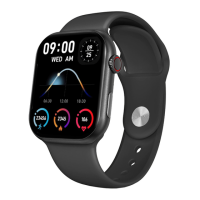
4.3 Heart rate meter
The Explorer smartwatch monitors your heart rate
automatically. Enable this function from within the Smart-
Time Pro app.
You will also be able to measure your heart rate immediately.
To make use of this tool, access the smartwatch main menu
and tap on the red heart icon. After a few seconds, the
number of heart beats per minute will be displayed. You can
also access this feature via quick access menu and by
tapping on the smartwatch inferior button.
This data will be displayed in the Smart-Time Pro health
section.
4.4 Blood pressure meter
The smartwatch allows you to measure your blood pressure
instantly. To do so, access the smartwatch main menu and
tap on the orange stethoscope icon.
Once inside, press the “play” icon and stand still. After a few
seconds, your blood pressure data will be displayed.
It will also be displayed in the Smart-Time Pro health section.
4.5 Blood oxygen saturation meter
The Explorer smartwatch allows you to measure your blood
oxygen saturation levels instantly. To make use of this tool,
access the smartwatch main menu and tap on the white
icon showing blue and red semicircles.
Once inside, stand still and, after a few seconds, the blood
oxygen saturation values will be displayed.
This data will be displayed in the Smart-Time Pro health
section.
4.6 Sleep monitor
The smartwatch functions while you sleep and provides
statistics on the time and quality of your sleep. This tool’s
available information is more detailed in the Smart-Time Pro
app than in the smartwatch:
- In the smartwatch: To consult the time you have slept,
access the main menu and tap on the blue icon showing a
bed. Once inside, your sleep time will be displayed.
- In the app: Your sleep data will also be displayed in the app
home section. Access it to see the time that you have slept,
as well as the time that you have been in deep sleep, light
sleep and awake. You will also be able to view a weekly and
monthly sleeping record with all your sleep data.
You can attach this function to the quick access menu by
taping on the “+” icon.
4.7 Menstrual cycle
The Smart-Time Pro app allows you to set reminders related
to your menstrual cycle. Enter the Smart-Time Pro Device
section and tap on the Period Tracker option.
Once inside, you will be able to set some data related to your
menstrual period, such as: cycle length, menstrual length,
reminders, among others. When you set all this info, a
calendar with certain menstrual cycle data will be displayed
in this app option.
If you set reminders, they will show in the Explorer
smartwatch.
4.8 Sedentary reminder
You can set sedentary reminders in order to maintain a more
active lifestyle. To access and configure the sedentary
reminders, such as the timespan in which you want them to
be active and the time frequency (every hour, every 2 hours,
every 3…).
The sedentary reminders you set from the app will appear
on your smartwatch at the time intervals you have decided.
5. Exemption clause
1. The heart rate and blood pressure data of the smartwatch


 To Next Page
 Loading...