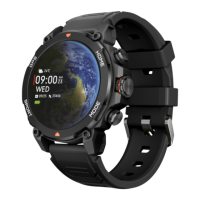
unlocked and correctly paired to the smartwatch, your
smartphone will automatically display a camera. To take
remote pictures, simply place your smartphone wherever
you want and tap on the camera icon inside the remote
camera function of your smartwatch.
3.8 Anti-lost function
The Explorer smartwatch features an anti-lost function.
Access the smartwatch’s main menu and tap on the icon
sowing a blue radar. Once inside, tap on the icon again to
make your paired phone emit a beep so that you can find it.
3.9 GPS
The Explorer features a GPS, which by connecting to your
mobile phone and choosing one of the outdoor sport modes
with motion will give you more accurate activity tracking.
The Explorer is compatible with the Strava app.
3.10 AGPS
This feature will give you a more accurate position and
location. First, choose an open outdoor area. The AGPS will
automatically synchronize to the smartwatch for the first
time when paring with the app. It will be valid for 7 days.
After that, the app will ask you to update. You can do it
manually entering the app and tapping on “Positioning
Assist”.
3.11 Compass
The Explorer has a built-in compass. To access it, press the
"Compass" icon. It will ask you to calibrate it by rotating the
watch in a figure of 8.
3.12 Altimeter
You can access the Explorer altimeter from the main menu.
If your smartwatch is properly connected, you can find out
the altitude of your current location.
3.13 Barometer
You can access the Explorer barometer from the main
menu. If your smartwatch is properly connected, you can
find out the atmospheric pressure where you are.
3.14 Other functions
The Explorer features a wide variety of other functions, such
as: alarm, calculator, stopwatch, timer, weather, breathing
exercises, sedentary reminders, among others.
4. Health
4.1 Sports
The Explorer allows you to monitor a wide variety of sports.
Access the smartwatch main menu and tap on the green
icon showing a runner. Once inside, you will see a wide
variety of sports, such as: running, cycling, basketball,
football, hiking, free training, among others.
Tap on the desired sport to start the monitorization. Once
you do so, real-time sport data will show, such as: heart rate,
steps taken, calories burned, and time spent. This data
might vary depending on the sport performed. You can also
access this feature via the quick access menu.
You will also be able to start monitoring your sports from
within the Smart-Time Pro app, in the sports section.
4.2 Activity tracker
The smartwatch automatically registers the steps taken, the
burned calories and the distance travelled. To view this
information, access the smartwatch main menu and tap on
the icon with blue, green and pink circles.
You can access this feature via the quick access menu. This
data will also appear in the Smart-Time Pro health section.


 To Next Page
 Loading...