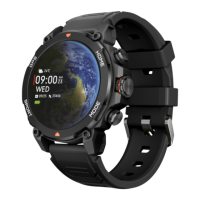
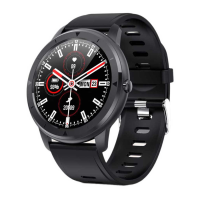
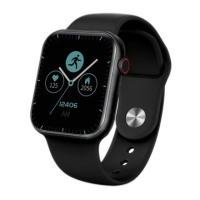
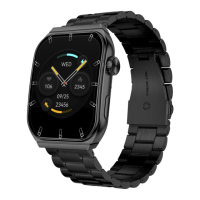
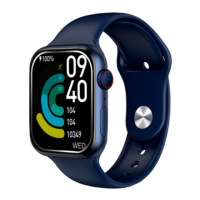
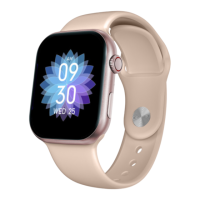
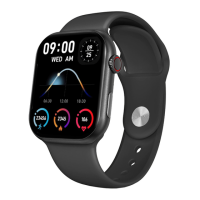
features a built-in microphone and speaker so that you will
be able to attend incoming calls without the need for your
smartphone.
If the call is accepted, it can be ended by pressing the red
icon. To reject the call, tap on the red icon before answering
it. A lost call notification will appear on the smartwatch’s
display. In case the incoming call function is not activated,
the smartwatch will only display incoming call notifications,
but will not emit real time signals or vibrate.
· Making calls
There are three options when it comes to making calls:
- Call a contact: The Explorer smartwatch allows you to call
contacts stored in your smartphone. To synchronize
contacts with the smartwatch, you can do it from the app.
After you have stored in the Explorer the 20 contacts of your
choice, access the green phone icon “Call menu”. All the
contacts that you have previously selected via app will show
here. Tap on the desired contact and tap on the phone icon
to make the call. You can also access your contacts through
the blue Contacts icon.
- Dialpad: From within the “Call menu” feature, the green
phone icon, one of the options that will show is the Dialpad.
Tap on it to access it. Once inside, you will be able to dial a
phone number. To make the call tap on the phone icon.
- Call records: From within the same smartwatch feature, the
green phone icon, one of the options that will show is the
Call Record. Tap on it to access it and view all the made,
received and lost calls. Tap on the phone number/contact
and then on the phone icon to make the call.
3.4 Notifications
The smartwatch displays your notifications. This includes
apps such as: WhatsApp, Gmail, Instagram, Twitter,
LinkedIn, among many others. To access the notifications
received, swipe the main screen downward.
3.5 Voice assistants
The Explorer smartwatch is compatible with voice assistants.
To correctly configure the voice assistants, you must have
successfully synchronized the smartwatch to your
smartphone via Smart-Time Pro app and enabled all
accesses.
You can access this function from the main menu. To do so,
tap on the blue/purple Voice Assistant icon.
3.6 Music control
The smartwatch features a music control tool. Access the
smartwatch main menu and tap on the musical note icon.
This function works with music apps, such as Spotify or
Apple Music. Once inside, tap on the play/pause icon to start
playing music or to pause it. You will also be able to play the
previous or the next song. This function will also let you turn
the volume up or down.
When your phone is paired with your smartwatch, all the
audio files will play on the smartwatch. This includes
YouTube videos, WhatsApp voice notes, WhatsApp videos,
etc.
To stop this from happening, access your smartphone settings,
and enter the Explorer device option.
Unselect the media audio setting so that all the music, videos,
voice notes and other files that contain audio play on the
phone and not on the smartwatch.
You will also be able to access the music control feature from
the quick access menu.
3.7 Remote camera control
The Explorer smartwatch allows you to take pictures from
your smartphone remotely. Access the smartwatch main
menu and tap on the camera icon. If your smartphone is


 To Next Page
 Loading...