Wearing metal jewelry may interfere with the stability of the
connection.
- If some functions, such as call management, do not work
properly, make sure to check in your smartphone’s settings
if the smartwatch is properly paired. If it is not, unpair the
smartwatch from inside the Smart-Time Pro app and repeat
the pairing process.
- If the device does not charge, it may be due to a dirty or
rusted charging port.
3. Usage and functions
It is very important to always accept all the permissions
requested by the app so that the smartwatch functions
optimally. For the smartwatch functions to work, make sure
that you enable them via app.
3.1 How to browse through the smartwatch
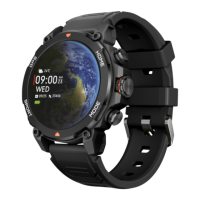
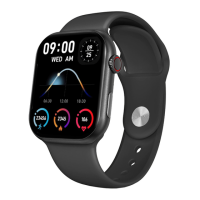
The usage method of the Explorer smartwatch is very simple
and intuitive:
· Via screen swipe
- Swipe left to access a quick menu with some important
health, activity, sleep and weather parameters presets. If you
swipe to the end, you will find the "+" symbol with which you
can add a few more of your choice.
- Swipe to the right for quick access to control music, mobile
contacts or voice assistant.
- Swipe upwards to access a menu with practical features:
date, battery status, weather, BT connection, brightness
control, motion sensor, torch, settings and sleep mode.
- Swipe your finger downwards to view app notifications,
missed calls, text messages and other notifications.
· Via dial button
Press the dial button to access the main menu. From here,
you will be able to access all the smartwatch’s features by
tapping on the corresponding icon. Also, by spinning it from
the main screen, you can change the watch face.
· Via home button
- Above the dial button, you will find the Home button. From
there you can access the full menu with all the features of
the smartwatch.
· Via mode button
- Below the dial button, you will find the Mode button. From
there you can access the menu with the different sport
modes.
3.2 Changing the watch face
There are three ways to change the watch face:
- The first option is to spin the dial button from the main
screen.
- The second option is to long tap the main screen. When
you do so, swipe right or left to choose between the options.
- The third option is from within the app. From the app
device section, tap on Watch Face Gallery. There are
hundreds to choose from. When you download one watch
face it will be automatically set as the main screen theme of
the smartwatch. It will also be added to the list of watch
faces stored inside the smartwatch. You will also be able to
design your own dials, even with your own pictures or videos.
3.3 Calls
The Explorer smartwatch allows you to make, receive,
answer and reject calls. You can maintain a phone call
conversation with just the smartwatch thanks to its built-in
microphone and speaker.
· Receiving, answering and rejecting calls
It is very important to have the call notifications feature
enabled to receive calls. Calls will appear in real time on the
screen and the watch will sound/vibrate.
Calls can be accepted by pressing the green icon and
rejected by pressing the red icon. The Explorer smartwatch


 To Next Page
 Loading...