EasyManua.ls Logo

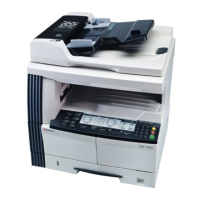
Kyocera Mita KM-1810 - User Manual

Kyocera Mita KM-1810
223 pages
Print Icon
To Next Page IconTo Next Page
Loading...
SERVICE
MANUAL
Published in July ’01
2A170762
Revision 2
KM-1510/1810

Table of Contents

Questions and Answers

  • A
    Alexander MaloneAug 7, 2025
    Why do my copies come out blank on my Kyocera Mita All in One Printer?
    • S
      Sheri BallardAug 7, 2025
      If copies from your Kyocera Mita All in One Printer are coming out blank, several factors could be at play: * Ensure originals are placed correctly. When using the platen, the original should be face-down. If using the DF (18 ppm copier), place originals face-up; for a 15 ppm copier, place them face-down. * Check the exposure settings. If the copier is in auto exposure mode, perform an auto exposure adjustment to change the overall exposure. If in Photo, Text & Photo, or Text mode, adjust the exposure using the copy exposure adjustment keys or perform the exposure adjustment for each mode. * Lastly, check the toner levels. If the Add Toner indicator is lit, replace the toner container.
  • K
    Karen LittleAug 11, 2025
    How to lighten copies on my Kyocera Mita All in One Printer when they come out too dark?
    • J
      Jonathan JordanAug 11, 2025
      If copies from your Kyocera Mita All in One Printer are too dark, the issue might stem from the exposure settings. If the copier is in auto exposure mode, try performing an auto exposure adjustment to lighten the overall exposure. Alternatively, if the copier is in Photo, Text & Photo, or Text mode, adjust the exposure to the correct degree using the copy exposure adjustment keys or perform the exposure adjustment for each mode.
  • B
    Brandi SilvaAug 15, 2025
    What to do if my Kyocera Mita All in One Printer keeps misfeeding?
    • R
      Rose WalkerAug 15, 2025
      If misfeeds occur frequently with your Kyocera Mita All in One Printer, consider the following: * Ensure the paper is set correctly in the drawer(s). * Replace any curled, folded, or wrinkled paper with new paper. * Remove any misfed paper or loose scraps of paper remaining inside the copier. * Verify that the set paper size matches the size of the paper being used; adjust the setting or use paper of the set size if necessary.
  • S
    Stacy OrtegaAug 19, 2025
    How to fix dirty copies from my Kyocera Mita All in One Printer?
    • M
      Michael FlowersAug 20, 2025
      If your Kyocera Mita All in One Printer produces dirty copies, the platen or DF might be dirty. Clean the platen and/or the DF. You can also try opening the front cover, pulling out, and then pushing back in the cleaning shaft.
  • L
    lishannonAug 25, 2025
    Why is the copy image askew on my Kyocera Mita All in One Printer?
    • N
      Nicholas KellyAug 25, 2025
      If the copy image from your Kyocera Mita All in One Printer is askew, check the original's placement. When using the platen, align a corner of the original with the rear left corner. When using the DF (18 ppm copier), adjust the original insertion guides to the original size. For a 15 ppm copier, align the original to the rear of the DF. If the issue persists with the DF, try making copies by placing originals on the platen.
  • J
    Jennifer WattsAug 28, 2025
    What to do if the Add Toner indicator stays on after replacing toner in my Kyocera Mita All in One Printer?
    • K
      Kyle MosesAug 28, 2025
      If the Add Toner indicator on your Kyocera Mita All in One Printer doesn't turn off after you've added toner, try shaking the new toner container again to ensure it's properly distributed.
  • H
    Heather FowlerSep 2, 2025
    How to troubleshoot a Kyocera Mita All in One Printer if nothing lights up?
    • K
      Kyle JohnsonSep 2, 2025
      If nothing lights up on the operation panel of your Kyocera Mita All in One Printer when you turn on the main switch, make sure the plug is securely connected to an AC outlet.

Kyocera Mita KM-1810 Specifications

General IconGeneral
BrandKyocera Mita
ModelKM-1810
CategoryCopier
LanguageEnglish

Related product manuals