EasyManua.ls Logo

Kyocera Mita KM-1620 - User Manual

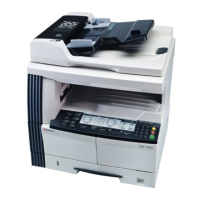
Kyocera Mita KM-1620
124 pages
Print Icon
To Next Page IconTo Next Page
Loading...
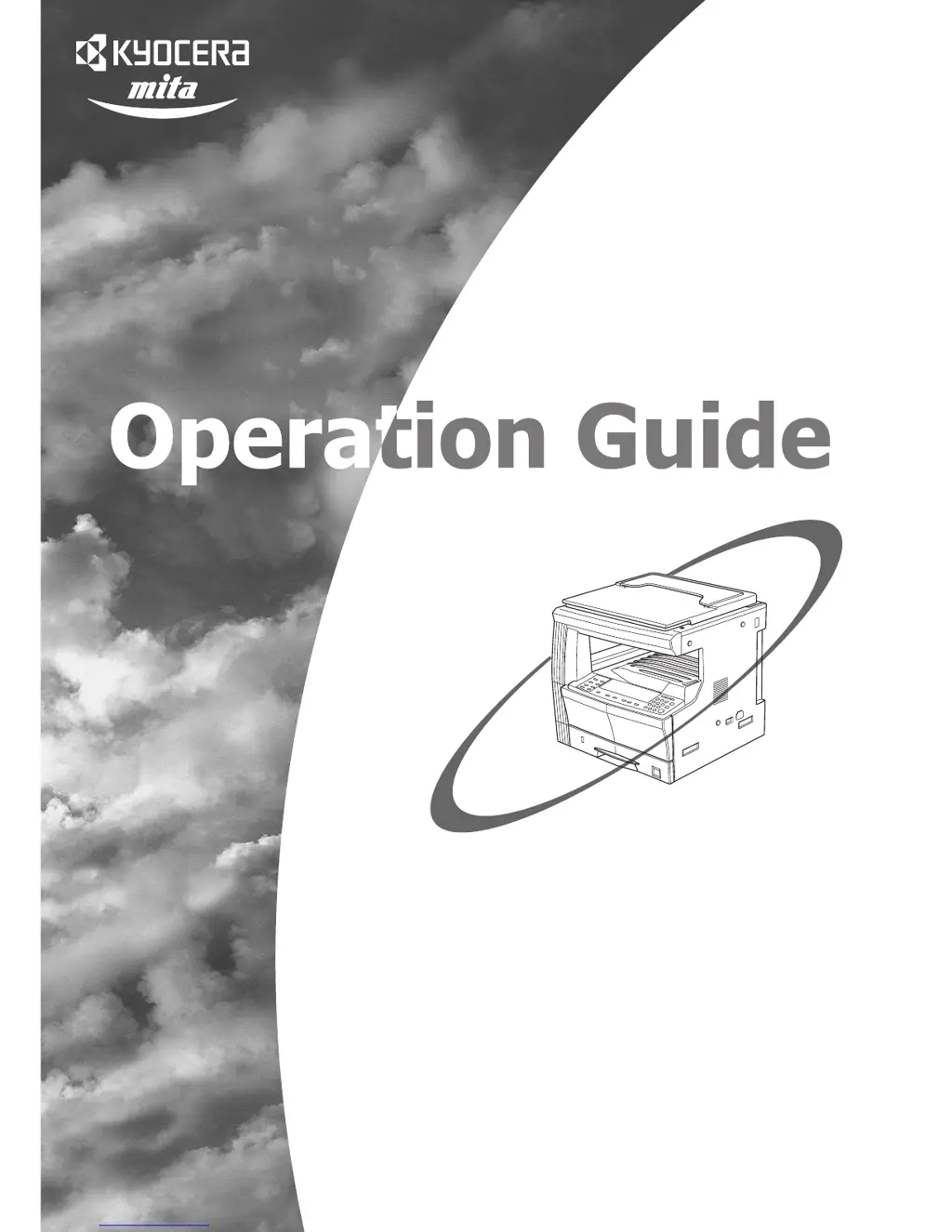
Please read the Operation Guide before using the copier.
Keep it close to the copier for easy reference.
KM-1620

Table of Contents

Questions and Answers

  • J
    Jared TorresAug 16, 2025
    What to do if the Toner Waste display blinks and “E31” appears on my Kyocera Mita Copier?
    • V
      valdezmarilynAug 17, 2025
      If the Toner Waste display is blinking and the error code “E31” is shown on the copy quantity display of your Kyocera Mita Copier, this indicates that the waste toner box is full. You should replace it with a new waste toner box.
  • H
    Hannah ShahAug 19, 2025
    What does it mean when the Replenish Toner display blinks on my Kyocera Mita Copier?
    • P
      Patrick BrooksAug 19, 2025
      When the Replenish Toner display blinks on your Kyocera Mita Copier, it means there is very little toner remaining. Replace the toner container with a new one as soon as possible.
  • S
    susanphillipsAug 22, 2025
    Why does “E33” appear and the Replenish Toner display blink on my Kyocera Mita Copier?
    • L
      Linda FoleyAug 22, 2025
      The “E33” error appears, and the Replenish Toner display blinks because the Kyocera Mita Copier cannot produce copies due to the absence of toner. The suggested solution is to replace the toner container with a new one.
  • D
    danielle72Aug 25, 2025
    What does “E70” mean on my Kyocera Mita Copier?
    • B
      Brian Myers MDAug 26, 2025
      If “E70” appears on the copy quantity display of your Kyocera Mita Copier when using the optional Document Processor, it means there are originals left on the original table. Remove the originals, return them to the original table, and try copying again.
  • P
    Paul MorganAug 27, 2025
    What does “E14” mean on my Kyocera Mita Copier?
    • J
      Jeremy CampbellAug 27, 2025
      If you see “E14” on the copy quantity display of your Kyocera Mita Copier, it means an original size that cannot be copied has been set. Here’s what to check: * If performing Book Border Erasure copying, ensure the original is set horizontally. * Avoid irregular size originals during Border Erase or Merge Copy. * When making split copies or 2-Sided Copies from a double-page spread, use only 8 1/2" × 11", 11" × 17", A3, A4R, A5R, B4 or B5R sizes. * Ensure the original is set when using the Merge Copy function.
  • M
    Matthew ThompsonAug 30, 2025
    How to fix “E71” error on Kyocera Mita Copier?
    • D
      Danielle StoneAug 30, 2025
      If “E71” appears on the copy quantity display of your Kyocera Mita Copier, the device is trying to copy originals it previously failed to copy. Return all originals to the original table and attempt to copy them again.
  • D
    Daniel HallSep 2, 2025
    What does “E32” mean on my Kyocera Mita Copier?
    • A
      Anthony MeyerSep 2, 2025
      If “E32” appears on the copy quantity display of your Kyocera Mita Copier, it means the Toner Container has not been set. Set the Toner Container to resolve this issue.
  • P
    Peggy ByrdSep 4, 2025
    What does “E72” mean on my Kyocera Mita Copier?
    • S
      Stacey HendersonSep 4, 2025
      If “E72” appears on the copy quantity display of your Kyocera Mita Copier, it indicates that originals were placed in the optional Document Processor while copying on 2-sides (front and back). To resolve this, remove the originals from the Document Processor, place them on the Original Table after exiting the front and back copying, 2-Sided copy, 2 in 1, 4 in 1 or Sort Mode, and then resume copying.
  • K
    kelseybradleySep 7, 2025
    How to fix “E15” error on Kyocera Mita Copier?
    • D
      Dr. Alexis MartinezSep 7, 2025
      If “E15” appears on the copy quantity display of your Kyocera Mita Copier, it means a size that cannot be copied on both sides has been specified. To fix this, specify a paper size that can be used for double-sided copying.
  • M
    morganmelissaSep 10, 2025
    How to resolve “E12” error on Kyocera Mita Copier?
    • V
      Vernon GomezSep 10, 2025
      The “E12” error on your Kyocera Mita Copier indicates that 11" × 8 1/2"/A4 size paper was not available in either the drawer or the Paper Feeder (multi-bypass tray) when a report was being output. Press the [Paper Select] key, choose the appropriate supply drawer, and then press the [Start] key to supply paper from the selected drawer.

Summary

Symbols

IMPORTANT!

Explains symbols used in the manual for warnings and notes.

Supplementary Information

Provides supplemental explanations and reference information.

Section 1 IMPORTANT! PLEASE READ FIRST.

Caution Labels

Identifies safety labels on the product and their meanings.

INSTALLATION PRECAUTIONS

Guidelines for safe and proper installation of the copier.

PRECAUTIONS FOR USE

Important safety measures and warnings for operating the copier.

Section 2 NAMES OF PARTS

Main Body

Identifies and describes the main physical components of the copier.

Operation Panel

Details the keys, indicators, and displays on the copier's control panel.

Section 3 PREPARATIONS

Loading Paper

Instructions on how to load paper into the copier drawers and trays.

Setting paper on the multi-bypass tray

Procedure for loading paper using the multi-bypass tray.

Inputting Custom Sizes

How to register non-standard paper sizes for use with the copier.

Section 4 BASIC OPERATION

Basic Copying Procedure

Step-by-step guide for performing a standard copy operation.

Making enlarged and reduced copies

Explains how to adjust copy size using magnification and reduction.

Interrupt Copying

How to temporarily stop a copy job to perform another.

Low Power Mode

Details the copier's low power mode for energy conservation.

Auto Off Mode

Explains the automatic power-off function for energy saving.

Section 5 COPY FUNCTIONS

Making 2-Sided copies from various types of originals

Instructions for creating two-sided copies from different original types.

Copying two-page originals onto separate sheets: Page Separation;Split Copy Modes

How to split book pages or two-sided originals onto separate sheets.

Making a margin space on the copies

Adjusting the image to create a binding margin on copied pages.

Making copies with clean edges

Removing dark shading or blemishes from copy edges.

Fitting the image of either two or four originals onto a single copy page

Combining multiple originals onto a single copy sheet (2-in-1, 4-in-1).

Automatic Sorting of copy sets

Function to automatically sort multiple sets of copies.

Saving on toner use

Using the Eco-copy feature to reduce toner consumption.

Memorizing frequently used settings: Program Function

Storing and recalling frequently used copy settings.

Section 6 COPIER MANAGEMENT

Copy Management Mode

Managing copy usage per department using codes.

Default Setting Mode

Customizing default operational settings for the copier.

Section 7 OPTIONAL EQUIPMENT

Document Processor

Details on the automatic document feeder and its capabilities.

Paper Feeder

Information about the optional paper feeder unit.

Duplex Unit

Explains the function of the duplex unit for two-sided copying.

Key Counter

Describes the key counter for tracking copier usage.

Additional Memory

Information on increasing the copier's memory capacity.

Section 8 TROUBLESHOOTING

If one of the following indications is Displayed

Table listing error codes and their corrective procedures.

If paper jams

Procedures for clearing paper jams in various locations of the copier.

If other trouble occurs

Troubleshooting guide for common operational issues and symptoms.

Section 9 MAINTENANCE AND OPERATION INFORMATION

Cleaning the Copier

Instructions for cleaning external parts of the copier.

Replacing the Toner Container and Waste Toner Box

Step-by-step guide for replacing toner and waste toner.

Specifications

Technical details and specifications of the copier's main body.

Optional Equipment

Overview and installation locations of optional equipment.

Appendix: Functions and Settings Combination Chart

Chart detailing how different functions can be combined.

Kyocera Mita KM-1620 Specifications

General IconGeneral
BrandKyocera Mita
ModelKM-1620
CategoryCopier
LanguageEnglish

Related product manuals