18 | Page
GET CONNECTED: YOUR LA CROSSE VIEW™ APP
Enjoy the added benefits of on-the-go monitoring when you are connected via your mobile
device. For support and guidance of your La Crosse View™ app, please visit:
o Android users: http://www.lacrossetechnology.com/support/lacrosseviewandroid
o iOS users: http://www.lacrossetechnology.com/support/lacrosseviewios
WHERE DO I FIND THE LA CROSSE VIEW™ APP?
•
Visit the App Store or Google Play Store to download the free La Crosse View™ app on
your mobile device.
HOW DO I CONNECT?
Confirm that your mobile device is connected to a 2.4 GHz Wi-Fi Network before you connect
your station. Some routers have 5.0GHZ for media streaming and 2.4GHZ for everything else.
•
Wi-Fi routers have a 2.4 GHz band.
• Newer routers are often multi-band routers with both 2.4 GHz and 5 GHz bands.
For more information on routers please visit: https://www.lacrossetechnology.com/router_info
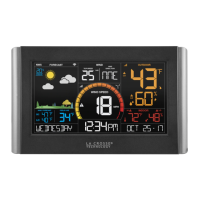
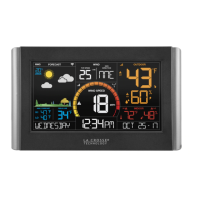
• When connecting to the app, ensure the Wi-Fi Indicator icon is blinking.
o
Solid: Indicates that you are connected to Wi-Fi.
o
Flashing: Searching for Wi-Fi Network
o
Not displayed: Not Connected
•
If it is not blinking, perform a Wi-Fi search by pressing & holding the + & - buttons together.
Station power cord use is required. Battery operation only, will not update sensor or Wi-Fi
data to the station.
• Open the app on your iOS or Android device.
Follow instructions in the app:
•
Your La Crosse View™ app will walk you through creating an account and connecting
your station to the



 To Next Page