3.4 Logfile Menu
Log data on a file, which can be referenced and compared to other log files.
Start
Click Start to log all runtime data onto a file.
When the log file is activated, runtime data from the regulator is stored to a tab-separated text file,
which can be opened in Excel formatted for further data analysis. If an existing file is selected the file
is opened and the new data will be added to the end of the file.
The header shows what kind of data will be stored in the log file, along with the software version
used. Then the runtime data records until the user stops the log file. Please note that a large amount
of data can accumulate over a short period of time, because a block of data will run up to 20 times a
second. Reference Section 3.3 to adjust data rate speed.
Stop
Stop logging and close file.
4 User View
4.1 Main View
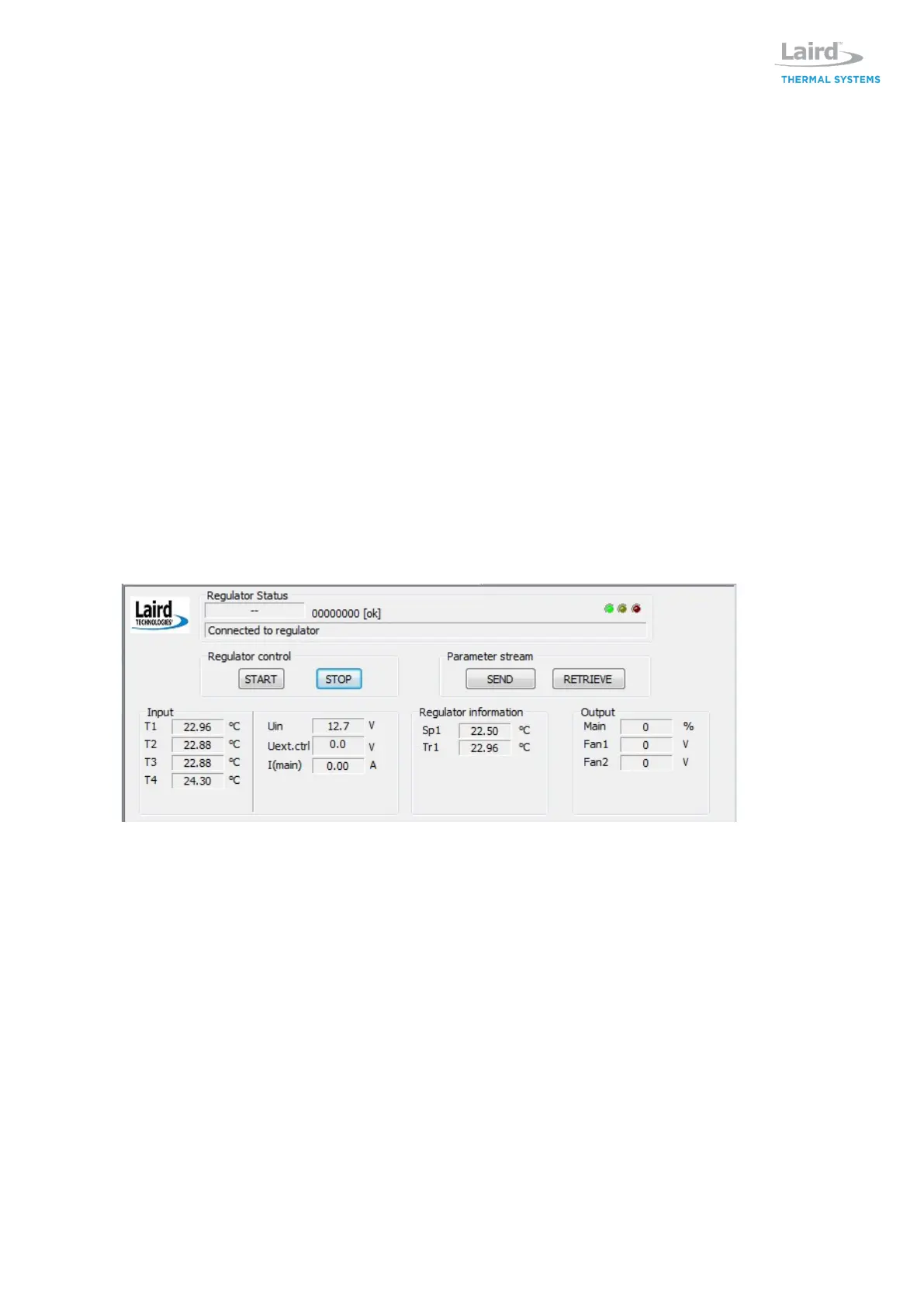
The Main view shows live information received from the regulator unit.
Regulator Status
Displays live data from the regulator unit such as the current software version in the regulator,
indication of any error, and the last command performed.
The LEDs on the right side indicate the following:
GREEN: that the serial port is open for communication.
YELLOW: that runtime data is received from regulator.
RED: that there is an error reported from the regulator. Regulator
Control
Click START button to start the regulator.
Click STOP button to stop the regulator.
Parameter Stream
Click SEND to download settings to the controller board. Note: To store the settings permanently in


 To Next Page