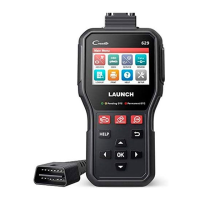
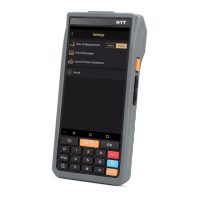
X-431 HTT Professional Automotive Diagnosis Handset
27
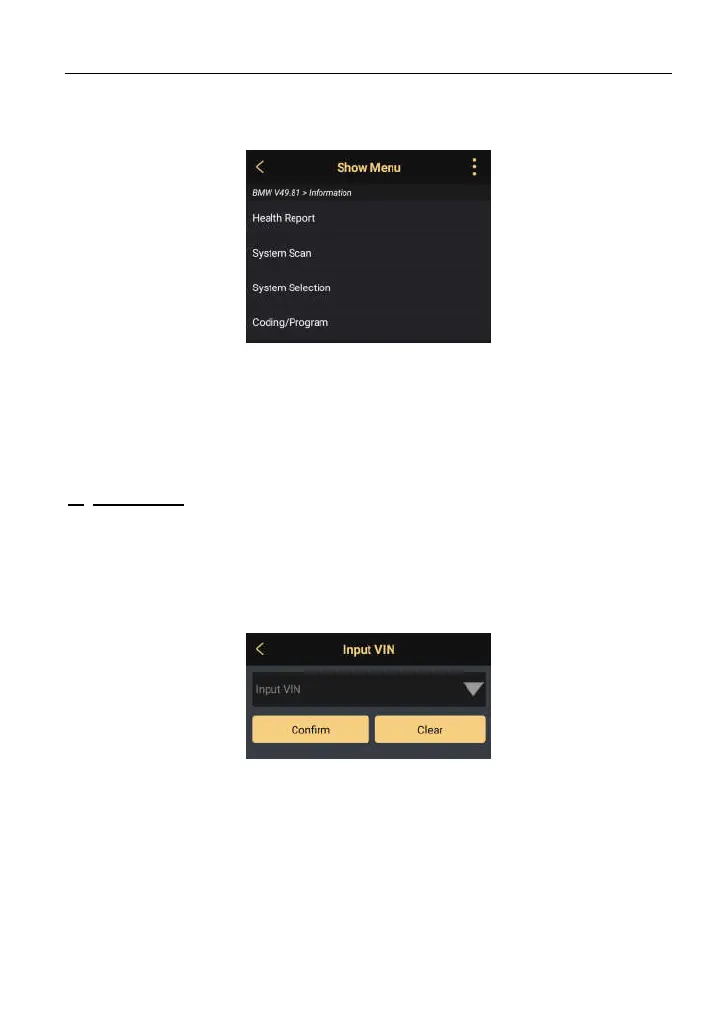
function selection page directly.
Fig. 5-10
Tap the desired option to perform the corresponding function.
*Note: Before using this function, the corresponding diagnostic software and Auto
search file need to be downloaded on your tool first while downloading the diagnostic
software.
B. INPUT VIN: In this mode, you need to input the VIN manually. In general,
vehicle identification numbers are standardized - all contain 17 characters.
VIN characters may be capital letters A through Z and numbers 1 through 0;
however, the letters I, O and Q are never used in order to avoid mistakes of
misreading. No signs or spaces are allowed in the VIN.
Tap “INPUT VIN” and the following screen will appear:
Fig. 5-11
Input the VIN, and tap “Confirm”, the system will automatically identify the
vehicle model and directly navigate to the function selection page.
2. Tap a corresponding diagnostic software logo, and then follow the
on-screen instruction to access the diagnostic software.
Take Demo as an example to demonstrate how to diagnose a vehicle.
1). Tap the “DEMO”, a screen similar to the following appears:


 To Next Page