Instructions
3.1 Setting up a passphrase
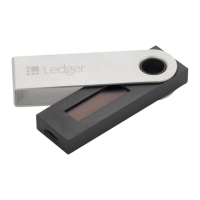
1. Connect your Ledger Nano S Plus and enter your PIN code.
2. Navigate to Settings > Security > Passphrase.
3. Click past the warning and choose Set up passphrase.
4. Choose either of two options:
● Attach to PIN Creates a second PIN code to unlock passphrase-protected
accounts.
Note: you can only have one secondary PIN code.
● Set temporary Enter the passphrase each time you wish to access
passphrase-protected accounts.
3.1.1 Attaching to PIN code
Attaching a passphrase to a new PIN code creates a new set of accounts on your Ledger
Nano S Plus based on a secret passphrase of your choice. You can access the accounts
protected by this passphrase by entering a secondary PIN code.
● Only one passphrase can be attached to a PIN code. If you add another
passphrase to the PIN code, you will overwrite the secondary PIN code and the
passphrase.
● The passphrase will be stored on the device until you overwrite it with another
passphrase or until the device is reset.
● Store a physical backup of the secret passphrase in a secure place. The device
cannot display it after you've set it.
Instructions
1. Choose Attach to a PIN option from the Passphrase menu in the device security
settings.
2. Choose the PIN code that will activate the passphrase.
3. Re-enter the secondary PIN code to confirm it.


 To Next Page