1.3 Checking for factory settings
● Make sure your Ledger device was not preconfigured with a PIN code that you did
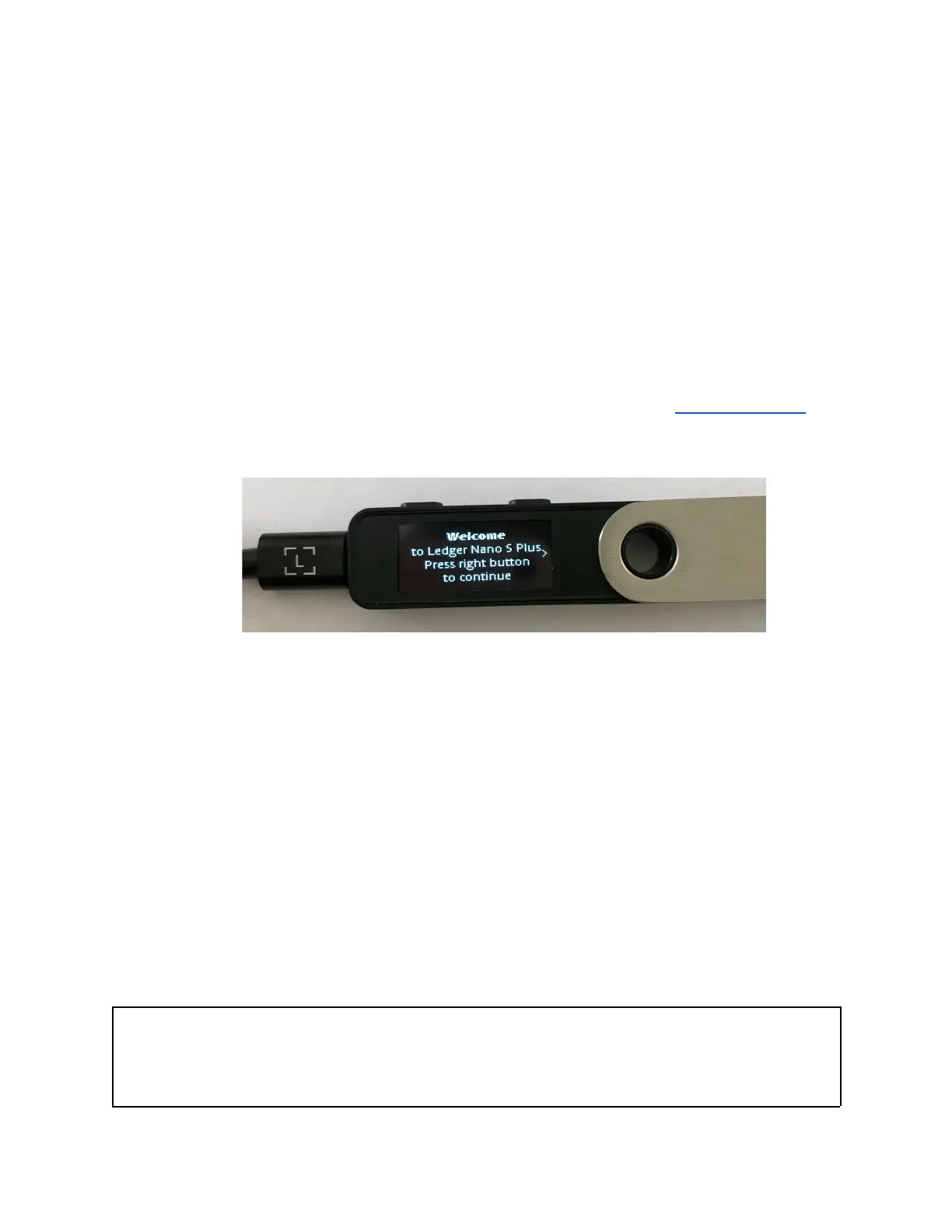
not choose yourself. The device should display the following: “Welcome to Ledger
Nano S Plus. Press right button to continue.”
when you turn it on for the first time.
● Ledger never provides a PIN code in any way, shape, or form. Always choose the
PIN code yourself.
● If a PIN code is given to you or if the device requires a PIN code you did not
choose: it is not safe for you to use the device. Please contact Ledger Support for
assistance.
Ledger Nano S Plus: Welcome to Ledger Nano S Plus)
1.4 Checking hardware integrity
All Ledger devices pass the genuine check during the onboarding process and then each
time when they connect to Manager in Ledger Live. Genuine Ledger devices hold a secret
key that is set during manufacture. Only a genuine Ledger device can use its key to
provide the cryptographic proof required to connect with Ledger’s secure server.
Advanced users additionally can check the hardware integrity of the Ledger device to
check that it has not been tampered with. This article contains detailed technical
information about the security of your device.
Important notice
● Please note that opening your Ledger device will void the warranty.


 To Next Page