25
PC Menu Adjustments
In the Setup menu you may adjust the position of images displayed on screen once you connect an input signal from
your PC. The recommended resolution is 19”1366X768 / 24”1920X1080 . For use with a laptop computer, refer to your
computer’s user manual on instruction for proper display output. If your PC system uses a standard signal mode, the
TV screen will adjust automatically. Connect an optional 3.5mm audio cable for stereo sound. See page 16 for details.
How to Navigate:
After connecting to a PC, press the INPUT button on the remote control, Use the buttons to highlight the PC input
and press ENTER. Press the MENU button on the remote control and navigate using arrow buttons to select
Setup.
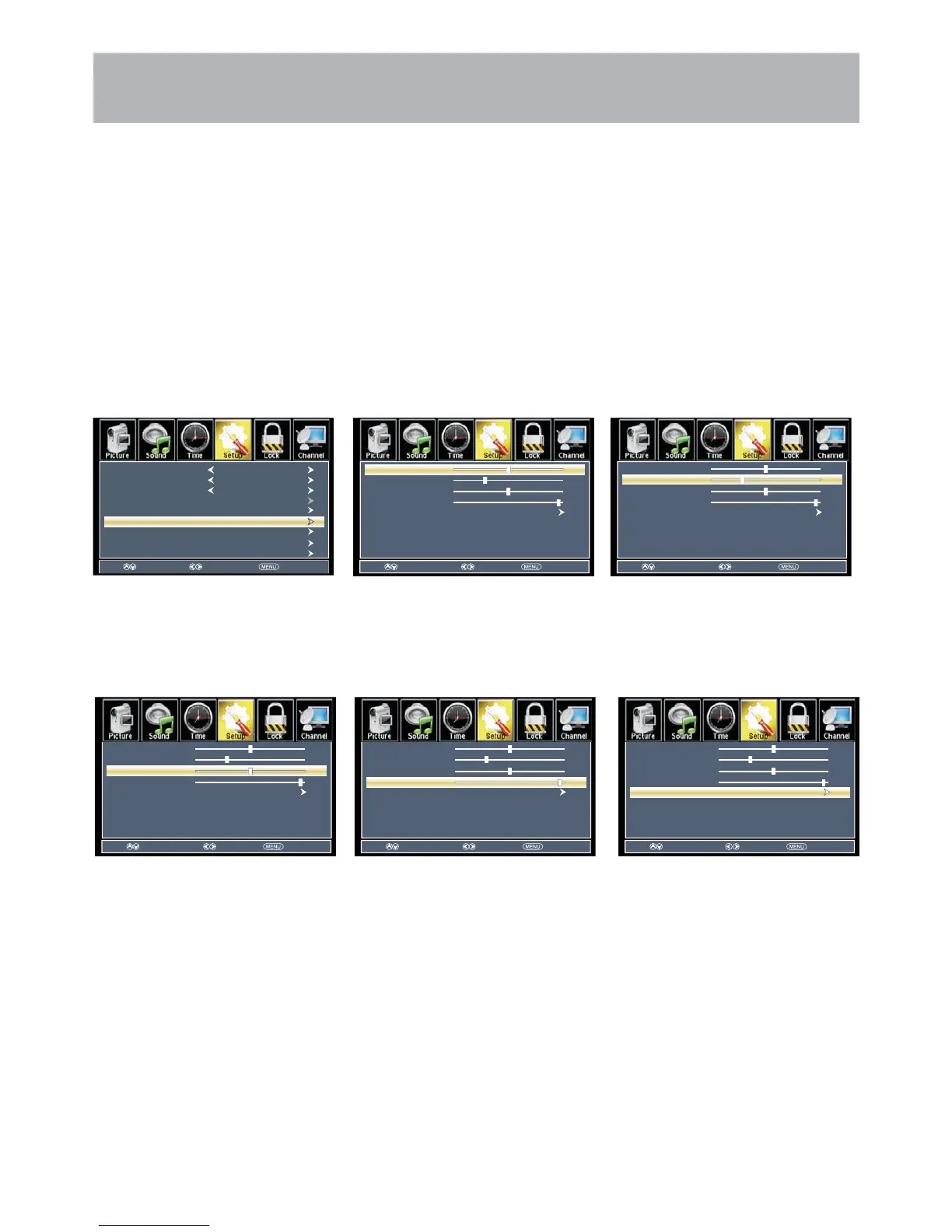
• Gain access to position adjustment
options by pressing the down arrow
button to highlight PC Settings, then
press arrow button to select from
the following options.
• Highlight H-Pos. Navigate
using the arrow buttons to
adjust the position of images
displayed from side to side.
• Highlight V-Pos. Navigate
using the arrow buttons to
adjust the position of images
displayed up and down.
• Highlight Clock. Navigate
using the arrow buttons to
control the width of the image.
• Highlight Phase. Navigate
using the arrow buttons to
improve focus and image stability.
• Highlight Auto. Press the
arrow button to automatically adjust
the display to the best setting.
Advanced Settings
50
27
H-POS
V-POS
Phase
Auto
98
Clock
50
50
27
H-POS
V-POS
Phase
Auto
98
Clock
50
Select Move Exit
Select Move Exit Select
Move
Exit
Menu Language
Transparent
Closed Caption
OSD Timeout
Other Settings
Input Label
Restore Default
English
25%
30Sec.
PC Settings
50
27
H-POS
V-POS
Phase
Auto
98
Clock
50
50
27
H-POS
V-POS
Phase
Auto
98
Clock
50
50
27
H-POS
V-POS
Phase
Auto
98
Clock
50
Select Move Exit Select Move Exit Select Move Exit



 To Next Page