EasyManua.ls Logo

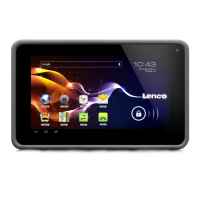
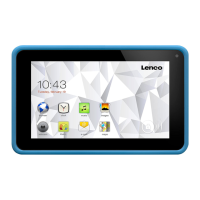
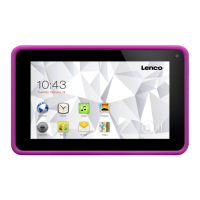
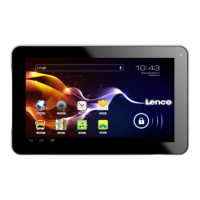
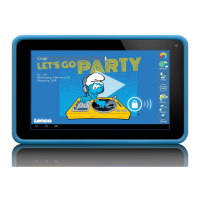
LENCO Smurftab-74 - User Manual

LENCO Smurftab-74
25 pages
Print Icon
To Next Page IconTo Next Page
Loading...
1
Smurftab-74
18 CM (7") TABLET WITH ANDROID™
4.4
User manual
For information and support
www.lenco.com
Table of content
Question and Answer IconNeed help?

Do you have a question about the LENCO Smurftab-74 and is the answer not in the manual?

Overview

This document describes the Lenco Smurftab-74, an 18 CM (7") tablet running Android 4.4. It serves as a user manual, providing instructions for operation, settings, and maintenance.

Function Description:

The Lenco Smurftab-74 is a portable tablet designed for various multimedia and internet activities. It features a touch screen interface for navigation and interaction. Key functions include:
  • Media Playback: Supports video playback (AVI, WKV, ASF, 3GP, MP4) and music playback (MP3, WMA, FLAC, WAV, ACC). Users can browse media by artists, albums, songs, and playlists.
  • Recording: Includes a sound recorder function to capture audio.
  • Photography and Videography: Equipped with a camera for taking pictures and recording videos. It supports both front and rear cameras on double-camera models.
  • Internet Browsing: Allows users to surf the internet using a built-in browser.
  • Application Management: Facilitates downloading, installing, and uninstalling Android application programs through the Play Store or by manually installing .apk files.
  • Communication: Supports email accounts (POP3 and SMTP) for sending and receiving messages.
  • Productivity Tools: Includes a calendar for scheduling activities, a clock with alarm functions, and a calculator for basic computations.
  • Navigation: Features a Maps application for location services, requiring an internet connection.
  • File Management: A file manager/explorer allows users to view, copy, paste, delete, and cut files stored on internal storage, SD card, and USB storage.
  • Connectivity: Supports Wi-Fi for wireless internet access and 3G networks (via an external USB 3G Network Card) for mobile data. Bluetooth is also available for connecting to nearby Bluetooth devices.
  • PC Connection: Can be connected to a PC as a portable storage device for data transfer.
  • Kidoz APP: The manual mentions a Kidoz APP, details of which are to be found in the file manager.

Important Technical Specifications:

  • Model: Smurftab-74
  • Screen Size: 18 CM (7")
  • Operating System: Android 4.4
  • Memory Card Support: Up to 32GB SD Card.
  • Power Supply: Uses a power adapter (Model: MX12X6-0502000VU, Manufacturer: SHENZHEN MING XIN POWER TECHNOLOGIES CO,.LTD) for charging.
  • Wireless Connectivity: Wi-Fi, Bluetooth, 3G (external USB 3G Network Card).
  • Operating Frequency: 2400 - 2483.5 MHz.
  • Compliance: CE marking, EMC Directive (2004/108/EC), Low Voltage Directive (2006/95/EC), Directive 1999/5/EC.

Usage Features:

  • Startup and Shutdown: Press and hold the Power Key for 5 seconds to start or shut down. A quick press locks/unlocks the screen. Forced shutdown is possible by pressing and holding the Power Key or Reset Key.
  • Touch Screen: Supports click, press and hold (for moving icons), and pull and move (for shifting interfaces). Users are advised to protect the screen from scratches.
  • Screen Lock: The device enters stand-by mode after a period of inactivity or by pressing the Power Key. To unlock, pull the Unlock Key to the designated point.
  • Desktop Interface: Provides quick access to USB connection status, USB debugging, Google search, voice search, volume controls, multitask selection, and back/desktop navigation.
  • Settings Menu: Comprehensive settings for Wi-Fi and network, Bluetooth, data traffic usage, display (wallpaper, brightness, sleep, font size), storage, battery, applications, location, security (screen lock, owner info, passwords, device management, app permissions, credential storage), language and input methods, backup and resetting, account management, system date and time, and accessibility.
  • Wi-Fi Network Settings: Users can turn on Wi-Fi, search for available networks, input passwords, and connect. Hidden networks can be added manually.
  • 3G Network Settings: Requires an external USB 3G Network Card and SIM card. Users need to connect the 3G card via a USB OTG connection cable, then configure mobile network settings including APN.
  • Extended Memory Usage: Supports U Disk (USB storage) via OTG port and SD Card. Instructions are provided for inserting, using, and safely removing these storage devices.
  • Application Installation/Uninstallation: Applications can be downloaded from the Play Store or installed manually from .apk files. The manual details steps for both online downloading and manual installation, as well as uninstalling programs.
  • PC Connection: When connected to a PC via USB, the tablet acts as a mass storage device, allowing data transfer. Users must select "Turn on USB Storage" on the tablet.
  • Charging: The device is charged via a power adapter connected to the micro USB port. The battery icon indicates charging status.

Maintenance Features:

  • Cleaning: Use a soft, dry cloth for cleaning. For severe stains, a damp cloth with dilute detergent can be used. Avoid solvents or petrol-based fluids.
  • Ventilation: Ensure 5 cm (2") free space around the device for proper ventilation.
  • Power Cord Care: Do not step on, pinch, or place heavy items on the power cord. Unplug during lightning storms or long periods of disuse.
  • Heat and Magnetic Fields: Keep away from heat sources and strong magnetic fields.
  • ESD: If ESD disturbs normal usage, reset and restart the device. Handle with care in a static-free environment during file transmission.
  • Water/Liquid Exposure: Do NOT use in wet or moist areas, and do not spill water or liquid on the product.
  • Battery Maintenance: Charge the battery at least once per month if unused for an extended period. Fully charge regularly. Do not keep the device powered off for too long.
  • Screen Protection: Do not knock on, press, hit, or shake the screen. The screen is plastic and can break, so handle with care to avoid sharp splinters.
  • Data Backup: BEFORE sending the device for service, ALWAYS BACKUP YOUR DATA. The supplier is not liable for data loss.
  • USB Memory Stick: Plug USB memory sticks directly into the unit; avoid USB extension cables to prevent interference and data failure.
  • Copyright: Do not distribute copyright-protected material without permission.
  • Power Adapter: Use only the original power adapter provided.
  • Disassembly: Do not disassemble or repair the device yourself.
  • Professional Use: The device is not suitable for professional use; warranty will be voided if used professionally.
  • Battery Safety: Li-battery products have specific warnings: prevent eye/skin contact, avoid inhalation, prevent fire hazard, and dispose of according to local regulations. Batteries should not be exposed to excessive heat.
  • Service and Support: Contact Lenco helpdesk for support. Provide model and serial number. Repairs are handled by local dealers, not directly by Lenco. Opening the unit by non-official service centers voids the warranty.
  • Waste Disposal: The product and battery should not be disposed of as general household waste in Europe. Dispose according to local laws for electrical equipment and batteries to conserve natural resources and protect the environment.

LENCO Smurftab-74 Specifications

General IconGeneral
BrandLENCO
ModelSmurftab-74
CategoryTablet
LanguageEnglish

Related product manuals