EasyManua.ls Logo

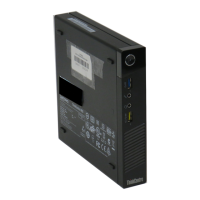
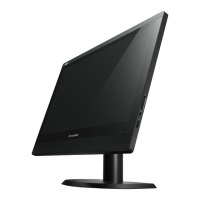
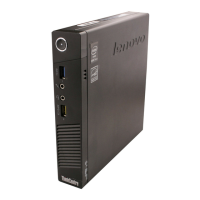
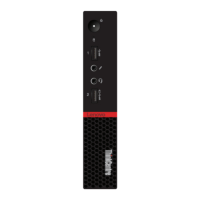
Lenovo 10AH - User Manual

Lenovo 10AH
180 pages
Print Icon
To Next Page IconTo Next Page
Loading...
ThinkCentreM83,M93/p
UserGuide
MachineTypes:10A2,10A3,10A8,10A9,10AH,10AJ,10AM,and
10AN

Table of Contents

Other manuals for Lenovo 10AH

Questions and Answers

  • O
    onealdianaAug 8, 2025
    What to do if Lenovo 10AH computer does not start when I press the power switch?
    • D
      Derrick LoganAug 8, 2025
      If your Lenovo Desktop doesn't start when you press the power switch, check the following: * Ensure the power cord is correctly connected to the rear of the computer and a working electrical outlet. * If there's a secondary power switch at the rear, make sure it's on. * Confirm the power indicator on the front of the computer is lit. * Verify the computer voltage matches the voltage available at the outlet.
  • J
    jonesedwardAug 16, 2025
    Why Lenovo 10AH Desktop keyboard does not work?
    • I
      ibowenAug 16, 2025
      If your Lenovo Desktop keyboard isn't working, verify that: * The computer is turned on. * The keyboard is securely connected to a USB connector on the computer. * No keys are stuck.
  • L
    Lisa MendozaAug 23, 2025
    Why Lenovo 10AH monitor screen is blank?
    • J
      Jonathan CannonAug 23, 2025
      If your Lenovo Desktop monitor screen is blank, please verify the following: * The monitor signal cable is correctly connected to both the monitor and the appropriate connector on the computer. * The monitor power cord is correctly connected to the monitor and a working electrical outlet. * The monitor is turned on, and the brightness and contrast are correctly set. * The computer voltage matches the voltage available at the electrical outlet. * If your computer has two monitor connectors, use the connector on the graphics card.
  • M
    Michele GarciaAug 30, 2025
    Why Lenovo 10AH Desktop mouse does not work?
    • M
      mdixonAug 30, 2025
      If your Lenovo Desktop mouse isn't working, verify that: * The computer is turned on. * The mouse is securely connected to a USB connector on the computer. * The mouse is clean.

Summary

Chapter 1. Product overview

Features

Introduces the computer's features and how to view model-specific information.

Internal drives

Lists supported internal drive types like SSD, HDD, and optical drives.

Security features

Lists built-in security features like passwords, fingerprint reader, and cable locks.

Chapter 2. Using your computer

Using the keyboard

Information on keyboard types, Windows shortcut keys, and ThinkVantage button.

Using CDs and DVDs

Guidelines for using CD/DVD drives and handling optical media.

Chapter 3. You and your computer

Accessibility and comfort

Information on ergonomic practices and user comfort.

Air circulation

Importance of ventilation and avoiding blocked vents to prevent overheating.

Chapter 4. Security

Security features

Overview of built-in security features like Computrace, USB control, and TPM.

Using passwords

Information on setting passwords for system security (BIOS and Windows).

Chapter 5. Installing or replacing hardware

Handling static-sensitive devices

Precautions to prevent static electricity damage to components.

Removing the computer cover

Step-by-step instructions to remove the computer's outer cover.

Replacing the microprocessor

Detailed instructions for replacing the CPU.

Replacing the primary hard disk drive

Instructions for replacing the main hard disk drive.

Chapter 7. Using the Setup Utility program

Starting the Setup Utility program

Steps to access and start the BIOS Setup Utility.

Using passwords

Setting up passwords for system security (BIOS and Windows).

Selecting a startup device

How to choose the boot device.

Chapter 10. Troubleshooting and diagnostics

Basic troubleshooting

A table of common symptoms and their verification steps.

Troubleshooting procedure

A systematic approach to diagnosing computer problems.

Audio problems

Solutions for various audio issues, including no sound in Windows.

Networking problems

Common issues related to network connectivity and their solutions.

Chapter 11. Getting information, help, and service

Help and Support

Accessing Windows and Lenovo help information and user manuals.

Calling for service

Information on contacting Customer Support for warranty service.

Lenovo 10AH Specifications

General IconGeneral
BrandLenovo
Model10AH
CategoryDesktop
LanguageEnglish

Related product manuals