EasyManua.ls Logo

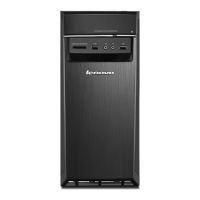
Lenovo 30DH00H8IX - User Manual

Lenovo 30DH00H8IX
148 pages
Print Icon
To Next Page IconTo Next Page
Loading...
P340
User Guide
Questo manuale d’istruzione è fornito da trovaprezzi.it. Scopri tutte le offerte per Lenovo ThinkStation
P340 Tower 30DH00H8IX o cerca il tuo prodotto tra le migliori offerte di PC Desktop e Workstation

Table of Contents

Questions and Answers

  • C
    conraddeborahAug 12, 2025
    What to do if my Lenovo Desktop does not start?
    • B
      Briana WilliamsAug 12, 2025
      If your Lenovo Desktop isn't starting, make sure the power cord is properly connected at both the rear of the computer and the electrical outlet. If there's a secondary power switch on the back, ensure it's turned on. Also, check that the power indicator on the front is lit. Verify the computer voltage matches your region's electrical outlet. Confirm all storage drive cables are securely connected and that the boot drive is the first startup device in UEFI BIOS. In rare cases, the storage drive might be corrupted, requiring replacement. If your computer has Optane memory, ensure it is present, undamaged, and verified with diagnostic tools.
  • M
    Michele DavisAug 16, 2025
    How to fix Wi-Fi on Lenovo Desktop?
    • S
      sspencerAug 16, 2025
      To resolve Wi-Fi issues on your Lenovo Desktop, first enable the Wi-Fi feature in the UEFI BIOS. Next, ensure that all Wi-Fi devices are enabled. Also, enable the Wi-Fi feature within Windows Settings. If the problem persists, try updating or reinstalling the Wi-Fi driver.
  • J
    John JacksonAug 20, 2025
    What to do if there is no sound on Lenovo 30DH00H8IX?
    • J
      jreyesAug 20, 2025
      If you cannot hear audio on your Lenovo Desktop, and you're using powered external speakers, ensure they are switched on and the volume isn't too low. Check the volume icon in the Windows notification area; make sure the speaker isn't muted and the volume level is adequate. Also, if your computer has a front audio panel, ensure its volume is not set too low.
  • T
    Tristan GarnerAug 23, 2025
    Why my Lenovo 30DH00H8IX can't connect to Ethernet LAN?
    • A
      Anne LoveAug 23, 2025
      If your Lenovo Desktop can't connect to an Ethernet LAN, ensure the cable is correctly connected from the Ethernet connector to the hub's RJ45 connector. Enable the Ethernet LAN feature in UEFI BIOS, and also enable the Ethernet LAN adapter. If it's already enabled, try right-clicking the Ethernet LAN adapter icon and select 'Enable'. Consider updating or reinstalling the Ethernet LAN driver. Install any necessary networking software, consulting your LAN administrator if needed. Ensure the switch port and adapter have the same duplex setting; incorrect settings can cause performance issues or lost connections.
  • E
    Elizabeth EvansAug 27, 2025
    What to do if storage drives are missing from Lenovo 30DH00H8IX BIOS?
    • S
      Sally TaylorAug 27, 2025
      If storage drives are missing from the BIOS menu of your Lenovo Desktop, ensure that the signal and power cables for all storage drives are correctly connected. Verify that the computer is configured correctly to support the storage drives. If SATA drives are installed, ensure the SATA storage drive enablement module (for one to five drives) is installed. For SAS drives, ensure the SAS storage drive enablement module (for one to five drives) or the LSI MegaRAID SAS adapter is installed.
  • S
    Steven PriceAug 31, 2025
    How to enable Bluetooth on Lenovo Desktop?
    • J
      Jessica SmithAug 31, 2025
      To enable Bluetooth on your Lenovo Desktop, start by enabling the Bluetooth feature in UEFI BIOS. Then, make sure all Bluetooth devices are enabled. Ensure that the Bluetooth radio is turned on. If it still doesn't work, try updating or reinstalling the Bluetooth driver.
  • A
    Anthony OconnorSep 4, 2025
    Why my Lenovo 30DH00H8IX CD or DVD does not work?
    • S
      Shari BrownSep 4, 2025
      If a CD or DVD isn't working on your Lenovo Desktop, first ensure that the optical drive supports the disc type. Check that the disc is inserted correctly with the label facing up and is clean; wipe it from the center outwards with a soft cloth. Verify the power and signal cables are securely connected to the drive. Make sure the disc isn't scratched or damaged, and try another disc that you know works. Set the CD or DVD drive as the top priority in UEFI BIOS. Restart the DVD player program. Try a lower screen resolution or color depth. Close any open files, and then restart the computer. Check the volume control settings on the computer and on your speakers. Use the DVD menu for the video to select a different audio track.
  • W
    williamscourtneySep 7, 2025
    How to free up space on Lenovo Desktop?
    • V
      vfosterSep 7, 2025
      To increase free space on your Lenovo Desktop, close any open programs and windows. Clean out your Inbox, Sent Items, and Deleted Items folders from your e-mail application. Clean up your C drive. Disable some Windows features or remove unnecessary programs.

Lenovo 30DH00H8IX Specifications

General IconGeneral
Model30DH00H8IX
CategoryDesktop
Processor Speed3.0 GHz
RAM8 GB
Storage1 TB HDD
Operating SystemWindows 10 Pro
GraphicsIntel HD Graphics 630
PortsHDMI
WirelessWi-Fi 802.11ac, Bluetooth

Related product manuals