EasyManua.ls Logo

Lenovo 61FCMAR6US - User Manual

Lenovo 61FCMAR6US
46 pages
Print Icon
To Next Page IconTo Next Page
Loading...
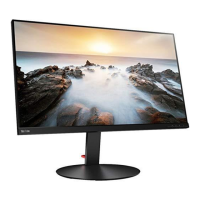
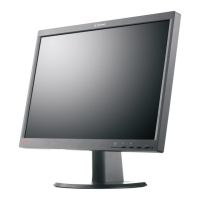
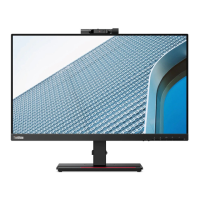
T24v-20 Flat Panel Monitor
Users Guide
Machine Type: 61FC

Questions and Answers

  • Z
    zlaneAug 12, 2025
    What to do if my Lenovo 61FCMAR6US Monitor power indicator is not lit and there is no image?
    • C
      Charles HorneAug 12, 2025
      If your Lenovo Monitor's power indicator isn't lit and there's no image, ensure the power cord is properly connected and that the outlet has power. Power on the monitor. You might also want to try another power cord or electrical outlet to rule out those issues.
  • S
    Samantha LunaAug 16, 2025
    Why is my Lenovo 61FCMAR6US power indicator white but there is no image?
    • C
      Chelsea HudsonAug 16, 2025
      If your Lenovo Monitor's power indicator is white but there is no image, ensure the video cable is properly connected to the system. Also, check the brightness and contrast settings on the OSD menu and adjust them if they are at the lowest setting.
  • J
    James McgrathAug 19, 2025
    Why is my Lenovo 61FCMAR6US screen blank?
    • J
      Jeffrey LaneAug 19, 2025
      If the screen of your Lenovo Monitor is blank and the power indicator is steady amber or flashing white, the monitor might be in Standby/Suspend mode. Try pressing any key on the keyboard or moving the mouse to restore operation. You may also need to check the Power options settings on your computer.
  • T
    Tammy TapiaAug 23, 2025
    How to improve unacceptable image quality on Lenovo Monitor?
    • F
      fjonesAug 23, 2025
      If the image quality on your Lenovo Monitor is unacceptable, first, ensure the video signal cable is firmly plugged into both the system and the monitor. If the issue persists, try selecting another color setting from the OSD menu or perform automatic image setup.
  • E
    Ernest ChapmanAug 27, 2025
    How to fix blurry image on Lenovo 61FCMAR6US?
    • D
      Dr. Todd ColeAug 27, 2025
      If you are experiencing fuzzy lines in text or a blurry image on your Lenovo Monitor, or if you see horizontal or vertical lines, adjust the resolution settings on your system to match the native resolution for this monitor: 1920 x 1080 at 60 Hz. Also, perform automatic image setup. If automatic image setup does not help, perform manual image setup. When working in the native resolution, you may find additional improvements by adjusting the Dots Per Inch (DPI) setting on your system.
  • S
    Stephanie ShafferAug 30, 2025
    What to do if Lenovo 61FCMAR6US says 'Out of Range'?
    • M
      Marc LynchAug 30, 2025
      If your Lenovo Monitor displays “Out of Range” and the power indicator is flashing white, it means the system is set to a display mode not supported by the monitor. If replacing an old monitor, reconnect it and adjust the display mode to within the specified range for your new monitor. If using a Windows system, restart the system in safe mode, then select a supported display mode for your computer.
  • M
    Michelle IngramSep 3, 2025
    How to fix image quality in dual mode on Lenovo 61FCMAR6US Monitor?
    • M
      mfrancoSep 4, 2025
      If the image on your Lenovo Monitor is not acceptable when switching to dual mode, it might be because the optimum resolution for each mode has not been set. Use ThinkVision Duo software to optimize the dual screen operation. Also, you can try to adjust graphic card resolution manually.
  • K
    Kelly BurtonSep 7, 2025
    Why are pixels discolored on my Lenovo Monitor?
    • C
      courtney03Sep 7, 2025
      This is a characteristic of the LCD technology and is not an LCD defect. If there are more than five pixels missing, contact the Customer Support Centre.

Summary

Safety Information

General Safety Guidelines

Provides general guidelines for safe usage of the monitor.

Safety and Maintenance Guidelines

Important Safety Information

Critical safety warnings and precautions for operating the monitor.

Maintenance Guidelines

Recommendations for maintaining the monitor to ensure performance and longevity.

Cleaning the Monitor

Detailed instructions on how to properly clean the monitor screen and body.

Chapter 1 Getting Started

Shipping Contents

Lists all items included in the product package for initial setup.

Notice for Use

Important notes and precautions to observe before using the monitor.

Product Overview

Provides a general description of the monitor and its features.

Types of Adjustments

Details the various physical adjustments available for the monitor stand.

Monitor Pivot

Instructions on how to rotate the monitor screen for different viewing orientations.

User Controls

Identifies and explains the function of the monitor's physical buttons.

Cable Lock Slot

Information on the security feature for preventing monitor theft.

IR-Camera

Details the integrated infrared camera and its shutter function.

Windows Hello

Explains how to use the IR camera for Windows facial recognition login.

Webcam Face Tracking Function

Describes the face tracking capabilities of the webcam with Windows 10.

Speaker

Information on the monitor's built-in speakers and audio output capabilities.

Setting Up Your Monitor

Guides users through the process of setting up the monitor.

Connecting and Turning On Your Monitor

Step-by-step instructions for connecting cables and powering on the monitor.

Windows Hello Setup (Windows 10 Only)

Detailed steps for configuring Windows Hello for facial recognition.

Registering Your Option

Instructions on how to register the product for service and support updates.

Chapter 2 Adjusting and Using Your Monitor

Comfort and Accessibility

Discusses ergonomic practices for computer use and avoiding discomfort.

Arranging Your Work Area

Guidance on setting up an organized and comfortable workspace.

Positioning and Viewing Your Monitor

Advice on adjusting monitor placement for optimal viewing distance and posture.

Health Administration

Information on factors affecting visual fatigue and how to mitigate them.

Working Habits

Tips for computer users to minimize eye strain and improve work habits.

Working Posture

Explains the importance of proper posture for comfortable and healthy monitor use.

Reduce Flicker

Discusses monitor flicker and how to minimize it for reduced eye strain.

Low Blue Light

Information on blue light and how to enable the monitor's low blue light mode.

Accessibility Information

Details Lenovo's commitment to providing accessible technology and information.

Adjusting Your Monitor Image

Explains how to adjust monitor settings to optimize image quality.

Using the Direct Access Controls

Describes the function of the monitor's physical buttons for quick adjustments.

Using the On-Screen Display (OSD) Controls

Guides users on navigating and using the monitor's OSD menu for settings.

Selecting a Supported Display Mode

Instructions on choosing the correct display mode for optimal monitor performance.

Image Rotation

Steps to rotate the monitor's display image, requiring computer configuration.

Audio Description

Provides information on audio output and setup for the monitor's speakers.

Understanding Power Management

Explains the monitor's power states and energy-saving features.

Caring for Your Monitor

Instructions on proper care and cleaning to maintain the monitor's condition.

Detaching the Monitor Stand

Steps for safely removing the monitor stand from the display.

Wall Mounting (Optional)

Guidance for mounting the monitor on a wall using a VESA-compatible kit.

Chapter 3 Reference Information

Monitor Specifications

Detailed technical specifications of the T24v-20 monitor model.

Troubleshooting

Solutions for common problems encountered while setting up or using the monitor.

Manual Image Setup

Procedures for manually adjusting image settings if automatic setup fails.

Manually Installing the Monitor Driver

Step-by-step guide to installing monitor drivers on Windows 7 and 10.

Manually Installing the Face Tracking Driver in Windows 10

Instructions for installing the specific driver for the IR camera's face tracking.

Service Information

Details customer responsibilities, warranty, and service parts for the monitor.

Getting Further Help

Guidance on contacting customer support for unresolved issues.

Service Parts

Lists replaceable parts available for Lenovo service and authorized dealers.

Appendix A. Service and Support

Registering Your Option

Information on registering the product to receive service and support updates.

Online Technical Support

How to access technical assistance and product support online.

Telephone Technical Support

Details on how to contact Lenovo support via phone for assistance.

Worldwide Telephone List

A directory of telephone numbers for Lenovo support in various countries.

Appendix B. Notices

Disclaimer of Warranties

Legal statement regarding warranties provided for Lenovo products.

Recycling Information

Lenovo's policy and information on recycling IT equipment responsibly.

Collecting and Recycling a Disused Lenovo Computer or Monitor

Procedures for companies to dispose of company-owned Lenovo equipment.

Disposing of Lenovo Computer Components

Guidelines for properly disposing of computer parts containing sensitive materials.

Trademarks

Lists trademarks owned by Lenovo and other companies.

Turkish Statement of Compliance

Compliance statement regarding hazardous substances in Turkey.

Ukraine RoHS

Confirmation of compliance with Ukrainian regulations on hazardous substances.

India RoHS

Compliance statement regarding E-Waste management in India.

Power Cords and Power Adapters

Important note on using only manufacturer-supplied power accessories.

Lenovo 61FCMAR6US Specifications

General IconGeneral
Screen Size27 Inches
Response Time4 ms
Refresh Rate75 Hz
Panel TypeIPS
Aspect Ratio16:9
Brightness250 cd/m²
Contrast Ratio1000:1
Viewing Angle178°/178°
Color Gamut72% NTSC
VESA Mount100 x 100 mm
Resolution1920 x 1080
Ports1 x HDMI 1.4, 1 x VGA

Related product manuals