EasyManua.ls Logo

Lenovo ThinkVision M14 - User Manual

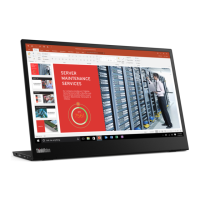
Lenovo ThinkVision M14
28 pages
Print Icon
To Next Page IconTo Next Page
Loading...
M14 Flat Panel Monitor
Users Guide
Machine Type: 61DD

Questions and Answers

  • E
    Erin WilsonJul 27, 2025
    What to do if my Lenovo ThinkVision M14 power indicator is not lit?
    • A
      amanda37Jul 27, 2025
      If your Lenovo monitor's power indicator isn't lit and there's no image, ensure the power cord is properly connected and that the outlet has power. Also, make sure the monitor’s power switch is turned on. Try another power cord or a different electrical outlet to troubleshoot the issue.
  • T
    Tanya CollinsJul 31, 2025
    Why Lenovo M14 can’t be powered on by notebooks or phones?
    • C
      Carol PetersonJul 31, 2025
      If your Lenovo M14 monitor can’t be powered on by notebooks or phones, check the USB C ports of notebooks or phones and make sure they support PD 2.0 and DP 1.2 Alt mode. If notebooks or phones have no enough power to support M14, connect notebook with adaptor then power on M14.
  • E
    edgarchenAug 4, 2025
    How to resolve blurry image on Lenovo Monitor?
    • J
      James ThomasAug 5, 2025
      If you're experiencing fuzzy lines, a blurry image, or horizontal/vertical lines on your Lenovo monitor, adjust the resolution settings on your system to match the native resolution for this monitor: 1920 x 1080 at 60 Hz. When working in the native resolution, you may find additional improvements by adjusting the Dots Per Inch (DPI) setting on your system.
  • R
    Raymond VelezAug 9, 2025
    How to fix Lenovo ThinkVision M14 'Out of Range' error?
    • B
      Bradley SantanaAug 9, 2025
      If your Lenovo monitor displays 'Out of Range' and the power indicator is flashing white, it means the system is set to a display mode not supported by the monitor. If replacing an old monitor, reconnect it and adjust the display mode to within the specified range for your new monitor. If using a Windows system, restart the system in safe mode, then select a supported display mode for your computer. If these options do not work, contact the Customer Support Centre.
  • B
    Brenda DuarteAug 13, 2025
    Why is my Lenovo M14 not charging notebook?
    • M
      Monica PaulAug 13, 2025
      If your Lenovo M14 normally displays when connecting with a 45W power adapter and notebook, but no charging symbol shows in notebook, it may be because the power input of notebook must be 45w or above, M14 can’t provide enough power for notebook. You can connect the adapter and M14 with notebook, then notebook can be charged by adaptor and can power on M14. Alternatively, use a 65W or above adaptor to connect with M14, and then charge notebook.
  • T
    Tracey HendersonAug 17, 2025
    Why Lenovo ThinkVision M14 consumes power from notebook?
    • J
      juan29Aug 17, 2025
      If your Lenovo monitor consumes power from notebook or phones when connected with an adapter, use a USB C to C adapter connecting with M14 and charging your notebook or phone. This is because the adapter has no USB-C PD function.
  • D
    Danielle OliverAug 22, 2025
    Why are there discolored pixels on my Lenovo Monitor?
    • M
      Michael DiazAug 22, 2025
      If one or more pixels appear discolored on your Lenovo monitor, this is a characteristic of the LCD technology and is not an LCD defect. If there are more than five pixels missing, contact the Customer Support Centre.

Summary

Safety Information

General Safety Guidelines

Provides general safety advice for using the monitor and related equipment.

Important Safety Information

Critical safety warnings regarding power connections, grounding, and equipment handling.

Safety Precautions

Essential safety measures to prevent damage and ensure safe operation of the monitor.

Maintenance Guidelines

Recommendations for maintaining the monitor's performance and extending its lifespan.

Cleaning the Monitor

Instructions on how to properly clean the monitor screen and casing safely.

Getting Started

Setting Up Your Monitor

Guidance on the initial setup process for the monitor.

Connecting and Turning On Your Monitor

Step-by-step instructions for connecting and powering on the monitor.

Adjusting and Using Your Monitor

Positioning and Viewing Your Monitor

Guidance on setting up the monitor for comfortable viewing and posture.

Understanding Power Management

Information on how the monitor's power management features work and their settings.

Reference Information

Monitor Specifications

Detailed technical specifications of the M14 Flat Panel Monitor.

Troubleshooting

Common problems and their solutions for using the monitor.

Manually Installing the Monitor Driver

Step-by-step guide for manual driver installation in Windows.

Installing the Monitor Driver in Windows 10

Specific instructions for installing the monitor driver in Windows 10.

Lenovo ThinkVision M14 Specifications

General IconGeneral
3DNo
Color gamut72 %
Pixel pitch0.1611 x 0.1611 mm
Screen shapeFlat
Pixel density157 ppi
Response time6 ms
Backlight typeW-LED
Display surfaceMatt
Display diagonal14 \
Display technologyLED
Native aspect ratio16:9
Maximum refresh rate60 Hz
Contrast ratio (dynamic)3000000:1
Contrast ratio (typical)700:1
Display number of colors16.78 million colors
Display brightness (typical)300 cd/m²
Supported graphics resolutions1920 x 1080 (HD 1080)
NVIDIA G-SYNC-
Operating altitude0 - 5000 m
Non-operating altitude0 - 12192 m
Storage temperature (T-T)-20 - 60 °C
Operating temperature (T-T)0 - 40 °C
Storage relative humidity (H-H)30 - 90 %
Operating relative humidity (H-H)30 - 80 %
Energy efficiency scaleA to G
Power consumption (max)7.5 W
Annual energy consumption15.33 kWh
Power consumption (standby)0.3 W
Power consumption (typical)6 W
Power consumption (PowerSave)4.88 W
Tilt angle range-5 - 90 °
Cable lock slot typeKensington
Number of OSD languages2
Panel mounting interface100 x 100 mm
Product colorBlack
Heavy metals freeHg (mercury)
Market positioningHome
Doesn't containPVC
Sustainability certificatesRoHS, EPEAT Bronze, ENERGY STAR
USB hub version3.2 Gen 2 (3.1 Gen 2)
USB upstream port typeUSB Type-C
USB Power Delivery up to65 W
VGA (D-Sub) ports quantity0
Package typeBox
Package depth61 mm
Package width276 mm
Package height402 mm
Package weight1670 g
Harmonized System (HS) code85285210
Weight and Dimensions IconWeight and Dimensions
Bezel width (top)5.47 mm
Bezel width (side)5.48 mm
Bezel width (bottom)23.87 mm
Depth (without stand)96.54 mm
Width (without stand)323.37 mm
Height (without stand)209.03 mm
Weight (without stand)570 g

Related product manuals