EasyManua.ls Logo

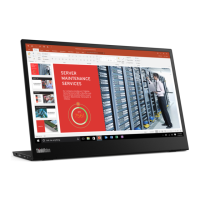
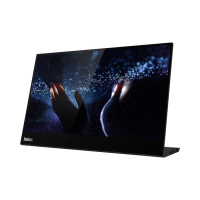
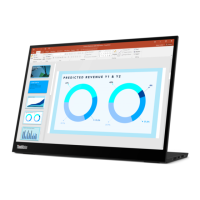
Lenovo ThinkVision M14d - User Manual

Lenovo ThinkVision M14d
35 pages
Print Icon
To Next Page IconTo Next Page
Loading...
M14d LCD Monitor
Users Guide
Machine Type: 63AA

Questions and Answers

  • B
    Bethany LeeAug 13, 2025
    Why is my Lenovo ThinkVision M14d Monitor power indicator not lit and there is no image?
    • M
      Matthew TaylorAug 13, 2025
      To resolve power issues with your Lenovo monitor, ensure the following: 1. The monitor's power switch is turned on. 2. The power cord is securely connected and the outlet has power. 3. Try a different power cord and electrical outlet if necessary.
  • V
    Victoria WilliamsAug 17, 2025
    How to fix fuzzy lines or blurry image on Lenovo ThinkVision M14d Monitor?
    • J
      Joshua ThompsonAug 17, 2025
      If your Lenovo monitor displays fuzzy lines in text or a blurry image, or has horizontal or vertical lines, adjust the resolution settings on your system to match the native resolution for this monitor: 2240 x 1400 at 60 Hz.
  • A
    Anthony SellersAug 20, 2025
    Why do pixels appear discolored on my Lenovo ThinkVision M14d Monitor?
    • S
      Sarah ConleyAug 20, 2025
      The appearance of discolored pixels is a characteristic of LCD technology and not a defect. If more than five pixels are missing, contact the Customer Support Centre.
  • K
    Krystal LewisAug 25, 2025
    What to do if my Lenovo ThinkVision M14d Monitor power indicator is white, but there is no image?
    • V
      Veronica WestAug 25, 2025
      Ensure the video cable is properly connected to both the system and the Lenovo monitor. Also, the monitor brightness might be set too low; adjust it using the Brightness control.
  • M
    Martin JosephAug 28, 2025
    How to fix 'Out of Range' error on Lenovo ThinkVision M14d Monitor?
    • D
      Dr. Roy NewtonAug 28, 2025
      To resolve the 'Out of Range' message on your Lenovo monitor: * If replacing an old monitor, reconnect the old one and adjust the display mode to be within the new monitor's specifications. * For Windows systems, restart in safe mode and select a supported display mode. * If problems persist, contact Customer Support.
  • M
    Megan AndersonSep 1, 2025
    What to do if the screen is blank and power indicator is steady amber or flashing white on Lenovo Monitor?
    • T
      Theresa KellySep 1, 2025
      To resolve a blank screen on your Lenovo monitor: * Press any key on the keyboard or move the mouse to exit Standby/Suspend mode. * Check the Power Options settings on your computer.
  • W
    william33Sep 4, 2025
    What to do if M14d Lenovo ThinkVision M14d Monitor can’t be powered on by notebooks or phones?
    • K
      Kristin MillerSep 4, 2025
      If your Lenovo monitor, model M14d, can't be powered on by notebooks or phones, ensure that the USB-C ports of the devices support PD 2.0 and DP 1.2 Alt mode. If the issue persists, connect the notebook to an adapter before powering on the M14d, as the notebook or phone may not be providing enough power.
  • A
    amandabrownSep 8, 2025
    Why normally display when Lenovo M14d connecting with 45W power adapter and notebook, but no charging symbol showing in notebook?
    • S
      Sean JenningsSep 8, 2025
      If your Lenovo notebook displays no charging symbol when connected to the M14d monitor and a 45W power adapter, it may be because the notebook requires a power input of 45W or higher. Connect the adapter directly to the notebook via the M14d, or use a 65W or higher adapter to connect to the M14d and charge the notebook.

Lenovo ThinkVision M14d Specifications

General IconGeneral
BrandLenovo
ModelThinkVision M14d
CategoryMonitor
LanguageEnglish

Related product manuals