EasyManua.ls Logo

Lenovo C24-20 - User Manual

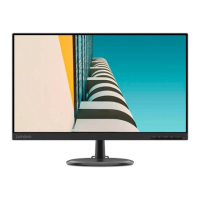
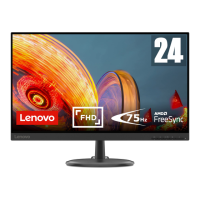
Lenovo C24-20
38 pages
Print Icon
To Next Page IconTo Next Page
Loading...
Lenovo
C24-20
User Guide

Questions and Answers

  • J
    James SandersJul 28, 2025
    Why is my Lenovo C24-20 Monitor screen blank and the power indicator amber?
    • C
      Christopher MirandaJul 28, 2025
      This usually means your Lenovo Monitor is in Standby/Suspend mode. To restore operation, press any key on the keyboard or move the mouse. Also, check the Power Options settings on your computer.
  • R
    richardtorresAug 1, 2025
    What to do if my Lenovo C24-20 power indicator is amber, but there is no image?
    • N
      Nancy VelazquezAug 1, 2025
      If the power indicator on your Lenovo Monitor is amber but there's no image, it could be due to a loose video signal cable or incorrect brightness/contrast settings. Ensure the video cable is properly connected to your system. Also, adjust the brightness and contrast settings in the OSD menu.
  • K
    kristinarileyAug 5, 2025
    Why is my Lenovo Monitor power indicator not lit and there is no image?
    • L
      Leslie RodriguezAug 5, 2025
      If the power indicator on your Lenovo Monitor is not lit and there is no image, make sure the power cord is connected properly and that the outlet has power. Power on the monitor. Try using another power cord and another electrical outlet.
  • A
    Amber BushAug 9, 2025
    How to fix unacceptable image quality on Lenovo C24-20?
    • A
      Allen AndersonAug 9, 2025
      Unacceptable image quality on your Lenovo Monitor can stem from a few things. First, ensure the video signal cable is firmly plugged into both the system and the monitor. If that doesn't help, try selecting a different color setting from the OSD menu. Lastly, perform the automatic image setup function.
  • A
    adamfloresAug 14, 2025
    What to do if my Lenovo C24-20 Monitor shows 'Out of Range'?
    • G
      George BuckAug 14, 2025
      The 'Out of Range' message on your Lenovo Monitor indicates that the system is set to a display mode not supported by the monitor. If you replaced an old monitor, reconnect it and adjust the display mode to within the specified range for your new monitor. If using a Windows system, restart the system in safe mode, then select a supported display mode for your computer.
  • A
    anthony36Aug 18, 2025
    How to resolve fuzzy lines or blurry image on Lenovo Monitor?
    • J
      Jennifer DavisAug 18, 2025
      Fuzzy lines or a blurry image on your Lenovo Monitor can often be resolved by optimizing the image setup. First, adjust the resolution settings on your system to match the native resolution for this monitor: 1920 x 1080 at 60 Hz. Then, perform automatic image setup. If automatic image setup doesn't help, perform manual image setup.
  • W
    wadetimothyAug 22, 2025
    What to do about discolored pixels on Lenovo Monitor?
    • T
      Thomas MorganAug 22, 2025
      The appearance of one or more discolored pixels is a characteristic of LCD technology and not an LCD defect. If there are more than five pixels missing, contact the Support Center.

Summary

Safety Information

General Safety Guidelines

Provides guidelines for the safe use of the computer and related equipment.

Getting Started

Notice for Use

Monitor Controls

Setting Up Your Monitor

Connecting and Turning On

Procedure for connecting cables and powering up the monitor and computer.

Adjusting and Using Your Monitor

Comfort and Accessibility

Ergonomic practices for workplace setup and user comfort.

Adjusting Monitor Image

Direct Access Controls

Explanation of monitor keypad functions for direct image adjustment.

On-Screen Display (OSD) Controls

Supported Display Modes

Understanding Power Management

Reference Information

Monitor Specifications

Detailed technical specifications for the C24-20 monitor model.

Troubleshooting

Manual Image Setup

Procedure for manually adjusting image settings like clock and phase.

Installing Monitor Driver (Windows 7)

Installing Monitor Driver (Windows 10)

Service and Support

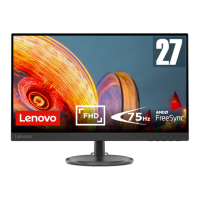
Lenovo C24-20 Specifications

General IconGeneral
Panel typeVA
Color depth8 bit
Pixel pitch0.2745 x 0.2745 mm
Screen shapeFlat
Pixel density93 ppi
Response time6 ms
Backlight typeW-LED
Display diagonal23.8 \
Anti-glare screenYes
Display technology-
Native aspect ratio16:9
Maximum refresh rate75 Hz
Response time (fast)4 ms
Supported video modes1080p
NTSC coverage (typical)72 %
Viewable size, vertical296.46 mm
Contrast ratio (dynamic)3000000:1
Contrast ratio (typical)1000:1
Display number of colors16.7 million colors
Viewable size, horizontal527.04 mm
Display brightness (typical)250 cd/m²
Supported graphics resolutions1920 x 1080 (HD 1080)
AMD FreeSync typeFreeSync
Product colorBlack
HDMI version1.4
DisplayPorts quantity0
Tilt angle range-5 - 22 °
Cable lock slot typeKensington
Number of OSD languages9
Panel mounting interface100 x 100 mm
AC input voltage100 - 240 V
Power supply typeInternal
AC input frequency47/63 Hz
Power consumption (max)23 W
Power consumption (off)0.3 W
Power consumption (standby)0.5 W
Power consumption (typical)18 W
Cables includedAC, HDMI
Package depth124 mm
Package width633 mm
Package height405 mm
Package weight4870 g
Weight and Dimensions IconWeight and Dimensions
Bezel width (side)2 mm
Depth (with stand)206.2 mm
Height (with stand)403.9 mm
Weight (with stand)3010 g
Bezel width (bottom)23.4 mm
Depth (without stand)54.4 mm
Width (without stand)540.1 mm
Height (without stand)328.5 mm
Weight (without stand)2700 g

Related product manuals