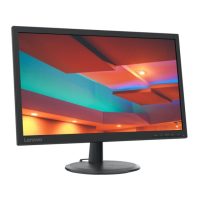
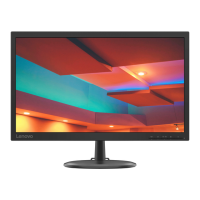
This document describes the Lenovo C22-10 Flat Panel Monitor, providing detailed instructions for setup, adjustment, and maintenance to ensure optimal performance and user comfort.
Function Description
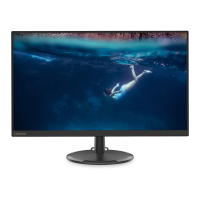
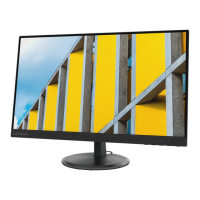
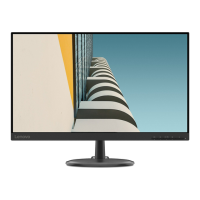
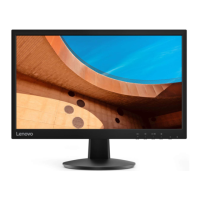
The Lenovo C22-10 is a flat panel monitor designed for general computing tasks. It serves as a visual output device for computers, displaying images and text. The monitor supports both analog (D-SUB) and digital (HDMI) input signals, allowing for flexible connectivity with various computer systems. It is equipped with an On-Screen Display (OSD) menu that provides a comprehensive set of controls for adjusting image properties, color settings, and other display parameters. The monitor also features power management capabilities to conserve energy when not in active use.
Usage Features
The monitor is designed with user comfort and accessibility in mind. It offers tilt adjustments, allowing users to position the screen for optimal viewing angles and to accommodate preferred head and neck postures. The tilt range is from -5° to 22°. For security, a cable lock slot is located on the rear of the monitor, enabling users to attach a cable lock to prevent theft.
Setting up the monitor involves connecting it to a computer using either an analog (D-SUB) or HDMI cable. Users are advised to power off their computer and attached devices before making connections. Once connected, the monitor and computer can be powered on. To ensure proper functionality and optimal display, users should install the monitor driver, which can be downloaded from the Lenovo website. The manual provides step-by-step instructions for installing the driver on Microsoft Windows 7 and Windows 10 operating systems.
The monitor features direct access controls on the front panel for quick adjustments without navigating the full OSD menu. These controls include:
- Input change: Switches between video input sources (D-SUB, HDMI).
- Image Setup: Activates automatic image adjustment, which optimizes the display settings.
- Brightness: Provides direct access to brightness adjustment.
- Low Blue Light: Pressing and holding this button for 3 seconds enables or disables the Low Blue Light mode, which reduces blue light emissions for improved eye comfort.
- Main menu: Opens the OSD main menu for more detailed settings.
The On-Screen Display (OSD) menu offers extensive control over the monitor's settings. Users can navigate the OSD using the front panel buttons. Key OSD functions include:
- Brightness/Contrast: Adjusts overall brightness and the difference between light and dark areas. It also includes a Dynamic Contrast Ratio (DCR) setting to enable dynamic contrast.
- Image Position: Allows adjustment of horizontal and vertical image positions. An "Automatic" option optimizes the image automatically, while "Manual" provides controls for clock, phase, and saving settings.
- Color: Adjusts the intensity of red, green, and blue. It offers preset modes (Neutral, sRGB, Reddish, Bluish) and a "Custom" mode for fine-tuning individual color saturation (red, green, blue) and saving custom color choices.
- Input Signal: Allows users to select between Analog and HDMI input signals.
- Scaling: Provides options for "Full Screen" or "Original AR" (Aspect Ratio) display.
- Novo Vision: Offers various display modes such as "Screen Prioritization," "Text Mode," "Web pic Mode," "Video Mode," and "Low Blue Light" mode.
- Information: Displays resolution, refresh rate, and product details.
- Language: Sets the OSD menu language.
- Menu Position: Adjusts the horizontal and vertical position of the OSD menu on the screen.
- Reset: Resets the monitor to its original factory settings.
- Accessibility: Controls button repeat rate (Off, Default, Slow) and OSD menu timeout settings.
The monitor supports various display modes, which are controlled by the connected computer. It is optimized for a native resolution of 1920x1080 at 60Hz. The document advises users to refer to their computer's documentation for details on changing display modes.
Power management features help in energy conservation. The monitor enters "Standby/Suspend" mode (indicated by a steady amber power indicator) when the computer recognizes a period of user inactivity, and the screen goes blank. Moving the mouse or pressing a key restores operation. The monitor can also be powered "Off" (no power indicator) by pressing the power key, with a slight delay before the image reappears.
Maintenance Features
Proper care and maintenance are crucial for the longevity of the monitor. Before performing any maintenance, users should turn off the monitor's power.
The document provides clear guidelines on what not to do:
- Do not apply water or liquid directly to the monitor.
- Do not use solvents or abrasives.
- Do not use flammable cleaning materials.
- Do not touch the screen with sharp or abrasive items, as this can cause permanent damage.
- Do not use cleaners containing anti-static solutions or similar additives, as they may harm the screen coating.
Instead, users should:
- Lightly dampen a soft cloth with water to gently wipe the covers and the screen.
- Use a damp cloth and a little mild detergent to remove grease or finger marks.
For users who wish to wall-mount the monitor, the stand can be detached. This involves placing the monitor face down on a soft, clean surface, pressing the release button, and removing the stand and base. The monitor is VESA compatible, and instructions for attaching a wall mounting bracket are provided, emphasizing the use of a UL and GS Listed Wall Mount Bracket with a minimum weight/load bearing capacity of 6.00 kg and a shielded power cable for TCO Certification.
Troubleshooting information is included to help users resolve common issues such as "Out of Range" messages, unacceptable image quality, or no image display. Suggested actions include checking cable connections, adjusting display modes, performing automatic or manual image setup, and adjusting OSD settings. If problems persist, users are directed to contact the Customer Support Center.
Lenovo also provides information on recycling, encouraging responsible disposal of IT equipment. Programs and services are available to assist owners in recycling disused Lenovo computers and monitors, with specific instructions for Japan regarding industrial and home-used computers. The document also notes that some components may contain heavy metals and should be disposed of properly according to the described recycling methods.


 To Next Page
 General
 Weight and Dimensions