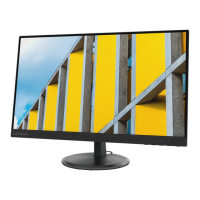
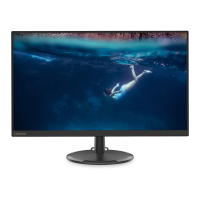
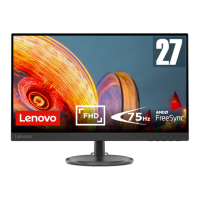
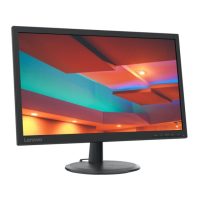
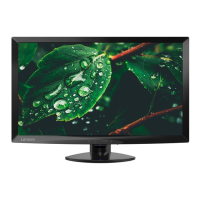
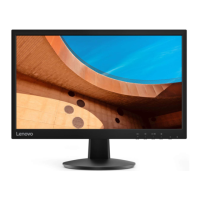
This document is a user guide for the Lenovo C27q-35 monitor, providing detailed instructions for setup, adjustment, and maintenance. It also includes important safety information and troubleshooting tips to ensure optimal performance and user comfort.
The Lenovo C27q-35 monitor is designed to provide a comfortable and accessible viewing experience. It features various adjustments to suit individual user preferences and working environments. The monitor's design emphasizes ergonomic practices to help users avoid discomfort and maximize productivity.
Usage Features:
The monitor offers several adjustment types to enhance user comfort. The tilt adjustment allows users to position the screen between -5° and 22°, optimizing the viewing angle and accommodating preferred head and neck postures. This flexibility helps in reducing strain during prolonged use.
User controls are conveniently located on the front of the monitor, providing direct access to various display settings. These controls are used to adjust the monitor image and navigate the On-Screen Display (OSD) menu. The direct access controls include:
- Input change: Switches between video input sources, such as HDMI and DP.
- Brightness: Directly adjusts the overall brightness of the display.
- Low Blue Light: A feature that can be enabled or disabled by pressing and holding the control for 3 seconds. This mode reduces blue light emissions, which is beneficial for eye health, especially during long viewing sessions.
- Main menu: Opens the OSD main menu for comprehensive display adjustments.
The OSD menu provides a wide range of settings categorized for ease of use:
- Basic image setting: Includes controls for Brightness, Contrast, DCR (Dynamic Contrast Ratio), Display Mode (Standard, Game, Web, Movie, Picture), Scaling Mode (Full Screen, Original AR), Over Drive (Off, Normal, Extreme), HDR (Auto, Off), and FreeSync (Auto, Off). These settings allow users to fine-tune the visual output to match their content and preferences.
- Image color setting: Offers Preset Modes (Bluish, Neutral, Reddish, sRGB) and Custom adjustments for Red, Green, and Blue saturation. This enables users to achieve their desired color balance and accuracy. The Low Blue Light setting is also accessible here, allowing users to enable or disable it to reduce eye strain.
- Signal input: Allows selection between DP and HDMI input ports.
- Menu setting: Provides options to view monitor information (Model Name, Refresh, Firmware, Serial Number), select OSD Language, adjust Menu Horizontal and Menu Vertical positions, set OSD Transparency, and configure OSD Timeout. It also includes a Reset All Settings option with "Cancel" and "Factory Reset" choices to restore original factory settings.
The monitor supports various display modes, with optimized factory settings for different addressabilities and refresh rates, including 2560x1440 at 60Hz/75Hz. It also incorporates power management features, automatically entering Standby/Suspend or Off states after a user-definable period of inactivity to conserve energy. The power indicator changes from steady white (On) to steady amber (Standby/Suspend) or off (Off) to reflect the current power state.
For connectivity, the monitor includes HDMI and DP connectors. Users are advised to purchase specific Lenovo cables for optimal performance with these inputs. A cable lock slot is located at the rear of the monitor, allowing users to secure the device with a compatible cable lock.
Maintenance Features:
Proper care and maintenance are crucial for enhancing the performance and extending the life of the monitor. Users are advised to:
- Cleaning: Turn off the monitor and unplug it from the power outlet before cleaning. Use a dry, soft, clean cloth to wipe the screen. For additional cleaning, an antistatic screen cleaner can be used. The monitor housing can be dusted with a damp cloth or cleaned with a cloth dampened with isopropyl alcohol for more thorough cleaning.
- Handling: Avoid applying water or liquid directly to the monitor, and do not use solvents, abrasives, or flammable cleaning materials. Do not touch the screen with sharp or abrasive items, as this can cause permanent damage.
- Placement: Keep the monitor in a well-ventilated area, away from excessive light, heat, or moisture. Ensure that ventilation slots and openings are not blocked.
- Servicing: Do not open the monitor cabinet or attempt to service the product yourself. In case of malfunction or damage, contact an authorized Lenovo dealer or service provider.
- Storage: When removing the monitor base, place the monitor face down on a soft surface to prevent scratches or damage.
- Wall Mounting: For optional wall mounting, follow the instructions provided with the VESA compatible base mounting kit. Ensure that a UL and GS Listed Wall Mount Bracket with a minimum weight/load bearing capacity of 8.00 kg is used, and a shielded power cable is mandatory for TCO Certification.
The user guide also provides information on health administration, emphasizing ergonomic practices to minimize visual fatigue and musculoskeletal disorders. This includes recommendations for arranging the work area, positioning the monitor for optimal viewing distance and height, and adjusting tilt. It also suggests taking regular breaks, focusing on distant objects, and performing eye and neck exercises to alleviate strain. The monitor's flicker-free technology and Low Blue Light mode are designed to further reduce eye strain and headaches.



 To Next Page

 General
 Weight and Dimensions