EasyManua.ls Logo

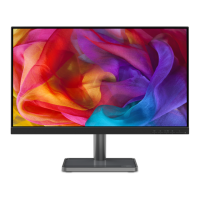
Lenovo L25e-40 User Manual

Lenovo L25e-40
34 pages
To Next Page IconTo Next Page
Page #1 background imageLoading...
Page #1 background image
Lenovo
L25e-40
User Guide

Questions and Answers:

Lenovo L25e-40 Specifications

General IconGeneral
Panel typeVA
Color depth8 bit
Color gamut99 %
Pixel pitch0.283 x 0.28 mm
Screen shapeFlat
Pixel density90 ppi
Response time6 ms
Display diagonal24.5 \
Anti-glare screenYes
Native aspect ratio16:9
Maximum refresh rate75 Hz
Response time (fast)4 ms
Viewable size, vertical543.7 mm
Contrast ratio (dynamic)3000000:1
Contrast ratio (typical)3000:1
Display number of colors16.7 million colors
Display brightness (peak)250 cd/m²
Viewable size, horizontal302.6 mm
Color nameCloud Grey
CertificationEyesafe® Display, TÜV Low Blue Light (Hardware solution), TÜV Rheinland® Eye Comfort
Product colorGray
Market positioning-
HDMI version1.4
Tilt angle range-5 - 22 °
Cable lock slot typeKensington
Panel mounting interface100 x 100 mm
AC input voltage100 - 240 V
Power supply typeInternal
AC input frequency50/60 Hz
Energy efficiency scaleA to G
Power consumption (max)24 W
Power consumption (off)0.5 W
Power consumption (standby)- W
Power consumption (typical)17.5 W
Cables includedHDMI, Power
HDMI cable length1.8 m
Package depth135 mm
Package width648 mm
Package height414 mm
Package weight5400 g
Warranty period3 year(s)
Sustainability certificatesRoHS
Weight and Dimensions IconWeight and Dimensions
Bezel width (side)2 mm
Depth (with stand)183 mm
Height (with stand)441.8 mm
Weight (with stand)4000 g
Bezel width (bottom)22 mm
Depth (without stand)46.5 mm
Width (without stand)557.2 mm
Height (without stand)334.8 mm
Weight (without stand)3200 g

Summary

Safety Matters

General Safety Principles

Essential guidelines for safe computer usage and product installation.

New Member Guide

Precautions For Use

Important notes and steps for safely setting up and handling the display.

Set Up the Display

Step-by-step instructions for connecting and powering on the display.

Adjusting and Using the Display

Adjusting the Display Image

Details on using direct access controls and OSD for image adjustments.

Reference Information

Troubleshooting

Common issues, possible causes, and recommended solutions for display problems.

Manually Install the Driver for the Display

Step-by-step guide for installing display drivers in Windows.

Services and Support

Related product manuals