Installingthesoftware
ItisrecommendedthatyouinstalltheLenovoMouseSuitesoftwaretocustomizeadvancedsettingsbefore
youusetheThinkPadPrecisionWirelessMouse.
Note:Itisrecommendedthatyouuninstallanypreviouslyinstalledmousesoftwarebeforeinstallingthe
LenovoMouseSuitesoftware.
ToinstalltheLenovoMouseSuitesoftware,dothefollowing:
Note:IfyouareusingtheWindows7,Windows8,orWindows8.1operatingsystem,andyourcomputeris
connectedtotheInternet,whenyouconnecttheThinkPadPrecisionWirelessMousetoyourcomputerfor
thefirsttime,amessagewillbedisplayed,askingifyouwanttoinstalltheLenovoMouseSuitesoftware.
ClickDownloadNowandtheLenovoMouseSuitesoftwarewillbeautomaticallyinstalled.Ifthemessageis
notdisplayed,manuallyinstalltheLenovoMouseSuitesoftwarebyperformingthefollowingprocedure.
1.Gotohttp://support.lenovo.com/mousesuite.
2.LocateanddownloadtheinstallationfileoftheLenovoMouseSuitesoftware.
3.Double-clicktheinstallationfile,andthenfollowtheinstructionsonthescreentocompletethe
installation.
Note:IntheHardwareInterfaceSelectionwindow,selectUSB(UniversalSerialBus)Interface.
Installingthemouse
ThistopicprovidesinstructionsonhowtoinstalltheThinkPadPrecisionWirelessMouse.
Toinstallthemouse,dothefollowing:
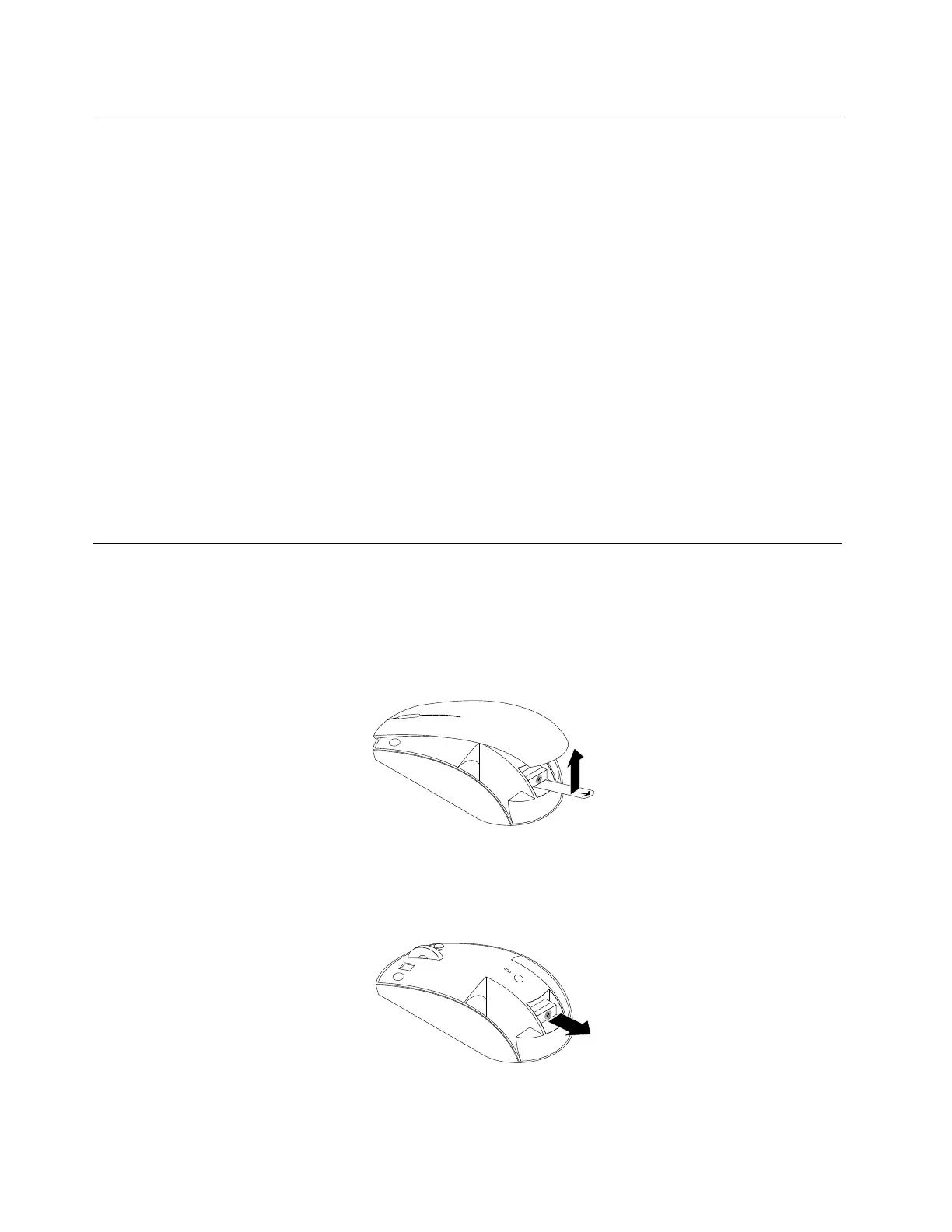
1.Removethebatterycompartmentcoverbyliftingtheplastictab.
Figure11.Removingthebatterycompartmentcover
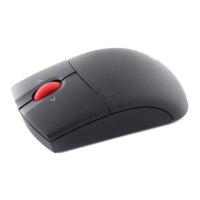
2.TakeouttheLenovoUSBReceiver.
Figure12.TakingouttheLenovoUSBReceiver
22LenovoCombinedMouseUserGuide




 To Next Page