EasyManua.ls Logo

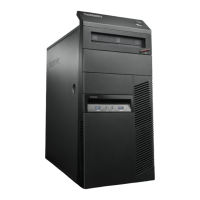
Lenovo ThinkCentre M77 - User Manual

Lenovo ThinkCentre M77
138 pages
Print Icon
To Next Page IconTo Next Page
Loading...
ThinkCentre
UserGuide
MachineTypes:1996,1997,2002,2010,2208,2209,2221,2224,
2226,and2227

Table of Contents

Other manuals for Lenovo ThinkCentre M77

Question and Answer IconNeed help?

Do you have a question about the Lenovo ThinkCentre M77 and is the answer not in the manual?

Summary

Important safety information

Static electricity prevention

Precautions to prevent damage from static electricity when handling computer parts.

Power cords and power adapters

Plugs and outlets

Heat and product ventilation

Basic precautions for maintaining proper ventilation and preventing overheating.

Lenovo ThinkVantage Tools

Lenovo Solution Center

Program for troubleshooting and resolving computer problems.

ThinkVantage Rescue and Recovery

One-button recovery solution for system problems and crashes.

Locating connectors, controls, and indicators on the front of your computer

Locating connectors on the rear of your computer

Locating parts on the system board

Chapter 4. Security

Security features

Overview of built-in security features like passwords and fingerprint readers.

Protecting data against viruses

Using antivirus software for protection against malware.

Chapter 5. Installing or replacing hardware

Handling static-sensitive devices

Precautions to prevent static discharge damage to components.

Opening the computer cover

Accessing the system board components and drives

Installing or replacing a memory module

Installing or replacing a PCI card

Replacing the battery

Replacing the hard disk drive

Replacing the microprocessor

Chapter 6. Recovery information

Creating and using recovery media

Steps to create and use recovery media for system restoration.

Performing backup and recovery operations

Information on backing up and restoring system data using Rescue and Recovery.

Solving recovery problems

Chapter 7. Using the Setup Utility program

Starting the Setup Utility program

Steps to start and access the BIOS Setup Utility program.

Using passwords

Setting passwords to prevent unauthorized access to computer and data.

Erasing lost or forgotten passwords (clearing CMOS)

Selecting a startup device

Selecting or changing the startup device sequence

Configuring the order of boot devices.

Chapter 8. Updating system programs

Updating (flashing) the BIOS from a disc

Instructions for updating the BIOS using a bootable disc.

Recovering from a POST;BIOS update failure

Procedure to recover the system after a failed BIOS update.

Chapter 9. Preventing problems

Getting the latest device drivers for your computer

Downloading and installing updated device drivers from Lenovo's website.

Using System Update

Utilizing Lenovo's System Update program for software and driver updates.

Cleaning and maintenance

Cleaning your computer

Good maintenance practices

Chapter 10. Troubleshooting and diagnostics

Basic troubleshooting

Table of common symptoms and their verification steps.

Troubleshooting procedure

A systematic procedure for diagnosing computer problems.

Audio problems

Intermittent problems

Networking problems

Performance and lockup problems

USB problems

Diagnostic programs

Using preinstalled diagnostic programs to test hardware.

Lenovo Solution Center

Chapter 11. Getting information, help, and service

Lenovo Support Web site

Calling for service

Summary

Important safety information

Static electricity prevention

Precautions to prevent damage from static electricity when handling computer parts.

Power cords and power adapters

Plugs and outlets

Heat and product ventilation

Basic precautions for maintaining proper ventilation and preventing overheating.

Lenovo ThinkVantage Tools

Lenovo Solution Center

Program for troubleshooting and resolving computer problems.

ThinkVantage Rescue and Recovery

One-button recovery solution for system problems and crashes.

Locating connectors, controls, and indicators on the front of your computer

Locating connectors on the rear of your computer

Locating parts on the system board

Chapter 4. Security

Security features

Overview of built-in security features like passwords and fingerprint readers.

Protecting data against viruses

Using antivirus software for protection against malware.

Chapter 5. Installing or replacing hardware

Handling static-sensitive devices

Precautions to prevent static discharge damage to components.

Opening the computer cover

Accessing the system board components and drives

Installing or replacing a memory module

Installing or replacing a PCI card

Replacing the battery

Replacing the hard disk drive

Replacing the microprocessor

Chapter 6. Recovery information

Creating and using recovery media

Steps to create and use recovery media for system restoration.

Performing backup and recovery operations

Information on backing up and restoring system data using Rescue and Recovery.

Solving recovery problems

Chapter 7. Using the Setup Utility program

Starting the Setup Utility program

Steps to start and access the BIOS Setup Utility program.

Using passwords

Setting passwords to prevent unauthorized access to computer and data.

Erasing lost or forgotten passwords (clearing CMOS)

Selecting a startup device

Selecting or changing the startup device sequence

Configuring the order of boot devices.

Chapter 8. Updating system programs

Updating (flashing) the BIOS from a disc

Instructions for updating the BIOS using a bootable disc.

Recovering from a POST;BIOS update failure

Procedure to recover the system after a failed BIOS update.

Chapter 9. Preventing problems

Getting the latest device drivers for your computer

Downloading and installing updated device drivers from Lenovo's website.

Using System Update

Utilizing Lenovo's System Update program for software and driver updates.

Cleaning and maintenance

Cleaning your computer

Good maintenance practices

Chapter 10. Troubleshooting and diagnostics

Basic troubleshooting

Table of common symptoms and their verification steps.

Troubleshooting procedure

A systematic procedure for diagnosing computer problems.

Audio problems

Intermittent problems

Networking problems

Performance and lockup problems

USB problems

Diagnostic programs

Using preinstalled diagnostic programs to test hardware.

Lenovo Solution Center

Chapter 11. Getting information, help, and service

Lenovo Support Web site

Calling for service

Lenovo ThinkCentre M77 Specifications

General IconGeneral
BrandLenovo
ModelThinkCentre M77
CategoryDesktop
LanguageEnglish

Related product manuals