EasyManua.ls Logo

Lenovo ThinkCentre TIO24Gen4 - User Manual

Lenovo ThinkCentre TIO24Gen4
57 pages
Print Icon
To Next Page IconTo Next Page
Loading...
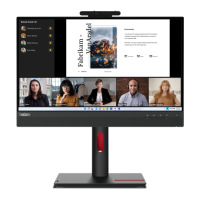
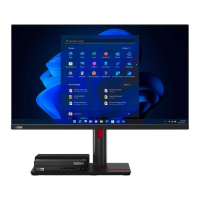
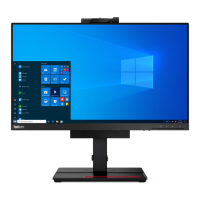
ThinkCentre TIO24Gen4
User Guide
Machine Types: 11GE

Table of Contents

Questions and Answers

  • C
    Carly MartinezAug 13, 2025
    How to fix a Lenovo ThinkCentre TIO24Gen4 Monitor when it won't turn on?
    • J
      jasonenglishAug 14, 2025
      If your Lenovo monitor isn't powering on and there's no image, make sure the power cord is properly connected and that the outlet has power. Power on the monitor. Try using another power cord or electrical outlet.
  • K
    Kristen GonzalesAug 17, 2025
    Why is my Lenovo ThinkCentre TIO24Gen4 Monitor image quality so bad?
    • J
      John ReedAug 17, 2025
      Poor image quality on your Lenovo monitor can stem from a few things. Ensure the video signal cable is firmly plugged into both your system and the monitor. Also, the color settings may be incorrect, so try selecting another color setting from the OSD menu. Finally, try performing automatic image setup.
  • E
    Eileen HoodAug 21, 2025
    How to fix blurry image on Lenovo ThinkCentre TIO24Gen4?
    • K
      Katie HowardAug 21, 2025
      If you're seeing fuzzy lines or a blurry image on your Lenovo monitor, it might be due to unoptimized image setup. Adjust the resolution settings on your system to match the native resolution for this monitor: 1920 x 1080 at 60 Hz. Also, your system display properties might need optimization. Try performing automatic image setup; if that doesn't work, try manual image setup.
  • L
    Lisa ParkerAug 26, 2025
    What to do if Lenovo Monitor has amber light but no display?
    • A
      Alexander MortonAug 26, 2025
      If your Lenovo monitor's power indicator is amber but there's no image, ensure the video signal cable is properly connected to both the system and the monitor. Also, check the brightness and contrast settings in the OSD menu and adjust them if they're at the lowest setting.
  • H
    Hunter HarrisAug 29, 2025
    Why is my Lenovo ThinkCentre TIO24Gen4 screen blank with an amber power light?
    • W
      wyatt87Aug 29, 2025
      If your Lenovo monitor screen is blank and the power indicator is amber, the monitor is likely in Standby/Suspend mode. Press any key on the keyboard or move the mouse to restore operation. You may also want to check the Power Options settings on your computer.
  • D
    david47Sep 2, 2025
    How to fix Lenovo ThinkCentre TIO24Gen4 Monitor 'Out of Range' error?
    • H
      harrismeganSep 2, 2025
      If your Lenovo monitor displays 'Out of Range' and the power indicator is flashing white, it means the system is set to a display mode not supported by the monitor. If you are replacing an old monitor, reconnect it and adjust the display mode to within the specified range for your new monitor. If using a Windows system, restart the system in safe mode, then select a supported display mode for your computer. If these options do not work, contact the Support Center.
  • C
    chloe06Sep 5, 2025
    How to optimize Lenovo ThinkCentre TIO24Gen4 Monitor image when switching to dual mode?
    • A
      Alexandra SilvaSep 5, 2025
      If the image quality isn't acceptable when switching your Lenovo monitor to dual mode, it might be because the optimum resolution hasn't been set for each mode. Use ThinkVision® Duo software to optimize the dual screen operation or adjust graphic card resolution manually.
  • J
    Jeffrey GeorgeSep 9, 2025
    Why are some pixels discolored on my Lenovo ThinkCentre TIO24Gen4?
    • E
      emilyzimmermanSep 9, 2025
      Discolored pixels are a characteristic of LCD technology and not necessarily a defect. If there are more than five pixels missing, contact the Support Center.

Summary

Safety Guidelines

General Safety Guidelines

Provides guidance on safe usage of the computer and related equipment.

Getting Started

Supported Computer Models

Lists ThinkCentre Tiny models compatible with the monitor and their control methods.

Installing Your Computer

Step-by-step instructions for installing the computer (Tiny) into the monitor.

Monitor Connections and Controls

Front View Controls

Identifies and describes the buttons and controls on the front of the monitor.

Rear View Connectors

Identifies and describes the ports and connectors on the rear of the monitor.

Setting Up Your Monitor

Assembling the Monitor Stand

Detailed steps for attaching the monitor stand and base to the monitor.

Installing the Computer (Tiny)

Instructions for inserting the computer (Tiny) into the monitor's bay.

Connecting Cables

Power and Display Connections

Guide for connecting the power adapter and DisplayPort cable.

USB Connections

Instructions for connecting USB devices using USB A-to-B cables.

Installing Monitor Drivers

Driver Installation via CD

Steps to install the monitor driver using the provided Reference and Driver CD.

Powering On the System

Turning On Monitor and Computer

Procedures for turning on the monitor and connected computer.

Adjusting and Using the Monitor

Adjusting the Monitor Stand

Details on adjusting the monitor's tilt, swivel, and base for comfortable viewing.

Monitor Height and Rotation Adjustment

Instructions for adjusting the monitor's height and screen rotation.

IR Camera Features

Describes the IR camera module and its use for Windows Hello.

Windows Hello Setup

Step-by-step guide to setting up Windows Hello face recognition.

Using USB Connectors

Details the types and functions of the monitor's USB connectors.

Adjusting Monitor Image and Settings

Monitor Specifications

Troubleshooting Guide

Range and Image Quality Issues

Troubleshooting steps for 'Out of Range' errors and unacceptable image quality.

Power and Screen Issues

Solutions for power indicator problems and blank screens.

Manually Installing Monitor Drivers

Installing Driver in Windows 7

Step-by-step guide to manually install the monitor driver in Windows 7.

Installing Driver in Windows 10

Step-by-step guide to manually install the monitor driver in Windows 10.

Lenovo ThinkCentre TIO24Gen4 Specifications

General IconGeneral
Screen Size23.8 inches
Panel TypeIPS
Aspect Ratio16:9
Brightness250 cd/m²
Contrast Ratio1000:1
Lift110 mm
Viewing Angle178°/178°
Color Gamut72% NTSC
Refresh Rate60 Hz
VESA Mount Compatibility100 x 100 mm
Built-in SpeakersYes
Resolution1920 x 1080
ConnectivityUSB, DisplayPort
Ports1 x HDMI 1.4, 1 x DP 1.2, 1 x USB 3.2 Gen 1 (upstream), 3 x USB 3.2 Gen 1 (downstream)
Speakers2 x 2W
Swivel-45° to 45°
Pivot90°
Power Consumption18W typical

Related product manuals