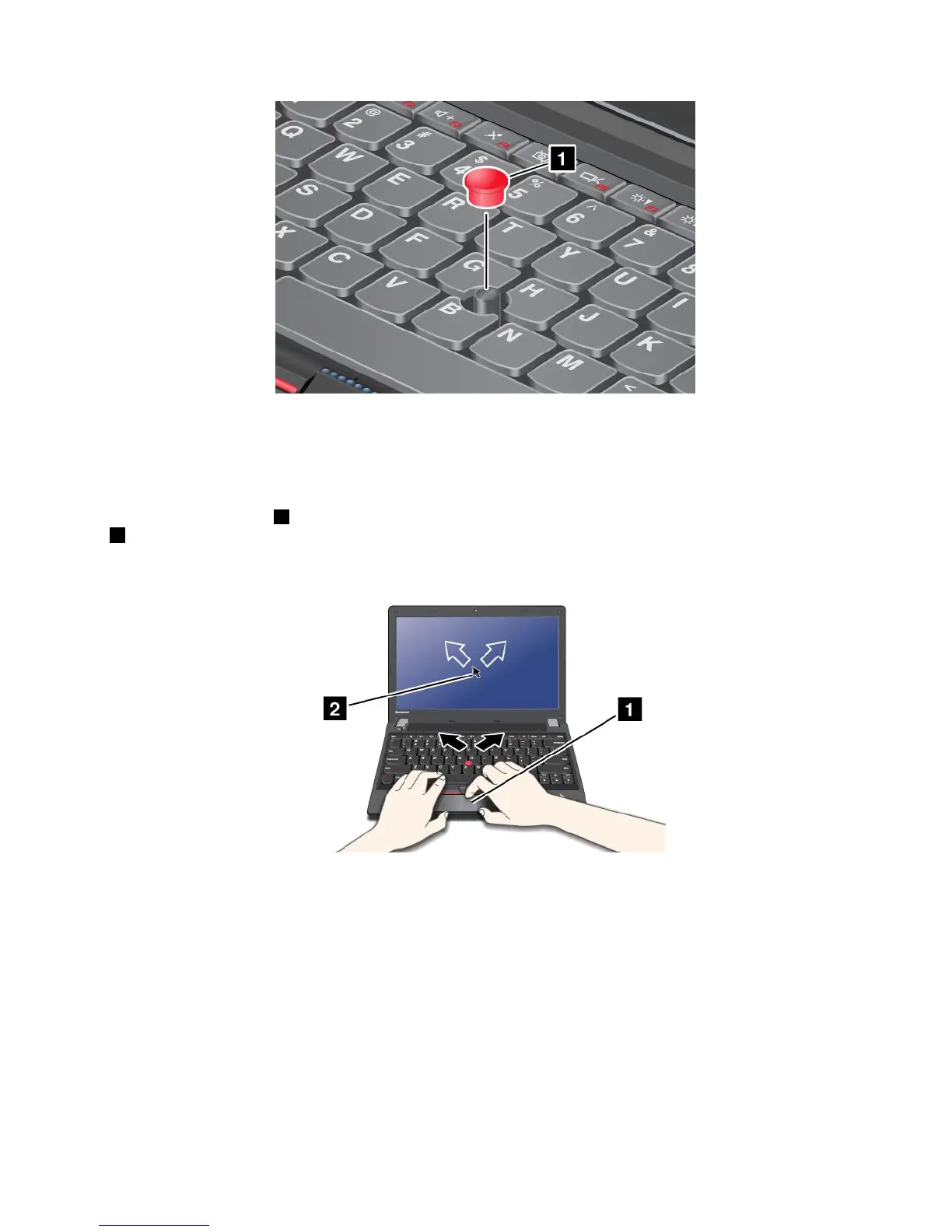
Note:Ifyoureplacethekeyboard,anewkeyboardisshippedwiththedefaultcap.Ifyouwish,youcan
keepthecapfromyouroldkeyboardanduseitonthenewone.
Usingthetouchpad
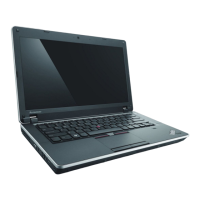
Thetouchpadisapad1belowtheTrackPointbuttonsatthebottomofthekeyboard.Tomovethepointer
2onthescreen,slideyourngertipoverthepadinthedirectioninwhichyouwantthepointertomove.
Theleftandrightbottomofthepadworkasclickbuttons.Thefunctionscorrespondtothoseoftheleft
andrightmousebuttonsonaconventionalmouse.
Usingthemulti-touchtouchpad
Thetouchpadofyourcomputersupportsmulti-touchwithwhichyoucanzoomin,zoomout,scroll,or
rotateonthescreenwhilebrowsingtheInternetorreadingoreditingadocument.
Fordetails,refertotheUltraNavhelpinformationsystem.
Customizingthetouchpad
Tocustomizethetouchpad,doasfollows:
1.GotoControlPanelandclickHardwareandSound➙Mouse➙UltraNav.
2.UnderTouchPad,proceedtochangingthesettings.
Chapter2.Usingyourcomputer23













 To Next Page