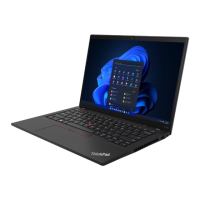
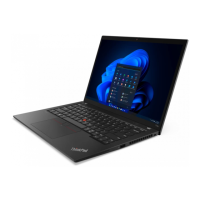
This document outlines the features and usage of the Lenovo ThinkPad T14 Gen 4, ThinkPad P14s Gen 4, ThinkPad T16 Gen 2, and ThinkPad P16s Gen 2 laptops. It serves as a quick start guide, providing essential information for getting started, understanding the front view, an overview of ports, and details on software features like Lenovo Commercial Vantage and Lenovo View.
Getting Started:
The initial section of the manual focuses on the basic setup and connection of external devices. It illustrates how to connect various adapters to the ThinkPad. These include:
- Lenovo USB-C to VGA Adapter: For connecting to displays that use a VGA input.
- Lenovo USB-C to DisplayPort Adapter: For connecting to displays with a DisplayPort input, offering higher resolution and refresh rate capabilities.
- Lenovo HDMI to VGA Adapter: For connecting to VGA displays when the source device has an HDMI output.
- Lenovo USB-C to Ethernet Adapter: For establishing a wired network connection, useful in environments where Wi-Fi is unavailable or a more stable connection is required.
The diagrams show a multi-port adapter connected to the laptop's USB-C port, with various peripherals like a power adapter, an external display, and an Ethernet cable connected to the adapter. This setup emphasizes the versatility of the USB-C port for expanding connectivity options. The process involves connecting the adapter to the laptop, then connecting the necessary cables (e.g., power, display) to the adapter.
Front View (T14 Gen 4 / P14s Gen 4):
The front view section details the various components and controls accessible from the top of the laptop when it's open. Key features include:
- Power Button with Fingerprint Reader: Located on the side, this button allows users to power on the device and log in securely using their fingerprint. The manual indicates that pressing it logs the user into the computer, highlighting its dual function.
- TrackPoint and TrackPad: The ThinkPad series is known for its distinctive TrackPoint, a red pointing stick located in the center of the keyboard, which allows for precise cursor control without moving hands from the keyboard. Below the keyboard is a large TrackPad, which functions as a traditional mouse, supporting multi-touch gestures for navigation. The manual explicitly states "Navigate as a traditional mouse" for both the TrackPoint and TrackPad, emphasizing their role in user interaction.
- Webcam and Microphones: Positioned above the display, the webcam is used for video conferencing and other visual input. Integrated microphones are typically located near the webcam for audio input during calls or recordings.
- NFC (Near Field Communication) Reader: An NFC icon indicates the presence of an NFC reader, usually located near the TrackPad. This allows for short-range wireless communication with other NFC-enabled devices, such as for quick pairing or data transfer.
- Speakers: The speaker grilles are visible on the top side of the keyboard deck, providing audio output.
- Status Indicators: Small LED indicators are present for various functions, such as power status, battery charging, and microphone mute.
Front View (T16 Gen 2 / P16s Gen 2):
This section mirrors the T14/P14s description but applies to the T16 Gen 2 and P16s Gen 2 models, indicating that these models share similar front-facing features and controls. The layout and functionality of the power button with fingerprint reader, TrackPoint, TrackPad, webcam, microphones, NFC reader, speakers, and status indicators are consistent across these ThinkPad lines. The emphasis remains on secure login via fingerprint and flexible navigation options.
Overview:
The overview section provides a comprehensive look at the various ports and slots available on the sides of the ThinkPad laptops. This includes:
- USB 3.2 Ports: Multiple USB 3.2 ports are present, offering high-speed data transfer capabilities for connecting external storage devices, peripherals, and accessories. The manual highlights "USB 3.2" twice, indicating the presence of more than one such port.
- USB-C Ports: These versatile ports support power delivery, data transfer, and video output. They are crucial for modern connectivity, allowing for a single cable solution for charging and connecting to docks or external displays. The diagram shows a USB-C port with a power icon, indicating its charging capability.
- HDMI™ Port: An HDMI port is included for connecting to external displays, projectors, or TVs, supporting high-definition video and audio output.
- Nano SIM Slot: Indicated by a SIM card icon, this slot allows for the insertion of a Nano SIM card, enabling cellular data connectivity for users who need internet access on the go without relying on Wi-Fi. This feature is typically available on models with integrated WWAN (Wireless Wide Area Network) modules.
- Headphone/Microphone Combo Jack: A single jack for connecting headphones or a headset with an integrated microphone, providing audio input and output.
- Security Lock Slot: A Kensington lock slot is present, allowing users to physically secure their laptop to a fixed object, deterring theft.
The manual also includes a crucial note about USB transfer rates, directing users to the User Guide on the Lenovo support website (https://pcsupport.lenovo.com) for detailed information. This emphasizes the importance of consulting the full documentation for specific technical details and optimal usage.
Lenovo Commercial Vantage*:
Lenovo Commercial Vantage is a software utility designed to enhance the user experience and manage the device efficiently. The manual repeatedly states its primary function: "Access Commercial Vantage to adjust device settings and check for system updates." This highlights its role as a central hub for:
- Device Settings Management: Users can customize various hardware and software settings, such as power management, display options, audio configurations, and input device sensitivities, to optimize performance and personalize their experience.
- System Updates: Vantage simplifies the process of keeping the laptop's drivers, firmware, and software up to date, ensuring optimal performance, security, and compatibility. Regular updates help address bugs, improve stability, and introduce new features.
The visual representation shows a laptop screen displaying a large "L" logo, with a search bar labeled "Vantage" at the bottom, indicating an easy way to access the application. This tool is essential for maintaining the health and efficiency of the ThinkPad.
Lock on leave¹:
This feature is designed to enhance privacy and improve battery life, particularly for models equipped with an infrared (IR) camera. The manual emphasizes its benefits: "Protect your privacy and improve battery life."
The diagrams illustrate the functionality:
- User Present: When the user is in front of the laptop, the screen is active, and the system operates normally.
- User Away: When the user steps away from the laptop, the IR camera detects their absence. The system then automatically locks the screen, preventing unauthorized access and reducing power consumption by turning off the display or entering a low-power state. This proactive security measure is particularly useful in shared workspaces or public environments.
The footnote clarifies that this feature is "For infrared camera models only," indicating that not all ThinkPad configurations will have this capability. This intelligent feature leverages the IR camera to provide a seamless and secure user experience.
Lenovo View*:
Lenovo View is a software suite that offers several features to enhance video conferencing, privacy, and user well-being. The manual describes its functionalities:
- Video Enhancer: This feature aims to improve the quality of video output during calls or recordings. The description "Video Enhancer | Video Enhancer | Video Enhancer | Video Enhancer" suggests multiple aspects of video enhancement, such as lighting correction, noise reduction, or color optimization. The diagram shows a person in front of a laptop, with an arrow pointing to a second laptop screen displaying an enhanced, more vibrant image of the person, illustrating the improvement in video quality.
- Background Removal: This feature allows users to remove or blur their background during video calls, providing privacy and a more professional appearance. The description "Background Removal | Background Removal | Background Removal | Background Removal" indicates its core function. The diagram shows a person on a laptop screen, with an arrow pointing to another laptop screen where the person's background has been digitally removed or obscured, focusing attention on the speaker.
- Privacy Guard: This feature is designed to protect on-screen content from "shoulder surfers." The description "Privacy Guard | Privacy Guard | Privacy Guard | Privacy Guard" highlights its role in maintaining confidentiality. The diagram shows a person looking at a laptop screen, with another person trying to view the screen from the side. An arrow points to a second scenario where the screen content is obscured or distorted for the person viewing from the side, while remaining clear for the primary user. This feature uses technology to make the screen difficult to view from oblique angles.
- Posture Warning: This health-focused feature encourages users to maintain good posture and take breaks. The description "Posture Warning | Posture Warning | Posture Warning | Posture Warning" emphasizes its role in promoting ergonomic habits. The diagram shows a person hunched over a laptop, with an arrow pointing to a second scenario where the laptop displays a warning or reminder to adjust posture, encouraging the user to sit upright. This feature helps prevent strain and discomfort associated with prolonged poor posture.
These features collectively make Lenovo View a valuable tool for users who frequently engage in video calls, prioritize privacy, or are conscious of their ergonomic well-being.

 Need help?
 General





 To Next Page