EasyManua.ls Logo

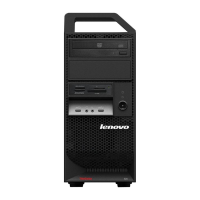
Lenovo ThinkStation E30 - User Manual

Lenovo ThinkStation E30
104 pages
Print Icon
To Next Page IconTo Next Page
Loading...
ThinkStation
UserGuide
MachineTypes:7782,7783,7821,7823,and7824

Table of Contents

Other manuals for Lenovo ThinkStation E30

Questions and Answers

  • K
    Kathleen HillAug 10, 2025
    What to do if Lenovo ThinkStation E30 Desktop does not start when I press the power switch?
    • H
      hesspaulAug 10, 2025
      If your Lenovo Desktop does not start, check these things: * Ensure the power cord is correctly connected to the rear of the computer and a working electrical outlet. * If there's a secondary power switch at the rear, ensure it is switched on. * Check if the power indicator on the front of the computer is lit. * Confirm the computer voltage matches the voltage available at the electrical outlet.
  • G
    George ShortAug 17, 2025
    What to do if my Lenovo ThinkStation E30 Desktop keyboard does not work?
    • E
      ericlinAug 17, 2025
      If your Lenovo Desktop keyboard isn't working, check that: * The computer is turned on. * The keyboard is securely connected to a USB connector on the computer. * No keys are stuck.
  • J
    Jennifer ParkerAug 25, 2025
    Why is the monitor screen blank on my Lenovo ThinkStation E30 Desktop?
    • A
      Andres SloanAug 26, 2025
      If your Lenovo Desktop monitor screen is blank, verify the following: * The monitor signal cable is correctly connected to both the monitor and the appropriate connector on the computer. * The monitor power cord is correctly connected to the monitor and a working electrical outlet. * The monitor is turned on, and the brightness and contrast are correctly set. * The computer voltage matches the voltage available at the electrical outlet. * If your computer has two monitor connectors, use the one on the graphics card.
  • D
    Dana TaylorSep 1, 2025
    What to do if my Lenovo ThinkStation E30 mouse does not work?
    • L
      Lauren JohnsonSep 1, 2025
      If your Lenovo Desktop mouse isn't working, make sure that: * The computer is turned on. * The mouse is securely connected to a USB connector on the computer. * The mouse is clean.

Summary

Important Safety Information

Service and Upgrades

Information on servicing the computer and identifying Customer Replaceable Units (CRUs).

Heat and Product Ventilation

Chapter 1: Product Overview

Specifications

Lists the physical, environmental, and electrical specifications of the computer.

Locating Parts on the System Board

Detailed diagram of system board components, connectors, and slots.

Chapter 2: You and Your Computer

Chapter 3: Security

Security Features

Overview of the computer's built-in security features for protection against unauthorized access.

Chapter 4: Installing or Replacing Hardware

Removing the Computer Cover

Step-by-step instructions for safely removing the computer's outer chassis cover.

Installing or Replacing a Memory Module

Instructions for installing or replacing system memory modules (RAM).

Replacing the Power Supply Assembly

Instructions for safely replacing the computer's internal power supply unit.

Replacing the Primary Hard Disk Drive

Instructions for replacing the main hard disk drive in the computer.

Replacing the Secondary Hard Disk Drive

Instructions for replacing a secondary hard disk drive if available.

Chapter 5: Recovery Information

Creating and Using Recovery Media

Guide to creating and using recovery media for system restoration and backups.

Performing Backup and Recovery Operations

Information on backing up and restoring system data using Lenovo's recovery solutions.

Using the Rescue and Recovery Workspace

Details on accessing and utilizing the Rescue and Recovery workspace for system recovery.

Solving Recovery Problems

Troubleshooting steps and solutions for common recovery process issues.

Chapter 6: Using the Setup Utility Program

Starting the Setup Utility Program

Step-by-step instructions for accessing the system's BIOS Setup Utility.

Using Passwords

Guidance on setting and managing passwords for system security in the Setup Utility.

Chapter 7: Configuring RAID

Configuring the System BIOS to Enable SATA RAID Functionality

Steps to enable SATA RAID functionality within the system BIOS settings.

Creating RAID Volumes

Instructions for creating RAID volumes using the Intel Matrix Storage Manager.

Chapter 8: Updating System Programs

Updating (Flashing) the BIOS from a Disc

Instructions for updating the BIOS using a bootable optical disc.

Recovering from a POST;BIOS Update Failure

Procedure for recovering the computer after a failed POST or BIOS update.

Chapter 9: Troubleshooting and Diagnostics

Basic Troubleshooting

A table listing common computer symptoms and their corresponding verification steps.

Diagnostic Programs

Information on using built-in and downloadable diagnostic tools for hardware issues.

Lenovo Solution Center

Details on using the Lenovo Solution Center for system diagnostics and troubleshooting.

Lenovo ThinkVantage Toolbox

Information on using the ThinkVantage Toolbox for system maintenance and diagnostics.

Chapter 10: Getting Information, Help, and Service

Lenovo ThinkVantage Tools

Accessing the ThinkVantage Tools suite for system information and utilities.

Lenovo ThinkStation E30 Specifications

General IconGeneral
ChipsetIntel C206
Memory Slots4 DIMM slots
AudioIntegrated HD Audio
NetworkingIntegrated Gigabit Ethernet
ProcessorsIntel Core i3/i5/i7, Intel Xeon E3-1200 series
RAMUp to 32GB DDR3
StorageUp to 2TB SATA HDD
Storage ControllerSATA 3Gb/s
GraphicsIntegrated Intel HD Graphics or optional NVIDIA Quadro
Optical DriveDVD-ROM or DVD-RW
Power Supply280W
Operating SystemWindows 7
Form FactorMini Tower
Dimensions (H x W x D)175mm
Weight11 kg
PortsUSB 2.0
Expansion Slots1 x PCIe x16, 1 x PCIe x1, 1 x PCI

Related product manuals