EasyManua.ls Logo

Lenovo ThinkStation E31 - User Manual

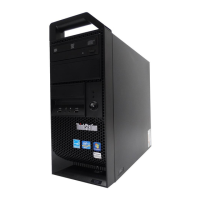
Lenovo ThinkStation E31
158 pages
Print Icon
To Next Page IconTo Next Page
Loading...
ThinkStation
UserGuide
MachineTypes:3688,3690,3691,3693,and3695

Table of Contents

Other manuals for Lenovo ThinkStation E31

Questions and Answers

  • V
    Vicki MataJul 26, 2025
    What to do if Lenovo ThinkStation E31 Desktop does not start?
    • E
      Elizabeth WilsonJul 26, 2025
      If your Lenovo Desktop doesn't start, check the following: Ensure the power cord is correctly connected to both the rear of the computer and a working electrical outlet. If there's a secondary power switch at the rear, make sure it's on. Verify that the power indicator on the front of the computer is lit. Also, confirm that the computer voltage matches the voltage available at your electrical outlet.
  • A
    Angela RayAug 3, 2025
    Why Lenovo ThinkStation E31 Desktop keyboard does not work?
    • B
      Brandon GonzalezAug 3, 2025
      If your Lenovo Desktop keyboard isn't working, check that the computer is turned on. Make sure the keyboard is securely connected to a USB connector on the computer. Also, ensure that no keys are stuck.
  • D
    Donald LopezAug 10, 2025
    Why Lenovo ThinkStation E31 monitor screen is blank?
    • C
      Curtis Nguyen IIAug 10, 2025
      If your Lenovo Desktop monitor screen is blank, verify that the monitor signal cable is correctly connected to both the monitor and the appropriate connector on the computer. Ensure the monitor's power cord is properly connected to the monitor and a working electrical outlet. Check that the monitor is turned on and the brightness and contrast controls are correctly set. Also, confirm that the computer voltage matches the voltage available at the electrical outlet. If your computer has two monitor connectors, be sure to use the connector on the graphics card.
  • U
    ubullockAug 17, 2025
    Why Lenovo Desktop mouse does not work?
    • B
      Brandon MyersAug 18, 2025
      If your Lenovo Desktop mouse isn't working, check that the computer is turned on. Ensure the mouse is securely connected to a USB connector on the computer. Also, make sure the mouse is clean.

Summary

Important Safety Information

Static Electricity Prevention

Precautions to prevent damage to computer components from static electricity.

Power Cords and Power Adapters

Guidelines for safe use and handling of power cords and adapters.

Chapter 1. Product Overview

Chapter 4. Security

Security Features

Overview of available security features to protect against theft and unauthorized use.

Chapter 5. Installing or Replacing Hardware

Handling Static-Sensitive Devices

Precautions to prevent damage to sensitive components from static electricity.

Opening the Computer Cover

Step-by-step instructions on how to safely open the computer's casing.

Installing or Replacing a Memory Module

Procedure for installing or replacing DDR3 UDIMMs to upgrade system memory.

Replacing the Hard Disk Drive

Instructions for removing and installing the primary hard disk drive.

Replacing the Power Supply Assembly

Procedure for replacing the computer's power supply unit.

Chapter 6. Recovery Information

Creating and Using Recovery Media

Guidance on creating and using recovery media to restore the hard disk to factory default.

Chapter 7. Using the Setup Utility Program

Using Passwords

Managing BIOS passwords to prevent unauthorized access to the computer.

Chapter 10. Preventing Problems

Chapter 11. Troubleshooting and Diagnostics

Chapter 12. Getting Information, Help, and Service

Calling for Service

Procedures for obtaining technical assistance and service during the warranty period.

Lenovo ThinkStation E31 Specifications

General IconGeneral
Form FactorTower
NetworkingIntegrated Gigabit Ethernet
ProcessorIntel Core i3, i5, i7 or Intel Xeon E3
MemoryUp to 32GB DDR3
StorageSupports HDD and SSD options
GraphicsIntegrated Intel HD Graphics or NVIDIA Quadro
Operating SystemWindows 7 Professional or Windows 8 Pro
Power Supply280W
Expansion Slots1 x PCIe 3.0 x16, 1 x PCIe 2.0 x16 (x4 electrical), 1 x PCIe 2.0 x1, 1 x PCI
PortsFront: 2 x USB 3.0 Rear: 4 x USB 2.0
Weight11 kg

Related product manuals