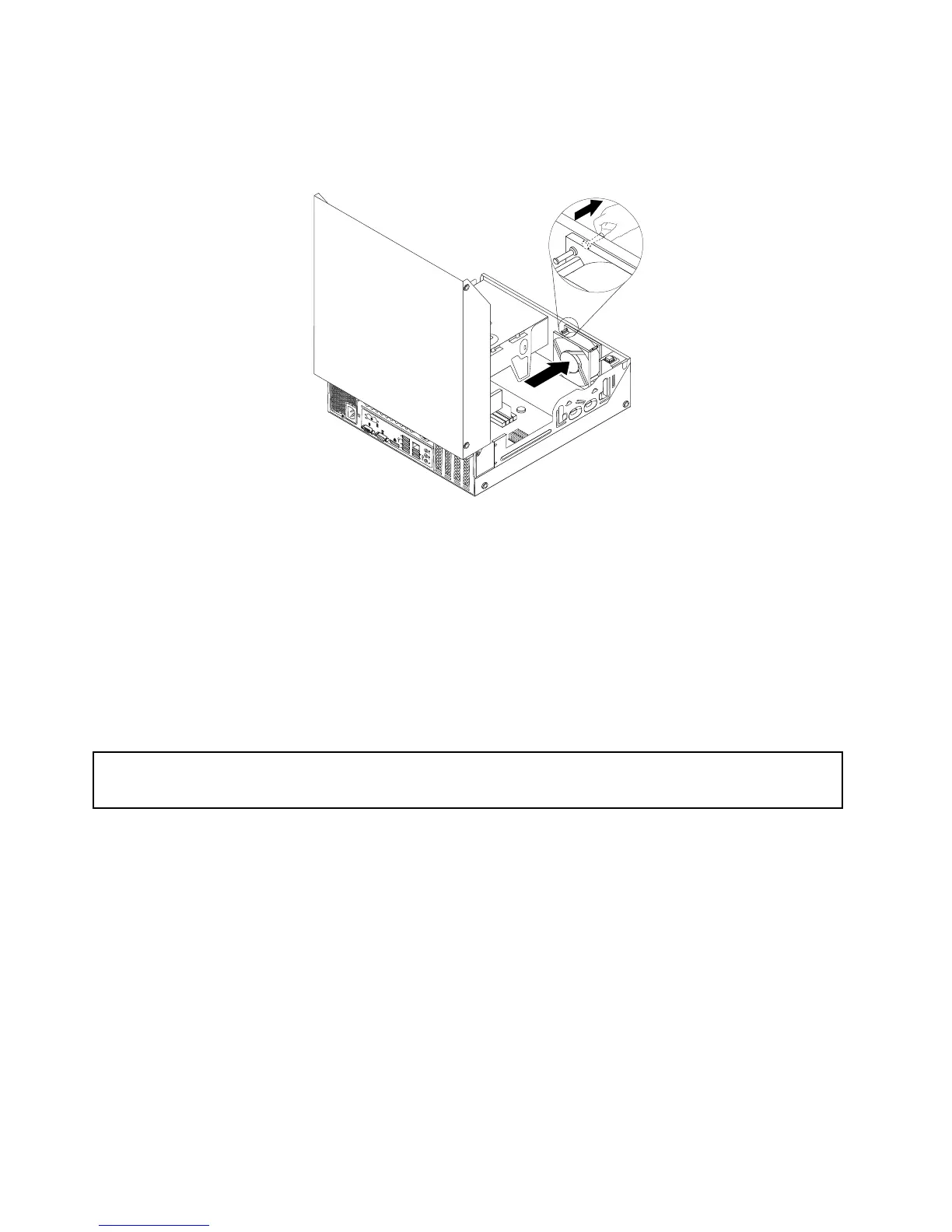
7.Installthenewsystemfanbyaligningthenewrubbermountsthatcamewiththenewsystemfanwiththe
correspondingholesinthechassis,andthenpushtherubbermountsthroughtheholes.Then,carefully
pullonthetipsoftherubbermountsfromthebottomuntilthenewsystemfanissecuredinplace.
Figure52.Installingthesystemfan
8.Connectthenewsystemfancabletothesystemfanconnectoronthesystemboard.See“Locating
partsonthesystemboard”onpage12
9.Reinstalltheharddiskdrive.See“Replacingtheharddiskdrive”onpage47
Whattodonext:
•Toworkwithanotherpieceofhardware,gototheappropriatesection.
•Tocompletetheinstallationorreplacement,goto“Completingthepartsreplacement”onpage71.
Replacingthekeyboardormouse
Attention:
Donotopenyourcomputerorattemptanyrepairbeforereadingandunderstandingthe“Importantsafetyinformation”
onpagev.
Thissectionprovidesinstructionsonhowtoreplacethekeyboardormouse.
Toreplacethekeyboardormouse,dothefollowing:
1.Disconnecttheoldkeyboardcableormousecablefromthecomputer.
70ThinkStationUserGuide







 To Next Page