EasyManua.ls Logo

Lenovo ThinkVision P27q-20 - User Manual

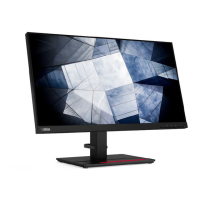
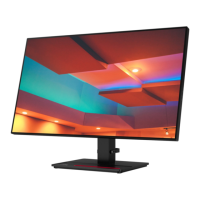
Lenovo ThinkVision P27q-20
36 pages
Print Icon
To Next Page IconTo Next Page
Loading...
P27q-20 Flat Panel Monitor
Users Guide
Machine Type: 61EA

Questions and Answers

  • S
    Samantha BakerJul 28, 2025
    What to do if my Lenovo Monitor power indicator is not lit and there is no image?
    • J
      Jennifer KirbyJul 28, 2025
      If the power indicator isn't lit and there's no image on your Lenovo monitor, ensure the power cord is properly connected and the outlet has power. Also, make sure the monitor is switched on. If the issue persists, try using another power cord or electrical outlet to rule out those possibilities.
  • L
    Lori RoseAug 2, 2025
    What to do if my Lenovo ThinkVision P27q-20 Monitor screen is blank and the power indicator is steady amber or flashing white?
    • C
      Carlos MaloneAug 2, 2025
      If your Lenovo monitor screen is blank and the power indicator is steady amber or flashing white, the monitor might be in Standby/Suspend mode. Try pressing any key on the keyboard or moving the mouse to restore operation. Additionally, check the Power options settings on your computer.
  • T
    Tracy CalderonAug 7, 2025
    What to do if the power indicator is white, but there is no image on my Lenovo Monitor?
    • A
      Amy DaltonAug 7, 2025
      If the power indicator on your Lenovo monitor is white but there's no image, first ensure the video cable is properly connected to the system. If it is, then adjust the brightness and contrast settings on the OSD menu, as they may be at their lowest settings.
  • N
    Nathaniel YatesAug 12, 2025
    How to fix fuzzy lines or blurry image on Lenovo ThinkVision P27q-20 Monitor?
    • A
      anna45Aug 12, 2025
      To resolve fuzzy lines in text or a blurry image on your Lenovo monitor, adjust the resolution settings on your system to match the native resolution for this monitor: 2560 x 1440 at 60 Hz. When working in the native resolution, you may find additional improvements by adjusting the Dots Per Inch (DPI) setting on your system.
  • E
    Edward LambertAug 17, 2025
    What to do if my Lenovo ThinkVision P27q-20 Monitor says 'Out of Range'?
    • A
      Alyssa ChenAug 17, 2025
      The “Out of Range” message on your Lenovo monitor indicates that the system is set to a display mode not supported by the monitor. If you are replacing an old monitor, reconnect it and adjust the display mode to within the specified range for your new monitor. If using a Windows system, restart the system in safe mode, then select a supported display mode for your computer.
  • E
    Eric OchoaAug 22, 2025
    Why does my Lenovo Monitor have discolored pixels?
    • K
      kcarterAug 22, 2025
      The appearance of one or more discolored pixels is a characteristic of LCD technology and not necessarily a defect. If there are more than five pixels missing, contact the Customer Support Centre.

Summary

Chapter 1 Getting Started

Shipping Contents

Lists all items included in the product package for initial setup.

Notice for Use

Provides essential instructions and warnings for initial monitor setup and handling.

Product Overview

Provides a general overview of the monitor's features and components.

Types of Adjustments

Details the physical adjustments like tilt, swivel, and height for ergonomic setup.

User Controls

Explains the function and location of the monitor's physical control buttons.

Cable Lock Slot

Describes the security feature for preventing theft of the monitor.

Setting Up Your Monitor

Guides users through connecting cables and powering on the monitor.

Registering Your Option

Encourages product registration for updates and support.

Chapter 2 Adjusting and Using Your Monitor

Comfort and Accessibility

Emphasizes ergonomic practices for comfortable and healthy computer use.

Arranging Your Work Area

Offers advice on setting up the workspace for optimal comfort and productivity.

Health Administration

Discusses factors contributing to visual fatigue and how to mitigate them.

Working Habits

Provides tips on user habits to reduce eye strain and discomfort during use.

Working Posture

Guides on achieving proper seating and monitor placement for comfort and health.

Viewing Angle

Advises on positioning the monitor to avoid neck strain and ensure optimal viewing.

Reduce Flicker

Explains monitor flicker and how to reduce eye strain and headaches.

Low Blue Light

Details the feature to reduce blue light emissions for eye health.

Accessibility Information

Outlines Lenovo's commitment to providing access for users with disabilities.

Adjusting Your Monitor Image

Explains how to fine-tune display settings for optimal image quality.

Using the Direct Access Controls

Describes how to use physical buttons for quick access to settings.

Using the On-Screen Display (OSD) Controls

Guides on navigating and using the monitor's on-screen menu for adjustments.

Selecting a Supported Display Mode

Explains how display modes are controlled by the computer and lists supported resolutions.

Image Rotation

Details how to rotate the display image, typically via computer settings.

Understanding Power Management

Explains the monitor's power-saving states and indicators.

Caring for Your Monitor

Provides instructions on how to clean and maintain the monitor.

Detaching the Monitor Stand

Step-by-step guide on how to remove the monitor stand.

Wall Mounting (Optional)

Instructions for mounting the monitor on a wall using a VESA bracket.

Chapter 3 Reference Information

Monitor Specifications

Provides detailed technical specifications of the monitor.

Troubleshooting

Offers solutions for common problems encountered with the monitor.

Manually Installing the Monitor Driver

Step-by-step guide for installing the monitor driver on Windows.

Service Information

Details customer responsibilities, warranty, and how to get further help.

Appendix A. Service and Support

Registering Your Option

Information on registering the product for support and updates.

Online Technical Support

Provides access points for online technical assistance and resources.

Telephone Technical Support

Details how to contact Lenovo for telephone support and required information.

Worldwide Telephone List

Lists contact phone numbers for Lenovo support across different countries.

Appendix B. Notices

Recycling Information

Information on environmentally responsible recycling of IT equipment.

Collecting and Recycling a Disused Lenovo Computer or Monitor

Guidelines for proper disposal and recycling of company-owned equipment.

Disposing of Lenovo Computer Components

Specific advice for disposing of internal computer components.

Trademarks

Lists registered trademarks of Lenovo and other companies.

Turkish Statement of Compliance

States compliance with Turkish directives on hazardous substances.

Ukraine RoHS

Confirms compliance with Ukrainian regulations on hazardous substances.

India RoHS

Confirms compliance with Indian RoHS regulations.

Power Cords and Power Adapters

Important safety instructions regarding the use of power cords and adapters.

Lenovo ThinkVision P27q-20 Specifications

General IconGeneral
3DNo
Color gamut99 %
Pixel pitch0.2331 x 0.2331 mm
Screen shapeFlat
Backlight typeW-LED
Display diagonal27 \
Display technologyLED
Native aspect ratio16:9
Maximum refresh rate60 Hz
Viewable size, vertical335.66 mm
Contrast ratio (dynamic)3000000:1
Contrast ratio (typical)1000:1
Display number of colors16.78 million colors
Viewable size, horizontal596.74 mm
Display brightness (typical)350 cd/m²
Supported graphics resolutions2560 x 1440
HDMI version1.4
USB hub version3.2 Gen 1 (3.1 Gen 1)
Built-in USB hubYes
Headphone outputs1
DisplayPort version1.2
VGA (D-Sub) ports quantity0
Pivot angle-90 - 90 °
Tilt angle range-5 - 35 °
Cable lock slot typeKensington
Number of OSD languages8
Panel mounting interface100 x 100 mm
AC input voltage100 - 240 V
AC input frequency50 - 60 Hz
Power consumption (max)57 W
Annual energy consumption57 kWh
Power consumption (standby)0.5 W
Power consumption (typical)22 W
NVIDIA G-SYNC-
Package typeBox
Package depth182 mm
Package width722 mm
Package height463 mm
Package weight9260 g
Quantity per pack1 pc(s)
Cables includedAC, DisplayPort
Power cable length1.8 m
Color nameRaven Black
CertificationCCC, TCO, TCO Edge, TÜV Rheinland Eye Comfort
Product colorBlack
Market positioningBusiness
Sustainability certificatesRoHS, EPEAT Silver, ENERGY STAR
Weight and Dimensions IconWeight and Dimensions
Bezel width (side)2 mm
Depth (with stand)208 mm
Height (with stand)576.5 mm
Weight (with stand)7120 g
Depth (without stand)46.9 mm
Width (without stand)613.8 mm
Height (without stand)353.8 mm
Weight (without stand)4640 g

Related product manuals