EasyManua.ls Logo

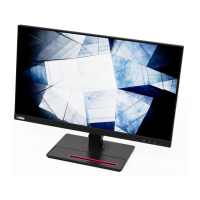
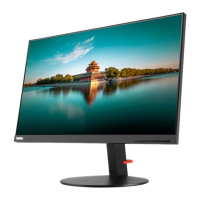
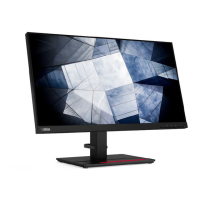
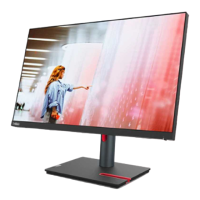
Lenovo ThinkVision P24h-30 - User Manual

Lenovo ThinkVision P24h-30
44 pages
Print Icon
To Next Page IconTo Next Page
Loading...
P24h-30 LCD Monitor
Users Guide
Machine Type: 63B3/63BB

Questions and Answers

  • J
    James AndersenJul 28, 2025
    What to do if my Lenovo Monitor power indicator is not lit?
    • O
      Olivia BrownJul 28, 2025
      If your Lenovo monitor's power indicator isn't lit and there's no image, ensure the power cord is properly connected and that the outlet has power. Also, power on the monitor, try another power cord, and try a different electrical outlet to resolve the issue.
  • K
    Kenneth PowellAug 1, 2025
    Why is my Lenovo ThinkVision P24h-30 image blurry?
    • A
      Andrea DominguezAug 1, 2025
      If you see fuzzy lines in text or a blurry image on your Lenovo monitor, or horizontal/vertical lines through the image, adjust the resolution settings on your system to match the native resolution for this monitor: 2560 x 1440 at 60 Hz. When working in the native resolution, you may find additional improvements by adjusting the Dots Per Inch (DPI) setting on your system.
  • H
    Helen MannAug 5, 2025
    How to improve image quality on a Lenovo Monitor?
    • D
      Deborah RamosAug 5, 2025
      If the image quality on your Lenovo monitor is unacceptable, ensure the video signal cable is firmly plugged into both the system and the monitor. Also, try selecting a different color setting from the monitor's OSD menu.
  • L
    lejaneAug 9, 2025
    What to do if Lenovo Monitor screen is blank?
    • J
      Jason WilsonAug 9, 2025
      If your Lenovo monitor screen is blank and the power indicator is steady amber or flashing white, press any key on the keyboard or move the mouse to restore operation. Also, check the Power options settings on your computer.
  • S
    Steven GomezAug 13, 2025
    Why is my Lenovo ThinkVision P24h-30 Monitor power indicator white but no image?
    • R
      Russell JacksonAug 14, 2025
      If your Lenovo monitor's power indicator is white but there is no image, ensure the video cable is properly connected to the system. Also, adjust the brightness and contrast settings in the OSD menu.
  • S
    Susan RosarioAug 18, 2025
    How to fix Lenovo ThinkVision P24h-30 'Out of Range' error?
    • P
      powellkevinAug 18, 2025
      If your Lenovo monitor displays 'Out of Range' and the power indicator flashes white, and you are replacing an old monitor, reconnect it and adjust the display mode to within the specified range for your new monitor. If using a Windows system, restart the system in safe mode, then select a supported display mode for your computer. If these options do not work, contact the Customer Support Centre.
  • R
    roseterryAug 23, 2025
    What causes discolored pixels on Lenovo ThinkVision P24h-30?
    • T
      Travis DavisAug 23, 2025
      If one or more pixels appear discolored on your Lenovo monitor, this is a characteristic of LCD technology and not an LCD defect. If there are more than five pixels missing, contact the Customer Support Centre.

Summary

Chapter 1 Getting Started

Shipping Contents and Initial Setup

Lists package contents and provides initial setup instructions.

Product Overview, Controls, and Connection

Details monitor adjustments, user controls, cable slot, connection, and power on.

Product Registration

Instructions for registering the product for service and updates.

Safety Information

General Safety Guidelines

Tips for safe computer usage and reading safety information.

TCO Certified Program

Information about the TCO Certified sustainability certification.

Safety and Maintenance Guidelines

Important Safety Information

General safety warnings and precautions for product usage.

Safety Precautions

Specific safety measures during operation and setup.

Maintenance and Cleaning

Guidelines for maintaining performance and cleaning the monitor.

Chapter 2 Adjusting and Using Your Monitor

Ergonomics, Health, and Visual Comfort

Tips for comfortable viewing, work area, posture, eye strain, flicker, and blue light.

Monitor Image Adjustment and Settings

How to adjust image settings, OSD, display modes, power management, and features.

Monitor Care and Mounting

Instructions for cleaning, detaching the stand, and wall mounting.

Chapter 3 Reference Information

Monitor Specifications and Troubleshooting

Detailed technical specs and common problems/solutions.

Driver Installation and Support

Steps for driver installation and service/support contact info.

Appendix A Service and Support

Product Registration, Online and Telephone Support

How to register, access online, and phone support resources.

Appendix B Notices

Recycling, Legal, and Compliance

Guidelines for recycling, trademarks, and regulatory compliance.

Lenovo ThinkVision P24h-30 Specifications

General IconGeneral
Color depth8 bit
Color gamut99 %
Pixel pitch0.205 x 0.205 mm
Screen shapeFlat
Pixel density123 ppi
Response time6 ms
Backlight typeW-LED
Display diagonal23.8 \
Anti-glare screenYes
Display technologyLED
Native aspect ratio16:9
Maximum refresh rate60 Hz
Response time (fast)4 ms
Viewable size, vertical296.3 mm
Contrast ratio (dynamic)3000000:1
Contrast ratio (typical)1000:1
Display number of colors16.7 million colors
Viewable size, horizontal526.8 mm
Display brightness (typical)300 cd/m²
High Dynamic Range (HDR) technologyHigh Dynamic Range 10 (HDR10)
NVIDIA G-SYNC-
Compatible operating systemsWindows 10, Windows 11
DisplayPort version1.4
USB Power Delivery up to100 W
USB Type-A downstream ports quantity4
Pivot angle-90 - 90 °
Tilt angle range-5 - 23.5 °
Cable lock slot typeKensington
Panel mounting interface100 x 100 mm
AC input voltage100 - 240 V
Power supply typeInternal
AC input frequency50 - 60 Hz
Power consumption (max)161 W
Power consumption (off)0.5 W
Power consumption (standby)- W
Power consumption (typical)27 W
Color nameRaven Black
CertificationEnergy Star Certified, TCO 9.0, TCO Edge 2.0, EPEAT Gold, RoHS Eyesafe Display, TÜV Low Blue Light (Hardware solution), TÜV Rheinland Low Blue Light, TÜV Rheinland Flicker Free, TÜV Rheinland Eye Comfort
Product colorBlack
Package depth160 mm
Package width620 mm
Package height420 mm
Package weight8600 g
Cables includedAC, DisplayPort, HDMI, USB Type-C
DisplayPort cable length1.8 m
Weight and Dimensions IconWeight and Dimensions
Bezel width (side)2 mm
Depth (with stand)199.7 mm
Width (with stand)539.5 mm
Weight (with stand)5700 g
Bezel width (bottom)18 mm
Depth (without stand)46.5 mm
Height (without stand)323.7 mm
Weight (without stand)3800 g

Related product manuals