EasyManua.ls Logo

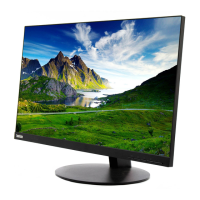
Lenovo ThinkVision T2224dA - User Manual

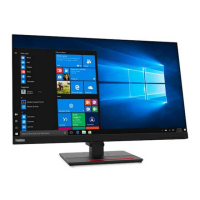
Lenovo ThinkVision T2224dA
36 pages
Print Icon
To Next Page IconTo Next Page
Loading...
ThinkVision T2224dA
User Guide
Machine Types: 61B1

Questions and Answers

  • L
    Lawrence MooreAug 19, 2025
    What to do if the Lenovo ThinkVision T2224dA power indicator is not lit?
    • R
      Randy FrazierSep 12, 2025
      If your Lenovo Monitor's power indicator isn't lit and there's no image, ensure the power cord is properly connected and the monitor is switched on. Also, verify that the outlet has power. Try another power cord or electrical outlet.
  • L
    Logan SmithAug 21, 2025
    What to do if my Lenovo ThinkVision T2224dA has power but no image?
    • S
      Stacy PriceAug 21, 2025
      If your Lenovo Monitor's power indicator is green but there's no image, make sure the video cable is properly connected to the system. Also, adjust the brightness and contrast settings on the OSD menu.
  • J
    Jerry PattersonAug 23, 2025
    Why is my Lenovo Monitor screen blank with an amber light?
    • J
      Julie BrownAug 23, 2025
      If your Lenovo Monitor screen is blank and the power indicator is amber, the monitor is likely in Standby/Suspend mode. Press any key on the keyboard or move the mouse to restore operation. Also, check the Power Options settings on your computer.
  • J
    Jessica RasmussenAug 26, 2025
    How to fix unacceptable image quality on Lenovo Lcd monitor?
    • H
      Hannah SmithAug 26, 2025
      If the image quality on your Lenovo Lcd monitor is unacceptable, make sure the video signal cable is firmly plugged into both the system and the monitor. Also, try selecting a different color setting from the OSD menu and perform automatic image setup.
  • J
    Justin KhanAug 28, 2025
    How to fix fuzzy lines or blurry image on Lenovo Lcd monitor?
    • J
      Jeremy LopezAug 28, 2025
      To resolve fuzzy lines in text or a blurry image on your Lenovo Lcd monitor, adjust the resolution settings on your system to match the native resolution for this monitor: 1920 x 1080 at 60 Hz. Additionally, perform automatic image setup. You may find additional improvements by adjusting the Dots Per Inch (DPI) setting on your system.
  • C
    Courtney BradyAug 29, 2025
    What to do if Lenovo Lcd monitor shows "Out of Range"?
    • J
      Jenny BrownAug 30, 2025
      If your Lenovo Lcd monitor displays the message "Out of Range", it means the system is set to a display mode not supported by the monitor. If you replaced an old monitor, reconnect it and adjust the display mode to within the specified range for your new monitor. If using a Windows system, restart the system in safe mode, then select a supported display mode for your computer.
  • L
    Laurie LeeSep 1, 2025
    Why is the image quality bad on my Lenovo ThinkVision T2224dA?
    • A
      Amy ChaneySep 1, 2025
      If the image quality on your Lenovo Monitor is unacceptable, ensure the video signal cable is firmly plugged into both the system and monitor. Try selecting another color setting from the OSD menu. Also, perform automatic image setup.
  • C
    Cassidy LinSep 3, 2025
    How to fix blurry image on Lenovo ThinkVision T2224dA Monitor?
    • A
      Amanda GutierrezSep 3, 2025
      If you see fuzzy lines in text or a blurry image on your Lenovo Monitor, or horizontal/vertical lines through the image, adjust the resolution settings on your system to match the native resolution for this monitor: 1920 x 1080 at 60 Hz. Also, perform automatic image setup; if that doesn't help, perform manual image setup.
  • J
    john70Sep 5, 2025
    What to do if my Lenovo Lcd monitor power indicator is not lit and there is no image?
    • N
      Nancy MoralesSep 5, 2025
      If the power indicator on your Lenovo Lcd monitor isn't lit and there's no image, ensure the power cord is properly connected and the outlet has power. Also, verify that the monitor is powered on. If the issue persists, try a different power cord and electrical outlet.
  • T
    Tyrone SimpsonSep 7, 2025
    Why is my Lenovo Lcd monitor screen blank and power indicator amber?
    • K
      Karen McdonaldSep 7, 2025
      If your Lenovo Lcd monitor screen is blank and the power indicator is amber, it's likely in Standby/Suspend mode. To restore operation, press any key on the keyboard or move the mouse. You should also check the Power Options settings on your computer.

Summary

Safety Information

General Safety Guidelines

Provides tips for safe computer usage and emphasizes reading safety information before installation.

Getting Started

Shipping Contents

Lists the items included in the product package, such as monitor, cables, and setup poster.

Notice for Use

Provides instructions for setting up the monitor and notes on handling the screen area.

Product Overview

Provides information on adjusting monitor positions, controls, and cable lock slot.

Types of Adjustments

Details the physical adjustments available for the monitor, specifically focusing on the tilt function.

Monitor Controls

Describes the controls located on the front of the monitor used for display adjustment.

Cable Lock Slot

Explains the location and purpose of the cable lock slot on the rear of the monitor.

Setting Up Your Monitor

Guides the user through the process of setting up the monitor.

Connecting and Turning On Your Monitor

Details the steps for connecting cables and powering on the monitor.

Registering Your Option

Encourages users to register their product for service and support updates.

Adjusting and Using Your Monitor

Comfort and Accessibility

Explains the importance of good ergonomic practices for comfortable and productive computer use.

Arranging Your Work Area

Provides guidance on setting up a work surface and organizing the work area for comfort.

Positioning Your Monitor

Details how to position the monitor for comfortable viewing, including distance, height, and tilt.

Quick Tips for Healthy Work Habits

Offers advice on maintaining good posture, taking breaks, and avoiding eye strain during computer use.

Accessibility Information

Provides information on Lenovo's commitment to accessibility and resources for assistive technologies.

Adjusting Your Monitor Image

Describes the control features available to adjust the monitor's image settings.

Using the Direct Access Controls

Explains how to use the physical buttons on the monitor for quick access to image adjustments.

Using the On-Screen Display (OSD) Controls

Details how to navigate and use the On-Screen Display (OSD) menu for advanced monitor settings.

Selecting a Supported Display Mode

Explains how to change display modes and lists factory-optimized display modes and their refresh rates.

Understanding Power Management

Describes the different power states of the monitor and how power management works.

Caring for Your Monitor

Provides guidelines on how to clean and maintain the monitor safely and effectively.

Detaching the Monitor Base and Stand

Outlines the steps for removing the monitor's base and stand.

Wall Mounting (Optional)

Provides instructions for mounting the monitor on a wall using a VESA mount.

Reference Information

Monitor Specifications

Lists detailed technical specifications for the monitor, including dimensions, panel, input, and power.

Troubleshooting

Offers solutions for common problems encountered while setting up or using the monitor.

Manual Image Setup

Provides step-by-step instructions for manually adjusting the monitor's image settings for VGA input.

Manually Installing the Monitor Driver

Explains how to manually install the monitor driver for Windows 7, 8/8.1, and 10.

Installing the Monitor Driver in Windows 7

Detailed steps for installing the monitor driver on Windows 7 systems.

Installing the Monitor Driver in Windows 8;8.1

Detailed steps for installing the monitor driver on Windows 8 and 8.1 systems.

Installing the Monitor Driver in Windows 10

Detailed steps for installing the monitor driver on Windows 10 systems.

Getting Further Help

Provides guidance on contacting the Lenovo Support Center for unresolved issues.

Service Information

Details warranty exclusions, customer responsibilities, and lists available service parts.

Customer Responsibilities

Outlines warranty limitations and examples of misuse or abuse not covered by the warranty.

Service Parts

Lists replaceable parts available for Lenovo service technicians and authorized dealers.

Service and Support

Registering Your Option

Instructions for registering the product to receive service and support updates.

Online Technical Support

Information on how to access online technical support and product replacement assistance.

Telephone Technical Support

Details on how to contact Lenovo telephone technical support and required information.

Notices

Recycling Information

Provides information on how to responsibly recycle Lenovo IT equipment and components.

Trademarks

Lists trademarks owned by Lenovo and other companies mentioned in the document.

Lenovo ThinkVision T2224dA Specifications

General IconGeneral
BrandLenovo
ModelThinkVision T2224dA
CategoryMonitor
LanguageEnglish

Related product manuals