EasyManua.ls Logo

Lenovo ThinkVision T2224zD - User Manual

Lenovo ThinkVision T2224zD
35 pages
Print Icon
To Next Page IconTo Next Page
Loading...
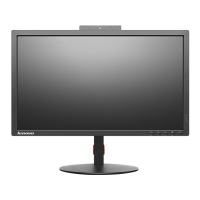
T2224zD Flat Panel Monitor
Users Guide

Questions and Answers

  • J
    Jacob LeeAug 13, 2025
    What to do if my Lenovo Monitor power indicator is not lit and there is no image?
    • R
      Ronald FullerAug 14, 2025
      If the power indicator on your Lenovo monitor isn't lit and there's no image, ensure the power cord is properly connected and that the outlet has power. Power on the monitor. If the issue persists, try using another power cord or electrical outlet.
  • M
    Mrs. Phyllis DavisAug 17, 2025
    What to do if my Lenovo ThinkVision T2224zD Monitor screen is blank but the power indicator is on?
    • V
      Valerie StantonAug 17, 2025
      If your Lenovo monitor screen is blank but the power indicator is steady amber or flashing green, the monitor may be in Standby/Suspend mode. Press any key on the keyboard or move the mouse to restore operation. Also, check the Power options settings on your computer.
  • E
    Elizabeth MurphyAug 21, 2025
    What to do if my Lenovo ThinkVision T2224zD power indicator is green, but there is no image?
    • Q
      qrangelAug 21, 2025
      If the power indicator is green but there is no image on your Lenovo monitor, ensure the video cable is properly connected to the system. Also, adjust the brightness and contrast settings on the OSD menu, as they may be at their lowest setting.
  • K
    katie39Aug 26, 2025
    How to fix unacceptable image quality on Lenovo ThinkVision T2224zD?
    • B
      brandon28Aug 26, 2025
      If the image quality on your Lenovo monitor is unacceptable, ensure the video signal cable is firmly plugged into both the system and the monitor. You may also want to select another color setting from the OSD menu or perform automatic image setup.
  • J
    John SparksAug 29, 2025
    How to resolve fuzzy lines or blurry images on a Lenovo Monitor?
    • R
      Richard GrahamAug 29, 2025
      To resolve fuzzy lines in text or a blurry image on your Lenovo monitor, adjust the resolution settings on your system to match the native resolution for this monitor: 1920 x 1080 at 60 Hz. Also, perform automatic image setup; if that doesn't help, perform manual image setup. When working in the native resolution, you may find additional improvements by adjusting the Dots Per Inch (DPI) setting on your system.
  • D
    David HollandSep 1, 2025
    Why does my Lenovo ThinkVision T2224zD say 'Out of Range'?
    • A
      Adam HernandezSep 1, 2025
      The 'Out of Range' message on your Lenovo monitor indicates that your system is set to a display mode not supported by the monitor. If you replaced an old monitor, reconnect it and adjust the display mode to the specified range for your new monitor. If using Windows, restart in safe mode and select a supported display mode. If the problem persists, contact the Customer Support Centre.
  • W
    William YangSep 5, 2025
    Why is the image not acceptable when switching to dual mode on my Lenovo ThinkVision T2224zD Monitor?
    • C
      Carol AndrewsSep 5, 2025
      If the image is not acceptable when switching to dual mode on your Lenovo monitor, use ThinkVision Duo software to optimize the dual screen operation. Alternatively, adjust the graphic card resolution manually.
  • P
    pettybethSep 8, 2025
    What to do if pixels appear discolored on Lenovo ThinkVision T2224zD?
    • A
      Ashley FloresSep 9, 2025
      The appearance of discolored pixels is a characteristic of LCD technology and not an LCD defect. If there are more than five pixels missing, contact the Customer Support Centre.

Summary

Safety Information

General Safety Guidelines

Provides general guidelines for safe usage of the monitor and computer.

Safety and Maintenance Guidelines

Important Safety Precautions

Details crucial safety warnings and precautions for monitor operation and connection.

Monitor Maintenance and Care

Offers tips for enhancing performance, cleaning, and extending monitor life.

Getting Started

Shipping Contents and Overview

Lists package contents and provides a general product overview.

Monitor Adjustments and Controls

Details physical adjustments (tilt, swivel, height) and user controls.

Setup and Features

Guides users through connecting, powering on, and using key features.

Adjusting and Using Your Monitor

Ergonomics and Work Area Setup

Guidance on comfortable posture, work area arrangement, and healthy habits.

Monitor Image Settings

How to adjust monitor image using direct access and OSD controls.

Display Modes and Rotation

Information on supported display modes and image rotation.

Power Management and Care

Explains power saving states and guidelines for monitor care.

Reference Information

Monitor Specifications

Detailed technical specifications for the monitor model.

Troubleshooting Guide

Solutions for common problems encountered with the monitor.

Driver Installation

Step-by-step instructions for manually installing the monitor driver.

Service and Support

Technical Support Options

Details online, telephone, and worldwide support contacts and registration.

Notices and Compliance

Recycling and Disposal

Guidelines for recycling Lenovo equipment and disposing of components.

Trademarks and Compliance

Lists trademarks and regional compliance statements.

Lenovo ThinkVision T2224zD Specifications

General IconGeneral
Screen Size21.5 inches
Brightness250 cd/m²
Contrast Ratio1000:1
Response Time5 ms
Aspect Ratio16:9
Refresh Rate60 Hz
VESA Mount100 x 100 mm
Resolution1920 x 1080 (Full HD)
ConnectivityVGA, DisplayPort
VESA Mount CompatibleYes (100 x 100 mm)
SwivelYes
PivotYes
Color Support16.7 Million
Input PortsVGA, DisplayPort

Related product manuals