EasyManua.ls Logo

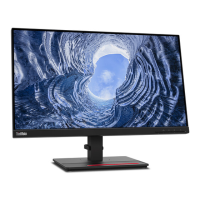
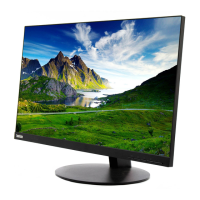
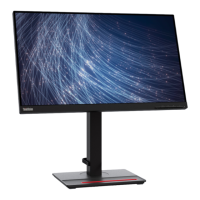
Lenovo ThinkVision T24v-20 - User Manual

Lenovo ThinkVision T24v-20
45 pages
Print Icon
To Next Page IconTo Next Page
Loading...
T24v-20 Flat Panel Monitor
Users Guide
Machine Type: 61FC

Questions and Answers

  • E
    Erica AndersonAug 13, 2025
    Why is my Lenovo ThinkVision T24v-20 Monitor not turning on?
    • M
      michaelrodgersAug 13, 2025
      If your Lenovo Monitor's power indicator is not lit and there is no image, ensure the power cord is properly connected and the monitor is powered on. Verify that the outlet has power. Try using another power cord and another electrical outlet.
  • S
    Stephanie SmithAug 17, 2025
    What to do if my Lenovo ThinkVision T24v-20 Monitor screen is blank but the power indicator is on?
    • R
      Robert FlemingAug 17, 2025
      If your Lenovo Monitor screen is blank but the power indicator is steady amber or flashing white, the monitor might be in Standby/Suspend mode. Try pressing any key on the keyboard or moving the mouse to restore operation. Also, check the power options settings on your computer.
  • T
    torresrichardAug 20, 2025
    Why is my Lenovo ThinkVision T24v-20 power light on but no image?
    • J
      Joseph MartinezAug 21, 2025
      If your Lenovo Monitor displays a white power indicator but no image, ensure the video signal cable is properly connected to both the system and the monitor. Also, check that the brightness and contrast settings on the OSD menu are not set to the lowest level and adjust them as needed.
  • J
    Janet WebbAug 25, 2025
    How to fix blurry image on Lenovo ThinkVision T24v-20 Monitor?
    • B
      Brittany ThompsonAug 25, 2025
      If you see fuzzy lines in text or a blurry image, or horizontal or vertical lines through the image on your Lenovo Monitor, it could be due to unoptimized image setup. Adjust the resolution settings on your system to match the native resolution for this monitor: 1920 x 1080 at 60 Hz. Also, perform automatic image setup. If automatic image setup does not help, perform manual image setup. When working in the native resolution, you may find additional improvements by adjusting the Dots Per Inch (DPI) setting on your system.
  • M
    Melissa TaylorAug 28, 2025
    How to fix Lenovo ThinkVision T24v-20 'Out of Range' error?
    • J
      Jeffrey MillsAug 28, 2025
      If the Lenovo Monitor displays 'Out of Range' and the power indicator is flashing white, it means your system is set to a display mode not supported by the monitor. If you replaced an old monitor, reconnect it and adjust the display mode to the specified range for your new monitor. If you are using a Windows system, restart the system in safe mode and select a supported display mode. If these options don't work, contact Customer Support.
  • M
    Mark BenitezSep 1, 2025
    How to improve Lenovo ThinkVision T24v-20 Monitor image quality?
    • K
      Kayla OconnorSep 1, 2025
      If the image quality on your Lenovo Monitor is unacceptable, ensure the video signal cable is firmly plugged into both the system and the monitor. Also, the color settings may be incorrect, so select another color setting from the OSD menu. Finally, perform automatic image setup.
  • R
    Robert HoltSep 4, 2025
    What to do if Lenovo ThinkVision T24v-20 image is bad in dual mode?
    • M
      Monique FisherSep 5, 2025
      If the image is not acceptable when switching your Lenovo Monitor to dual mode, it may not have the optimum resolution set for each mode. Use ThinkVision Duo software to optimize the dual screen operation. Also, adjust graphic card resolution manually.
  • K
    kylemendozaSep 8, 2025
    Why does my Lenovo Monitor have discolored pixels?
    • R
      Rebecca FletcherSep 8, 2025
      This is a characteristic of the LCD technology and is not an LCD defect. If there are more than five pixels missing, contact the Customer Support Centre.

Summary

Safety and Maintenance Guidelines

Safety Precautions

Essential safety rules for monitor operation and handling.

Monitor Maintenance and Cleaning

Guidelines for keeping the monitor clean and in good working order.

Chapter 1 Getting started

Shipping Contents and Initial Setup

Lists package contents and guides initial monitor setup.

Monitor Features and Controls

Explains monitor adjustments, user controls, IR-camera, and speaker.

Connecting and Setting Up

Step-by-step instructions for connecting the monitor and setting up features.

Chapter 2 Adjusting and using your monitor

Ergonomics and Work Area

Advice on setting up an ergonomic workspace for comfort and health.

Monitor Image Adjustments

Guides for adjusting image quality, flicker, and blue light settings.

Display Modes and Power Management

Information on supported display modes and monitor power saving features.

Monitor Care and Mounting

Instructions for cleaning, detaching the stand, and optional wall mounting.

Chapter 3 Reference information

Monitor Specifications

Detailed technical specifications for the monitor model.

Troubleshooting

Solutions for common problems encountered with the monitor.

Driver Installation and Setup

Guides for installing monitor drivers and face tracking features.

Service Information

Details on warranty, service parts, and getting help.

Appendix A. Service and Support

Technical Support Options

Information on registering, online, and telephone support services.

Appendix B. Notices

Trademarks and Compliance

Legal notices, trademarks, and compliance statements.

Recycling and Disposal Information

Guidelines for responsible recycling and disposal of the monitor.

Lenovo ThinkVision T24v-20 Specifications

General IconGeneral
Display Size23.8 inches
Panel TypeIPS
Aspect Ratio16:9
Brightness250 cd/m²
Contrast Ratio1000:1
Refresh Rate60 Hz
SpeakersYes (2 x 2W)
VESA Mount100 x 100 mm
Viewing Angle178°/178°
Color Gamut72% NTSC
Resolution1920 x 1080
Response Time4 ms (extreme mode) / 6 ms (typical)
PortsHDMI, DisplayPort, VGA, Audio out
Built-in WebcamYes (1080p)
StandTilt, Swivel, Pivot, Height Adjust
Power Consumption18W (typical)

Related product manuals