EasyManua.ls Logo

Lenovo ThinkVision T24i-30 - User Manual

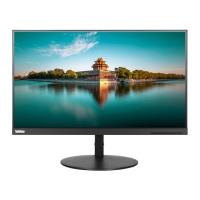
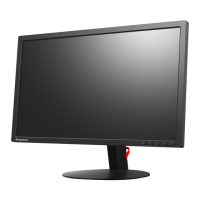
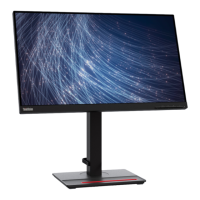
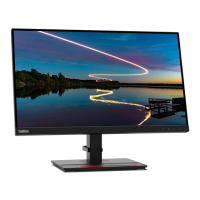
Lenovo ThinkVision T24i-30
39 pages
Print Icon
To Next Page IconTo Next Page
Loading...
ThinkVision T24i-30
User Guide
Machine Types: 63CF-MARX-WW

Questions and Answers

  • C
    Christie RiveraAug 3, 2025
    What to do if my Lenovo ThinkVision T24i-30 Monitor power indicator is not lit and there is no image?
    • J
      Joseph MorganAug 3, 2025
      If your Lenovo Monitor's power indicator isn't lit and there's no image, check the following: * Ensure the power cord is properly connected and the outlet has power. * Power on the monitor. * Try using another power cord and electrical outlet. This issue may arise if the monitor's power switch isn't on, the power cord is loose, disconnected, or the outlet isn't providing power.
  • J
    Jesse MillerAug 7, 2025
    Why is my Lenovo ThinkVision T24i-30 screen blank and the power indicator is amber?
    • J
      jacksoncharlesAug 7, 2025
      If your Lenovo Monitor screen is blank and the power indicator is amber, it might be in Standby or Suspend mode. Try these steps: * Press any key on the keyboard or move the mouse to restore operation. * Check the Power options settings on your computer.
  • P
    patriciaperezAug 11, 2025
    What to do if Lenovo ThinkVision T24i-30 power indicator is amber, but there is no image?
    • E
      elizabethturnerAug 12, 2025
      If the power indicator on your Lenovo Monitor is amber but there's no image, ensure the video signal cable is properly connected to both the system and the monitor. Also, adjust the brightness and contrast settings in the OSD menu, as they might be at their lowest.
  • P
    pstantonAug 16, 2025
    How to improve image quality on Lenovo Monitor?
    • J
      Jessica DavisAug 16, 2025
      If the image quality on your Lenovo Monitor is unacceptable, make sure the video signal cable is firmly plugged into both the system and the monitor. Also, try selecting another color setting from the OSD menu and perform automatic image setup.
  • B
    Benjamin MaloneAug 20, 2025
    How to fix fuzzy lines or blurry image on Lenovo ThinkVision T24i-30?
    • C
      catherinelynchAug 20, 2025
      To resolve fuzzy lines or a blurry image on your Lenovo Monitor, adjust the resolution settings on your system to match the monitor's native resolution of 1920 x 1080 at 60 Hz. Perform automatic image setup; if that doesn't help, perform manual image setup. You might also find improvements by adjusting the Dots Per Inch (DPI) setting on your system.
  • K
    Kimberly RobinsonAug 25, 2025
    What to do if my Lenovo ThinkVision T24i-30 Monitor says 'Out of Range'?
    • L
      Lori LunaAug 26, 2025
      If your Lenovo Monitor displays the words “Out of Range” and the power indicator is flashing white, it means the system is set to a display mode not supported by the monitor. Here are some possible solutions: * If replacing an old monitor, reconnect it and adjust the display mode to within the specified range for your new monitor. * If using a Windows system, restart the system in safe mode, then select a supported display mode for your computer.
  • O
    Oscar MarshallAug 28, 2025
    Why does my Lenovo Monitor have discolored pixels?
    • S
      shannon63Aug 29, 2025
      If you notice one or more discolored pixels on your Lenovo Monitor, it's generally a characteristic of LCD technology and not a defect. If there are more than five missing pixels, contact the Support Center.

Summary

Safety Information

General Safety Guidelines

Provides tips for using your computer safely and important safety information.

Getting Started

Shipping Contents

Lists all items included in the product package.

Notice for Use

Instructions and precautions for setting up and handling the monitor.

Product Overview

Details monitor features and adjustment types like tilt and swivel.

Height Adjustment

Details how to adjust the monitor's height and its range.

Monitor Controls

Explains the keypad controls on the back of the monitor for various functions.

Cable Lock Slot

Describes the location and function of the cable lock slot on the monitor.

Setting Up Your Monitor

Step-by-step guide for connecting cables and powering on the monitor.

Registering Your Option

Instructions on how to register your Lenovo product for service and support.

Adjusting and Using Your Monitor

Comfort and Accessibility

Guidance on ergonomic practices for comfortable and productive computer use.

Adjusting Your Monitor Image

Details on using direct access controls to adjust monitor image settings.

Using the On-Screen Display (OSD) Controls

Explains how to navigate and use the monitor's OSD menu for settings.

Selecting a Supported Display Mode

Information on choosing compatible display modes and resolutions for optimal display.

Understanding Power Management

Explains the monitor's power states, indicators, and power saving features.

Caring for Your Monitor

Instructions on how to clean and maintain the monitor to prevent damage.

Detaching the Monitor Base and Stand

Step-by-step guide on how to remove the monitor base and stand.

Wall Mounting (Optional)

Instructions for mounting the monitor to a wall using a VESA compatible kit.

Reference Information

Monitor Specifications

Detailed technical specifications for the ThinkVision T24i-30 monitor.

Troubleshooting

Common problems and suggested solutions for setting up and using the monitor.

Manually Installing the Monitor Driver

Step-by-step guide for manually installing the monitor driver in Windows.

Service and Support

Registering Your Option

How to register your product for service and support updates.

Online Technical Support

Information on accessing technical support through Lenovo's website.

Telephone Technical Support

Contact information and procedures for obtaining telephone technical support.

Notices

Recycling Information

Guidelines and information on recycling Lenovo IT equipment responsibly.

Trademarks

Lists of trademarks for Lenovo and other companies mentioned in the document.

Power Cords and Power Adapters

Important safety notice regarding the use of power cords and adapters.

Lenovo ThinkVision T24i-30 Specifications

General IconGeneral
Screen Size23.8 inches
Panel TypeIPS
Aspect Ratio16:9
Refresh Rate75 Hz
Brightness250 cd/m²
Contrast Ratio1000:1
BacklightWLED
Dynamic Contrast Ratio3M:1
Color Gamut99% sRGB
Color Support16.7 million
SpeakersNo
VESA Mount100 x 100 mm
Resolution1920 x 1080
Response Time4 ms (Extreme mode)
Ports1 x HDMI 1.4, 1 x DisplayPort 1.2, 1 x VGA, 4 x USB 3.2 Gen 1
StandTilt, Swivel, Pivot, Height Adjust
Viewing Angle178° horizontal / 178° vertical
ConnectivityHDMI, DisplayPort, USB

Related product manuals